Window Menu
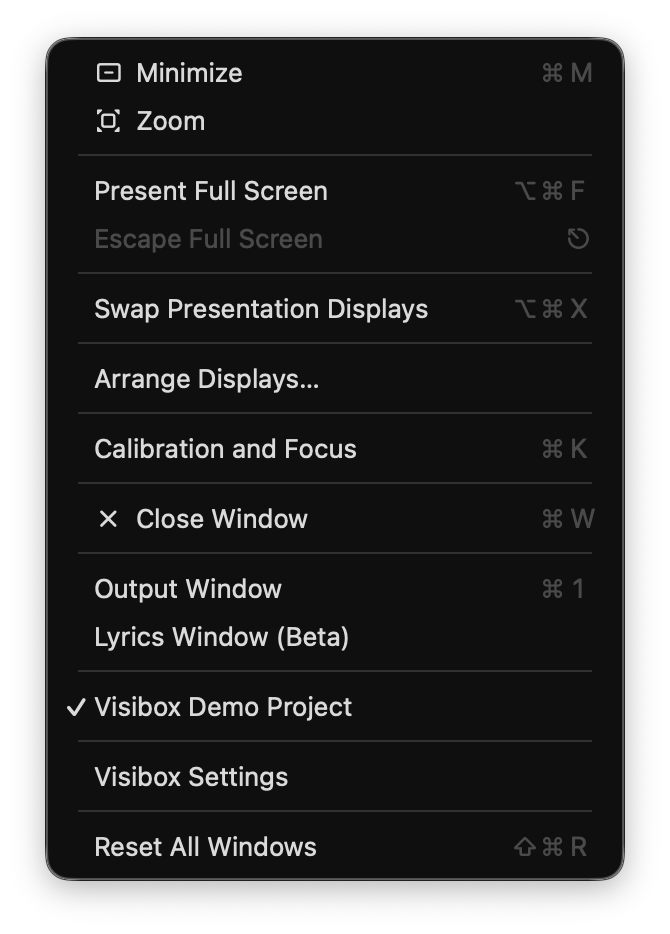
The Window menu handles presentation, display arrangement, and getting to any window Visibox has open.
Minimizes the front window. This is the operating system’s own command, so it behaves the way it does in any other app.
Toggles the front window between its current size and the largest size that fits the display. This is the macOS command that Windows calls Maximize. It is a Mac-only row: on Windows, use the Maximize button in the window’s title bar.
Select Present Full Screen (⌥⌘F) to present your Output and Controller windows full screen on different displays. If only one display is connected, only the Output goes full screen.
Once you are in full screen, Escape Full Screen brings you back out. The ⎋ key does the same, except while you are editing text.
Swap Presentation Displays (⌥⌘X) trades the Controller and Output displays when they land on the wrong screens.
Opens the Canvas tab of the Settings window, where a map of your connected displays shows how they are laid out and which one has which job. Assigning the Output display, assigning the Controller display, and flashing an identifying number onto each screen all happen there.
Arrange Displays… replaces the Output Display, Controller Display, and Identify Displays items from earlier versions. It stays available with a single display, since it is also where you check what Visibox is about to do before you plug the projector in.
In a typical performance you may have only minutes to set up, focus, and calibrate a projector. Calibration and Focus (⌘K) projects a test image: fine lines for focus, bright colors for color calibration, and grayscale steps for contrast. Aspect ratio markings help you confirm the shape you are actually filling. The row is a checkbox: choose it again to take the test image away.
Sets the Output window to a standard pixel size, from 640 x 480 up to whatever your display can hold. Sizes too large for the current display are not listed.
This row, Output Window Aspect Ratio, and Show Output Window Controls appear only while the Output window is showing. Calibration and Focus is always there, because it can bring the window up itself.
Constrains the Output window to 1:1, 4:3, 16:9, or 16:10 as you resize it. Unconstrained lets you drag it to any shape.
Shows or hides the Output window’s own title bar and controls. Uncheck it to hide output controls once the Output is on a projector.
Closes the front window.
Brings the Output window to the front.
Opens the Lyrics window, which shows the current Song’s lyrics and chords. Turn on Settings > General > Enable Beta Features to see this.
Open windows
Below those, the menu lists everything Visibox currently has open: the Controller window for each open Project, then tool windows such as Settings and the MIDI Monitor, then the editors.
- A checkmark marks the front window.
- A diamond (◊) marks a window that is minimized.
Click any name to bring that window forward, restoring it first if it was minimized.
Editor tabs are listed one by one
Effects, Visualizers, and Overlays share one window, and that window is named after whichever tab is in front. Listing it as a window would hide the other two editors behind the name of the third, so the menu lists one row per open tab instead. Click any of them and Visibox opens the window, brings that tab to the front, and focuses it. The checkmark appears on the tab that is both active in its window and in front on screen. See The Editor Window.
A panic button for Visibox. Use Reset All Windows to reload every window. If something is not behaving, this will usually fix it.
Window bounds persistence
Visibox remembers the position, size, and stacking order of its windows across restarts, so reopening the app puts everything back where you left it.