Window Menu
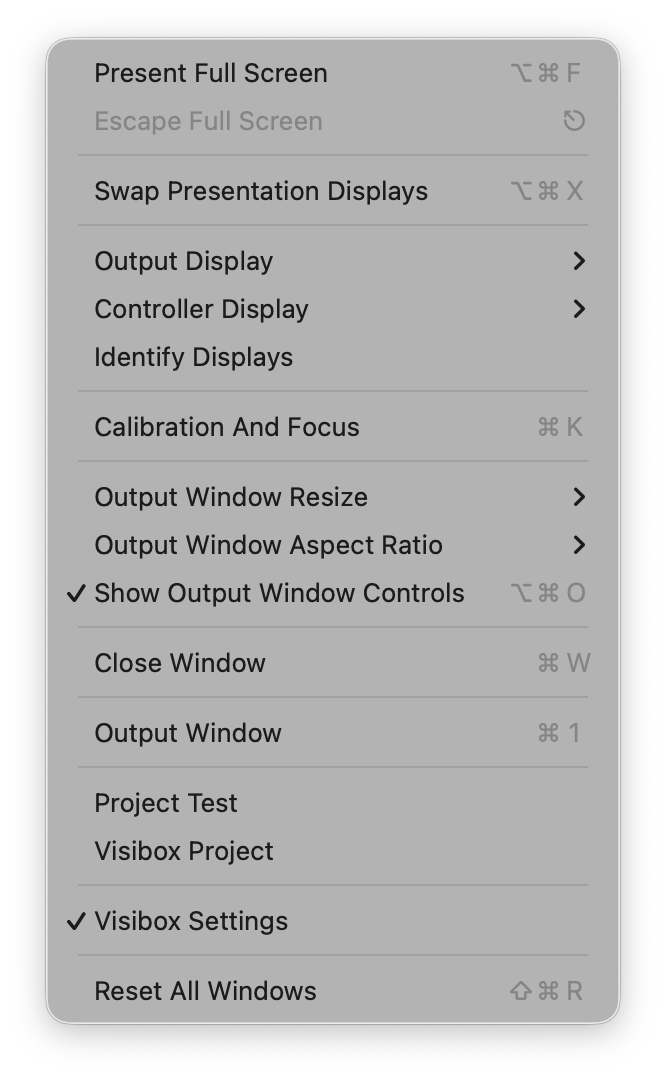
With multiple displays connected to your computer, the Window menu gives you options for managing the Controller and Output windows, including which display shows the Output and which shows the Controller, and whether they are set to Full Screen.
Select Full Screen (⌥⌘F) to present your Output and Controller windows full screen on different displays. If you only have one display connected to your computer, only the Output window will become full screen.
Once in Full Screen mode, you can Escape Full Screen with this menu item or the esc (⎋) key.
Choose Swap Presentation Displays ⌥⌘X to swap which display is showing the output and which is showing the controller.
If you have more than two displays, you can use the Output Display and Controller Display submenus to choose which you want where.
Confused about which display is which? Select Identify Displays to flash the display ids onto each of the attached screens.
In a typical performance situation, you may have only minutes to set up, focus, and calibrate a video projector. The Calibrate and Focus ⌘K menu item projects an image with fine lines for easy focusing, bright colors for color calibration, and grayscale values to calibrate contrast. Various aspect ratios are indicated to help you determine your current aspect ratio.
Opens the Effects Editor window, where you can browse, create, and customize visual Effects. See the Effects page for full details.
Opens the Visualizers Editor window, where you can browse, create, and customize Visualizer presets. See the Visualizers page for full details.
Opens the MIDI Monitor window, which displays real-time MIDI messages from connected devices. Useful for troubleshooting MIDI setup. See Using MIDI > MIDI Monitor for full details.
Close the selected window with the ⌘W shortcut or this menu item.
Shows the Output window.
Shows the Controller window for the listed Project. If you have multiple Projects open, they will be listed here.
Open Windows
The Window menu dynamically lists all currently open windows with a checkmark next to the focused window. Click any window name to bring it to the front.
This is essentially a “panic button” for Visibox. Selecting this menu item will reset the state of all windows. If something is not working as expected, this will likely fix it.
Window Bounds Persistence
Visibox remembers the position, size, and stacking order of all windows — including the Effects Editor, Visualizers Editor, MIDI Monitor, and Settings — across restarts. When you reopen Visibox, your windows return to where you left them. Use Reset All Windows if you want to return to the default layout.