Remote Pairing
The Remote Pairing window lets you connect external devices and AI tools to Visibox over the network. Open it from Window > Remote Pairing.
Pairing a Device
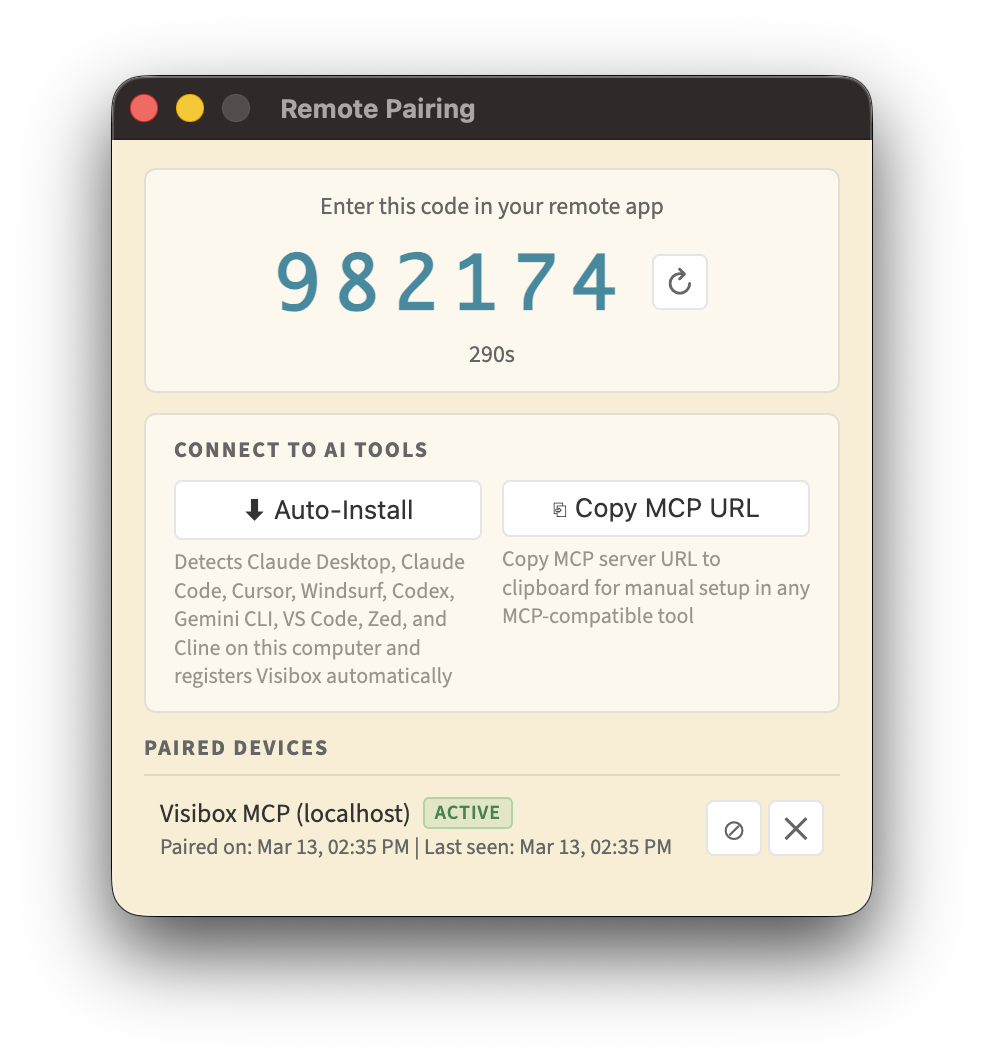
Devices connecting to Visibox over the network must pair first using a one-time code:
- Open the Remote Pairing window (Window > Remote Pairing).
- A 6-digit code appears on screen with a countdown timer. The code expires after 5 minutes.
- On the remote device, enter the code (or send it via the API).
- Visibox returns a token that the device stores for future connections. Tokens are valid for 30 days.
If the code expires, click Generate New Code to get a fresh one.
Connections from localhost (the same machine) are automatically authenticated — no pairing or token is needed. This is how the Stream Deck plugin and MCP server connect seamlessly.
Connecting AI Tools
The Remote Pairing window can automatically install the Visibox MCP server configuration into supported AI tools. Click the Auto-Install button to detect and configure any of the following:
- Claude Desktop
- Claude Code
- Cursor
- Windsurf
- Codex
- Gemini CLI
- VS Code
- Zed
- Cline
You can also click Copy MCP URL to manually add the Visibox MCP server to any tool that supports the Model Context Protocol. See AI Assistants for more about what AI tools can do with Visibox.
Managing Paired Devices
The bottom of the Remote Pairing window lists all paired devices with their status:
- Device name — Identifies the paired device or tool.
- Status — Shows whether the device is Active or Revoked.
- Paired on — When the device was first paired.
- Last seen — When the device last connected.
You can Revoke access to disconnect a device, or Remove it entirely from the list.