Visualizers
Visualizers are live, generative, audio-reactive Clips — a built-in VJ engine with no media files required. Visibox includes two engines, ISF and MilkDrop, each with its own history and aesthetic.
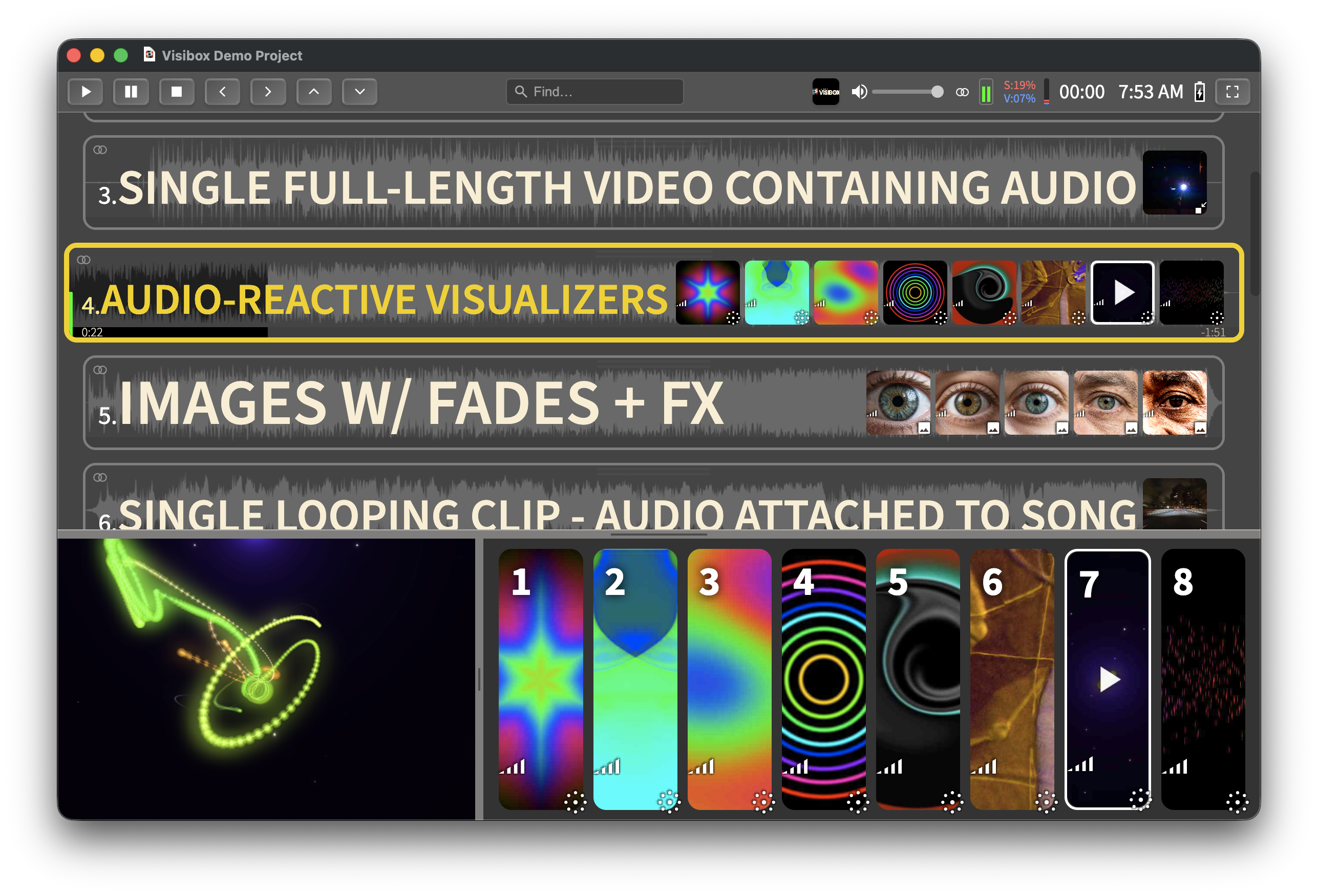
Adding a Visualizer Clip
- Right-click on a Song and select Add Visualizer Clip, or use the Song menu.
- A dialog appears listing all available presets. Browse or search to find one you like.
- Select a preset and click Add. The Visualizer Clip appears in your Song alongside your other Clips.
Visualizer Clips show a distinctive icon in their thumbnail to differentiate them from video and image Clips.
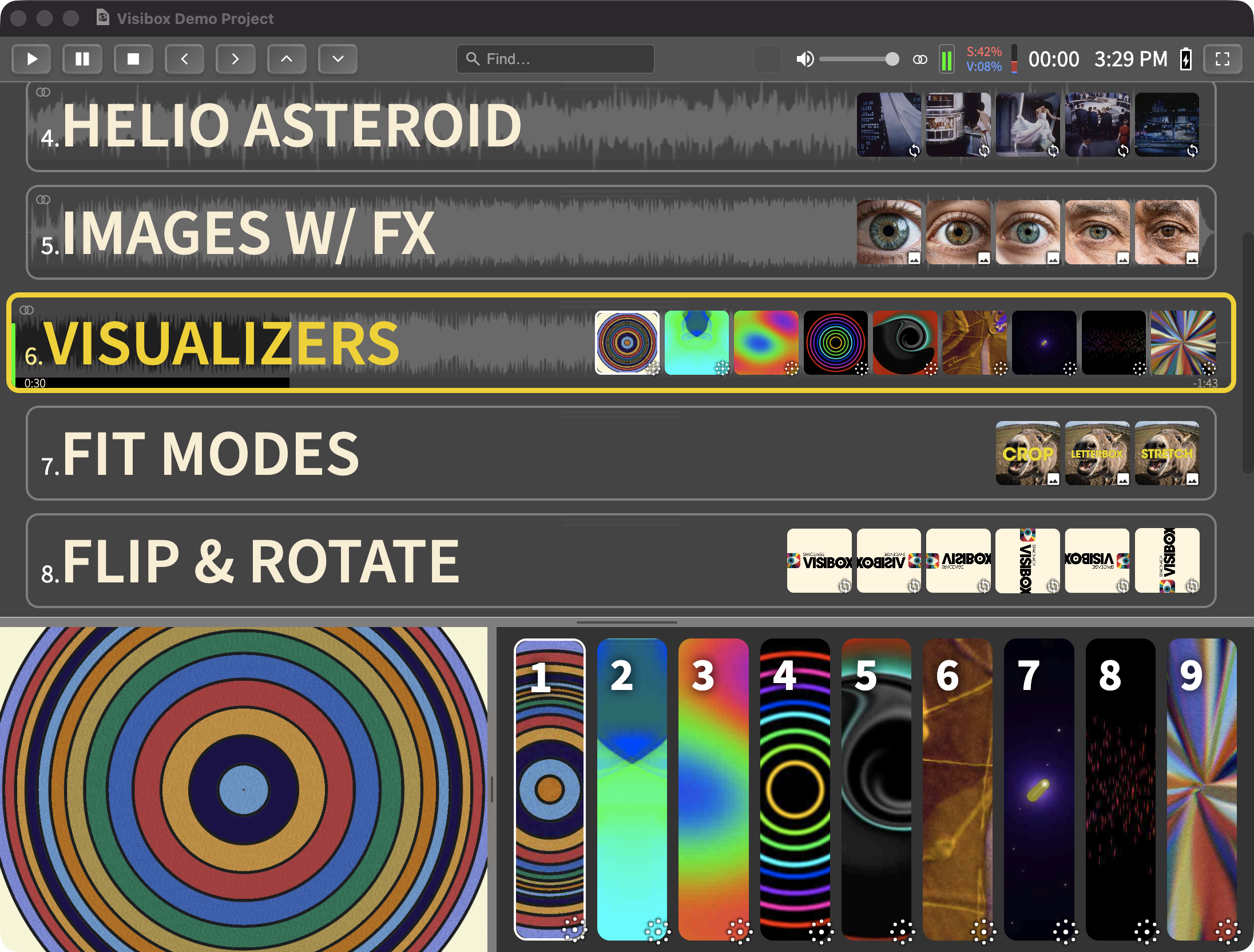
Visualizer Options
Right-click on a Visualizer Clip to access its options.
Audio Source
| Option | Description |
|---|---|
| None | The Visualizer does not react to audio. |
| Visibox | Reacts to audio playing within Visibox — the default. |
| System Audio | Reacts to audio from other applications on your computer (Spotify, a DAW, a browser, etc.). Only available when System Audio Input is enabled in Settings > Audio. |
| Audio Input | Reacts to a specific audio input device, such as a microphone or line-in. Lists your available input devices. |
On macOS 14.2 and later, enabling System Audio Input requires granting Visibox permission to capture system audio. macOS will prompt you the first time you enable it.
ISF (Interactive Shader Format)
ISF was created by Vidvox in 2013 for their VDMX professional VJ software. The goal was a portable, reusable format for GLSL fragment shaders — the same low-level GPU programs used in game engines and creative coding tools — with a standardized way to define inputs, audio reactivity, and multi-pass rendering. It’s now an open standard supported across a range of VJ tools.
ISF is a blank canvas. Anything you can describe mathematically can become a visualizer — from a clean spectrum analyzer to a complex feedback loop. Its structured editor with typed inputs makes it the more approachable of the two engines for creating and tweaking presets.
Visibox includes built-in ISF presets covering classic visualizer styles.
Finding More ISF Presets
One of the advantages of ISF being an open standard is that you don’t have to build every visualizer yourself — a large body of community shaders is already out there on the web. The ISF website and the ISF editor are good starting points; shader collections are also routinely shared on Shadertoy and in GitHub repositories. To bring one into Visibox, drag the .fs, .frag, or .json file into the Visualizers Editor — Visibox imports it into “My Visualizers” and converts it to its native format. See Importing and Exporting for details.
Editing ISF Presets
The ISF documentation is the definitive reference for the format.
| Tab | Description |
|---|---|
| Shader | A full code editor for the GLSL fragment shader (and optionally a vertex shader) with GLSL syntax highlighting. |
| Tweak | Adjust input values with sliders and controls without editing code — a quick way to explore variations. |
| Inputs | Define typed inputs — numbers, colors, and audio inputs that provide waveform and frequency data to the shader. |
| Passes | Configure multi-pass rendering, enabling feedback effects where each frame builds on the previous one. |
| Info | Metadata — name, description, credits, and categories. Comments in the ISF header sync bidirectionally with the editor — edits in the code update the Info tab and vice versa. |
ISF shaders support two audio input types:
audio— The raw audio waveform.audioFFT— The frequency spectrum (bass, mids, highs).
MilkDrop
MilkDrop was created by Ryan Geiss and first released in 2001 as a plugin for Winamp, where it became one of the most downloaded plugins ever. For a generation of music fans it defined what a visualizer could be — an endlessly evolving, psychedelic light show driven entirely by audio.
Presets combine a simple equation language (EEL) for per-frame logic with GLSL shaders for GPU-powered effects, producing visuals that feel organic and alive in a way that’s hard to replicate with other tools. MilkDrop went open source, a large community of authors has produced thousands of presets over the decades, and modern implementations bring it to contemporary hardware.
Visibox ships with a curated collection of MilkDrop presets ranging from classic favorites to modern community creations.
Finding More MilkDrop Presets
Because MilkDrop has been around for two decades, there’s an enormous archive of .milk presets on the web — easily tens of thousands once you start digging. Ryan Geiss’s Geisswerks site is the original home of MilkDrop, and large community packs (like the well-known “Cream of the Crop” collection) are readily findable. To bring them into Visibox, drag .milk files into the Visualizers Editor — Visibox imports them into “My Visualizers” and converts them to its native format. See Importing and Exporting for details.
Editing MilkDrop Presets
| Tab | Description |
|---|---|
| Base Values | Numeric parameters that control the overall behavior — zoom, speed, warp amount, decay, and more. Adjust these with sliders or by typing values. |
| Per-Frame | EEL equations that run every frame. These can modify base values dynamically — for example, making zoom oscillate with a sine wave or react to bass energy. |
| Per-Vertex | EEL equations that run for each vertex in the mesh, creating spatial variation across the screen. |
| Waveforms | Configure up to four waveform overlays that draw audio waveform shapes. Use the Initialize button to set up a default waveform, and the + button to add more (up to 4). |
| Shapes | Configure up to four geometric shapes that can be positioned, scaled, and colored. Use Initialize and + buttons to manage shape slots (up to 4). |
| Shaders | GLSL shader code for the warp and comp (composite) passes. This is where the most dramatic visual effects happen. |
Editing MilkDrop presets requires familiarity with EEL and/or GLSL shaders. The MilkDrop Preset Authoring Guide is the definitive reference.
The Visualizers Editor
Open from Window > Visualizers Editor. The left panel lists all available presets; the right panel is the editor for the selected preset, with a live preview. Drag the divider to resize.
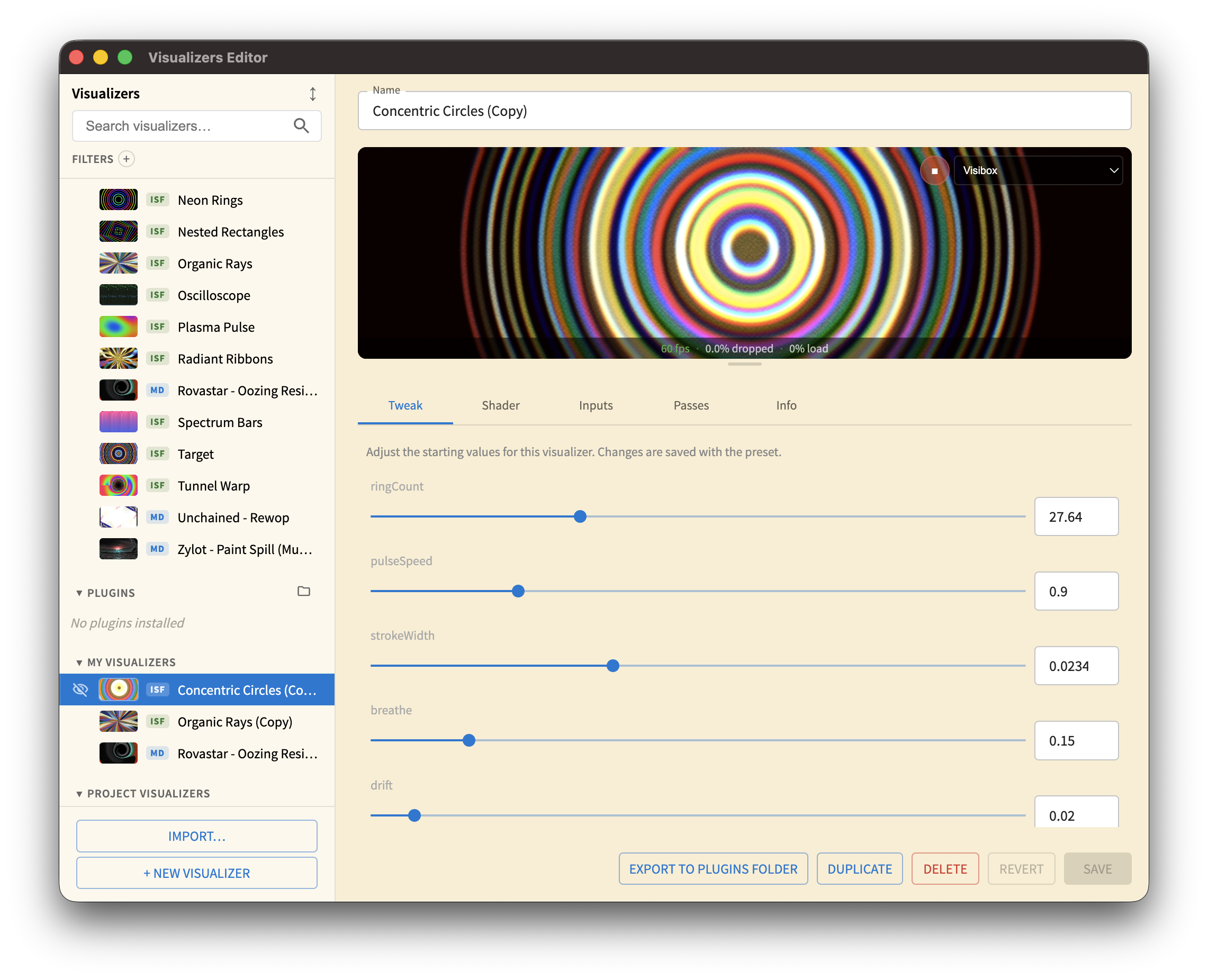
Preset Hierarchy
The Visualizers Editor organizes presets into four tiers, from read-only built-ins to project-specific copies:
| Tier | Name | Description |
|---|---|---|
| 1 | App Presets | Built-in ISF and MilkDrop presets. Read-only. |
| 2 | Plugin Presets | Loaded from the Plugins folder at startup. Read-only. |
| 3 | My Visualizers | Your own presets. Fully editable. Stored on your machine. |
| 4 | Project Visualizers | Copies stored inside your project file. These are what actually run during playback. |
Linked and Unlinked
When you add any preset to a Song — whether an App Preset, a Plugin Preset, or one from My Visualizers — Visibox creates a linked copy inside the project file. A linked copy:
- Stays in sync automatically. If you update the original in My Visualizers, every project using a linked copy of it will update the next time you open the project.
- Cannot be edited directly. To customize it, you need to unlink it first.
To unlink a preset, right-click it in the Project Visualizers section and select Duplicate. This creates an independent, editable copy specific to that project. Changes to the copy won’t affect the original, and future changes to the original won’t affect the copy.
Use linked presets when you want a consistent look across multiple projects. Unlink when you need to tailor a visualizer to a specific set.
Projects Are Self-Contained
Every project stores a complete copy of its visualizers — even linked ones. This means:
- Deleting a My Visualizers preset won’t break your projects. If you remove a preset from My Visualizers, any project that used it keeps playing back just fine. The project has its own copy, and Visibox will note that the original source is no longer available.
- Projects are portable. Your
.vsbxfile contains everything it needs to play back without relying on presets stored on your machine.
Browsing and Searching
- Search by name using the search box.
- Filter by tier (App, Plugin, My Visualizers, Project).
- Sort alphabetically or by tier.
- Show/Hide presets using the visibility toggle on hover.
Adding a Visualizer to a Song from the Editor
You can drag a Visualizer directly from the Visualizers Editor into a Song widget in the Controller window. This is a quick way to add a specific preset without going through the Add Visualizer Clip dialog.
Audio Audition
To preview how a Visualizer responds to audio, hover over the preview and click the play button that appears overlaid on it. Visibox plays a test audio signal so you can evaluate audio reactivity without adding the preset to a Project first.
Shader Performance Monitor
The Visualizers Editor includes a performance overlay that shows the current frame rate and GPU load for the selected preset. This helps you identify presets that may be too demanding for your hardware — especially important during live performance where dropped frames are noticeable.
Syntax Highlighting
The code editors in the Visualizers Editor support syntax highlighting for GLSL, HLSL, and MilkDrop’s EEL equation language. This makes it easier to read and edit shader code, especially for complex presets with multiple passes.
Creating a Visualizer
Click + to create a new Visualizer in “My Visualizers.” Choose ISF or MilkDrop, then start editing.
Importing and Exporting
Visibox’s native Visualizer format is .vbvs. ISF and MilkDrop files must be imported — Visibox converts them to .vbvs on the way in — while native .vbvs files can either be imported or installed as plugins.
Importing
Drag any supported file into the Visualizers Editor. Visibox imports it into My Visualizers (Tier 3), converting non-native formats to .vbvs.
| Format | Extension | Description |
|---|---|---|
| Visibox Visualizer | .vbvs | Visibox’s native visualizer format. |
| ISF Fragment Shader | .fs, .frag | GLSL fragment shaders in ISF format. |
| ISF JSON | .json | ISF preset bundles with metadata. |
| MilkDrop Preset | .milk | Classic MilkDrop preset files. |
Installing as a Plugin
Only .vbvs files can be installed as plugins. Place them in:
- Mac:
~/Library/Visibox/Plugins/Visualizers/ - Windows:
%APPDATA%/Visibox/Plugins/Visualizers/
Plugin Visualizers load at startup and appear in Tier 2. To turn an ISF or MilkDrop preset into a plugin, import it first, then export it as .vbvs (see below) and drop the exported file into the Plugins folder.
Exporting
Right-click any Visualizer and select Export to save it as a .vbvs file. .vbvs files are portable across Visibox installations on Mac and Windows, so this is also the format to use when sharing your work with other Visibox users.
MilkDrop Texture Compatibility
Some MilkDrop presets reference external texture files that classic MilkDrop loads from a Textures/ folder alongside the preset. Visibox doesn’t load external textures, so when you import one of these presets Visibox shows a Preset Compatibility Warning listing the missing textures. The preset still imports and runs — but any effect that depended on a missing texture won’t render. If a preset looks visually off after import, a missing texture is the most likely cause.