Connecting an Elgato Stream Deck
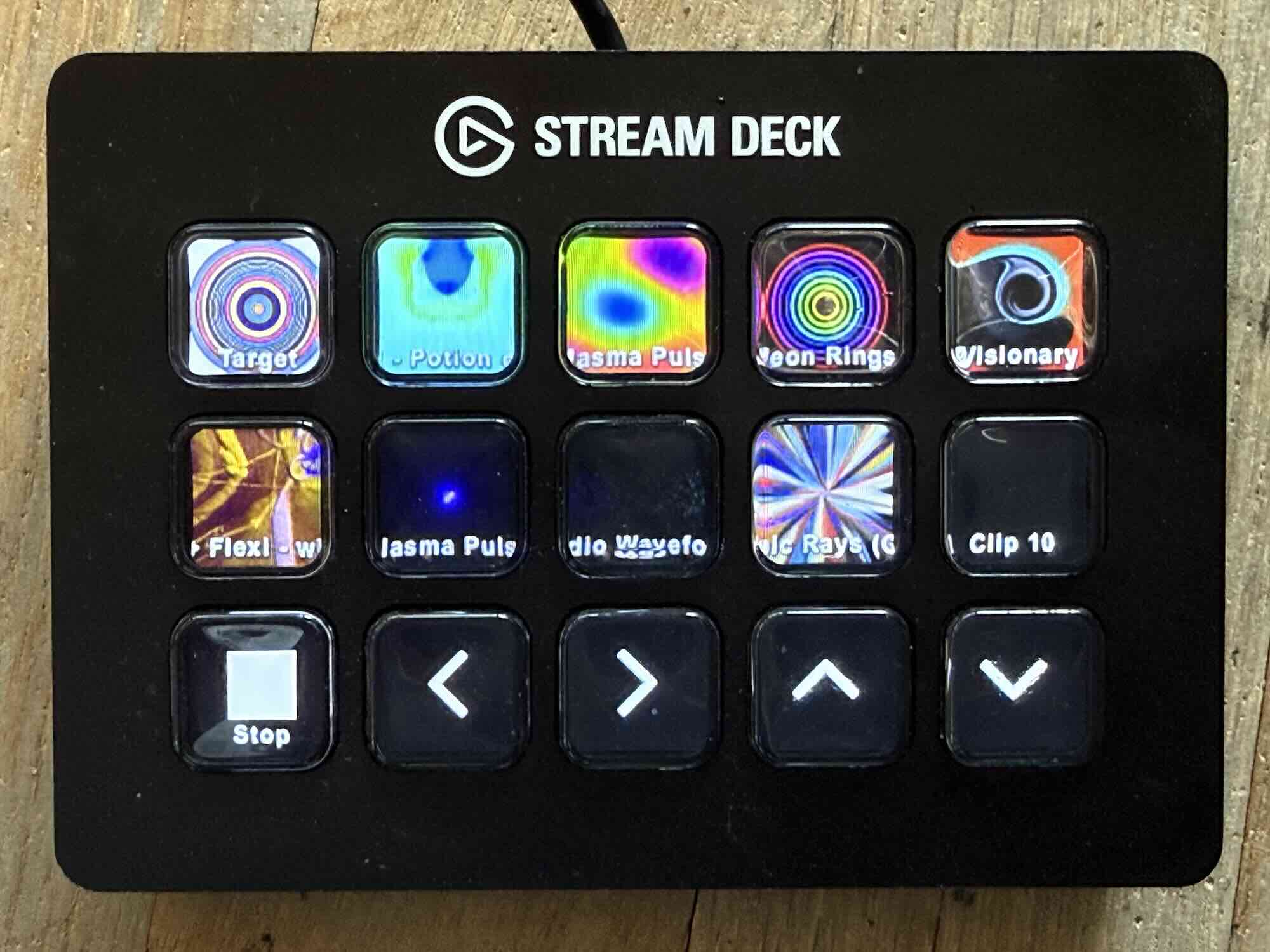
The Elgato Stream Deck is an excellent companion for Visibox. With live clip thumbnails on the buttons, playback controls, and Song navigation, it gives you tactile, eyes-free control of your show.
Stream Deck Plugin (Recommended)
Visibox 5.0 includes an official Stream Deck plugin that works within Elgato’s Stream Deck software. This is the recommended way to use a Stream Deck with Visibox — it lets you mix Visibox actions with actions from other apps on the same Stream Deck.
Installation
- Open Settings > Devices in Visibox.
- Set Stream Deck Mode to Stream Deck Plugin.
- Click Install Stream Deck Plugin. This installs the Visibox plugin into Elgato’s Stream Deck software.
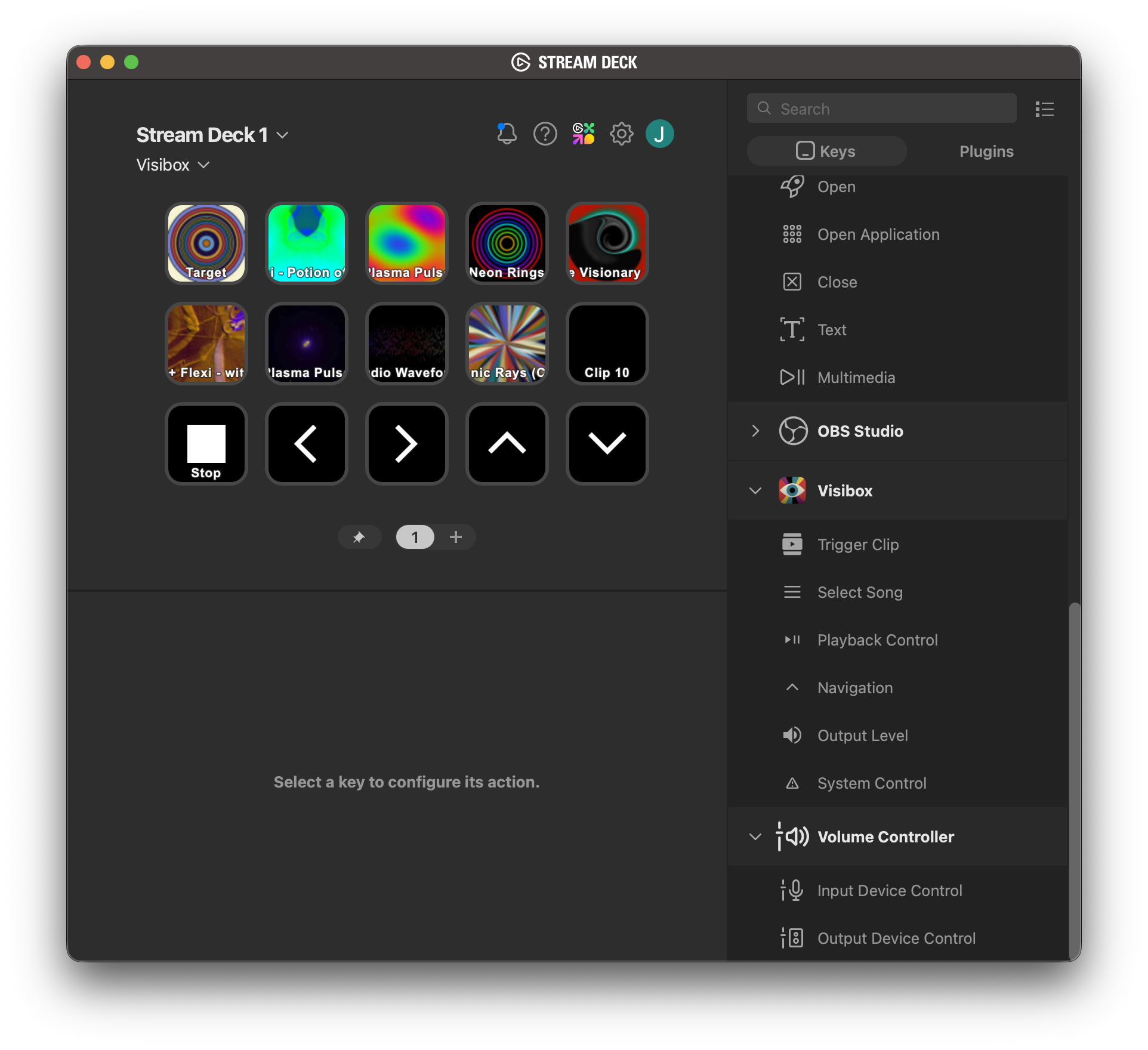
- Open the Stream Deck software. You will find a “Visibox” category in the action list.
Available Actions
The plugin provides six action types that you can drag onto any Stream Deck button:
| Action | Description |
|---|---|
| Trigger Clip | Trigger a Clip by its position in the current Song. The button displays a live thumbnail. |
| Select Song | Switch to a Song by its index or ID. |
| Playback Control | Play, Pause, Stop, Resume, Play/Stop Toggle, or Pause/Resume Toggle. |
| Navigation | Next/Previous Clip or Next/Previous Song. |
| Output Level | Adjust the master volume. On Stream Deck+ encoders, rotate to adjust and press to toggle mute. |
| System Control | Panic (emergency reload) or Fullscreen toggle. |
Trigger Clip
Assign this action to a button and set the Clip Number (1, 2, 3, etc.). The button displays a live thumbnail of the Clip at that position in the current Song. Press the button to trigger the Clip. When the Clip is playing, the button shows its current frame. Visualizer Clips display a rendered thumbnail just like video and image Clips.
The Song Offset setting changes which Song the Clip Number refers to, relative to the active Song. An offset of 0 (the default) targets a Clip in the active Song, -1 targets a Clip in the previous Song, and 1 targets a Clip in the next Song. This is useful for setting up buttons to pre-cue the next Song while the current one is playing.
By default the button shows the Clip’s thumbnail. You can uncheck Show Clip Thumbnail to display only the default icon, or enable Show Icon When Empty to display a placeholder icon for Clip slots that have no Clip assigned.
Select Song
Select a Song by its position in the Project (Song Number) or by its Song ID (the unique identifier shown in the Song inspector). Enabling Stop Current Playback stops any playing Clips before switching to the new Song.
Playback Control
Choose from: Play, Pause, Stop, Resume, Play/Stop Toggle, or Pause/Resume Toggle. The button icon updates to reflect the current playback state.
Navigation
Navigate between Clips or Songs. Choose a direction from the dropdown:
- Next Clip / Previous Clip — step through Clips in the current Song
- Next Song / Previous Song — jump to an adjacent Song
For Clip navigation, enable Unconstrained to allow navigation to cross Song boundaries (wrapping from the last Clip of one Song to the first Clip of the next).
For Song navigation, enable Don’t Stop Playing Clips to keep the current Clips playing as you switch Songs.
Output Level
Set a specific volume level (0.0 = mute, 1.0 = full) to jump to when the button is pressed. On Stream Deck+ encoders, rotate the dial to adjust the master volume smoothly and press to toggle mute. The Encoder Step Size controls how much the volume changes per tick of the encoder dial.
System Control
Panic triggers an emergency reload of all output windows — use it if something goes wrong during a show. Fullscreen toggles fullscreen mode on the output window.
Live Thumbnails
When you assign a Trigger Clip action to a button, the Stream Deck shows a live thumbnail of that Clip on the button face. The thumbnails update in real-time as you switch Songs, so you always know which Clip is assigned to which button. Visualizer Clips show a rendered preview of the visualizer, not just a generic icon.
Multi-Language Support
The Stream Deck plugin interface is available in English, German, French, and Spanish.
Built-in Mode (Legacy)
For users who prefer the original behavior, Visibox can take over the Stream Deck directly via USB without Elgato’s software.
To use Legacy mode:
- Open Settings > Devices in Visibox.
- Set Stream Deck Mode to Built-in (Legacy).
- Quit the Elgato Stream Deck application if it is running.
- Connect your Stream Deck and Visibox will take over all buttons.
In Legacy mode, Visibox automatically maps the buttons to Clips in the current Song, with buttons for Stop, Previous Clip, Next Clip, Previous Song, and Next Song.
Since Legacy mode takes over complete control of the Stream Deck, you cannot use it with other applications simultaneously. The Stream Deck Plugin mode is recommended for most users.
Multiple Stream Decks
You can use more than one Stream Deck with Visibox at the same time. In Plugin mode, each Stream Deck is configured independently in the Elgato Stream Deck software — assign different profiles or layouts to each device. For example, use a Stream Deck XL for Clip triggering and a Stream Deck Mini for Song navigation and transport controls.
Troubleshooting
Stream Deck not showing Visibox actions:
- Make sure the Stream Deck plugin is installed (Settings > Devices > Install Stream Deck Plugin).
- Quit and reopen the Stream Deck software after installing the plugin.
- Confirm that Visibox is running — the plugin communicates with Visibox over the local API.
Thumbnails not updating:
- Check that Visibox’s API is running (the API indicator in the Control Bar should be active).
- If thumbnails appear blank, try removing and re-adding the action on the Stream Deck button.
Stream Deck disconnects during performance:
- If the Stream Deck briefly disconnects and reconnects (e.g., due to a USB cable bump), the plugin will automatically reconnect and restore button states within a few seconds.
- For reliable connections during performances, use a short, high-quality USB cable and avoid USB hubs if possible.