Song Editor Panel
Right-click any Song in the Controller Window to open the Song Editor Panel — a floating tool panel for managing Song contents, audio, and settings.
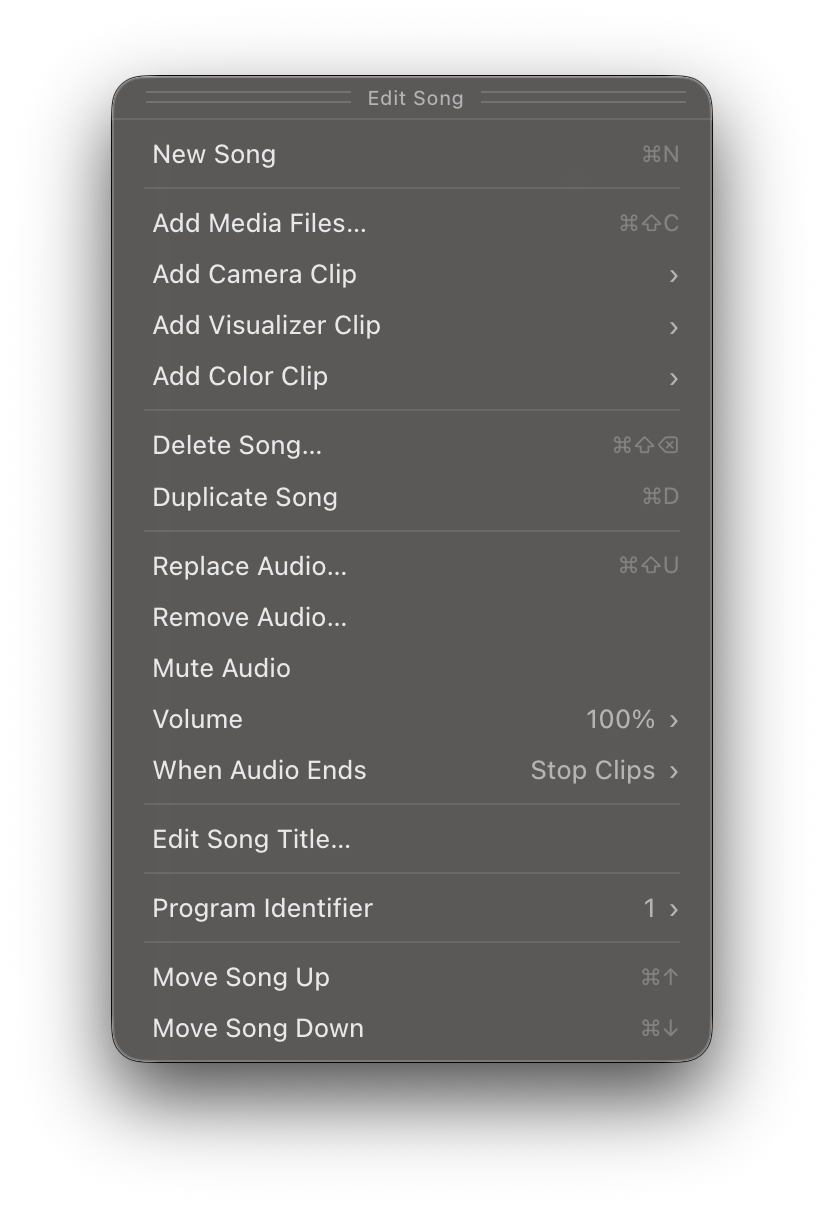
The Song Editor Panel gives you quick access to adding Clips, managing Song audio, and organizing your Song list. Some options only appear for single Songs, while others work with multiple Songs selected.
Adding Clips
These options add new Clips to the selected Song. They are available when a single Song is selected.
Open a file dialog to select one or more media files (video, image, or audio) to add to the Song. This is the same as dragging files from the desktop into a Song.
Add a live video feed as a Clip. The subpanel lists all connected cameras and video input devices. Select a device to add it. See Connecting Cameras & Video Inputs for setup details.
Add a Visualizer Clip that displays live, generative, audio-reactive visuals. The subpanel lists all available Visualizer presets. Select Edit Visualizers… to open the Visualizers Editor. See the Visualizers page for full details.
Add a solid-color Clip to the Song. The subpanel shows 12 preset color swatches to choose from: Black, White, Gray, Red, Orange, Gold, Yellow, Green, Sky Blue, Blue, Purple, and Magenta.
Color Clips are useful when a Song has an attached audio track but no visual content — Visibox must be playing a Clip in order to play Song audio. A black Color Clip gives you a clean way to play “nothing” visually. You can also apply Effects to Color Clips for textured, animated visuals from a simple solid color.
After adding a Color Clip, right-click it to open the Clip Editor Panel where you can use the full color picker to set a precise color with hex values or the system color picker, rather than being limited to the preset swatches.
Audio
Audio options manage the Song’s background audio track — a “backing track” that plays alongside the Song’s Clips.
Open a file dialog to select an audio file as the Song’s backing track. If the Song already has audio attached, this option reads Replace Audio… instead.
Supported audio formats: MP3, AAC, M4A, WAV, FLAC, OGA, and OPUS.
Remove the Song’s attached audio track. This option only appears when the Song has audio.
Toggle the Song’s audio track on or off.
Adjust the Song audio volume. The slider ranges from 0% to 200%.
Click the displayed value to type a precise percentage.
Controls what happens when the Song’s audio track finishes playing:
- Stop Clips — Stop the currently-playing Clip when the audio ends.
- Clips Keep Playing — Let Clips continue playing after the audio finishes.
- Loop Audio — Restart the audio track from the beginning.
- Cue Next Song — Navigate to the next Song and wait.
- Start Next Song — Navigate to the next Song and begin playing it.
Song Management
Put the Song’s title into edit mode. You can also double-click the Song title directly in the Controller Window.
This option is available for single Songs only.
Assign a MIDI Program Change number (1–128) to the Song. External MIDI devices or software can then trigger this Song by sending the corresponding Program Change message.
Select None to remove the Program Identifier.
See Selecting Songs Via MIDI Program Change for details on setting up MIDI control.
This option is available for single Songs only.
Actions
Create a new, empty Song in the Project.
Make a copy of the selected Songs. Duplicates reference the same media files as the originals.
Delete the selected Songs and all their Clips. When multiple Songs are selected, the label shows the count (e.g., “Delete 3 Songs…”).
Move selected Songs up or down in the Project. You can also drag Song frames to reorder them.