Lyrics
Lyrics puts a chord and lyric sheet on its own screen, facing the stage, while Visibox drives the visuals out front. Paste the chart you already have, pick a size you can read from where you stand, and Visibox follows the Song as you play it.
It reads the chart formats musicians actually keep songs in. You do not convert anything.
Getting a Sheet In
Select a Song, then choose Song > Edit Song Lyrics… (Beta). The Song’s right-click menu has the same row. Paste your chart into the pane and Visibox works out what it is.
Turn on Settings > General > Enable Beta Features to see this.
Nothing to configure and no format to pick. Visibox reads:
| Format | What it looks like |
|---|---|
| ChordPro | Chords in brackets inside the words: [C]Hello dark[Am]ness |
| OnSong | ChordPro with OnSong’s header lines. Reads as ChordPro. |
| Chords over lyrics | A line of chords sitting above a line of words. The way most tab sites print a song. |
| OpenSong | Chord lines starting with a dot, lyric lines starting with a space. |
| Nashville | Chords written as numbers: 1 4 5, 6m, b7. |
| iReal Pro | An irealb:// link pasted straight in. |
| Lyrics only | Words with no chords at all. |
The status bar at the bottom of the editor names the format it detected, so you can see at a glance that your paste came through as you expected.
Visibox also reads bar charts, fingerpicking patterns, and ASCII tab, wherever they turn up in the sheet.
Song information
Visibox picks up a line like Title: Wichita Lineman or a ChordPro directive as song information rather than lyrics:
{title: Wichita Lineman}
{artist: Jimmy Webb}
{key: F}
{capo: 2}
The directives Visibox reads are title, subtitle, artist, composer, album, year, key, capo, tempo, time, duration, and tuning. Visibox leaves anything else alone and notes it as a warning, so a sheet from another app never breaks.
Visibox understands plain lines too: Capo: 2, Capo II, and Capo: none. The line has to start with the word Capo. After Capo:, the words none, off, and no all mean no capo.
Sections
Mark a section any of these ways:
[Verse 1]
Chorus:
{start_of_chorus} … {end_of_chorus}
---
Three hyphens on their own line start a new section without labeling it.
Square brackets take any label you like. The plain Chorus: form is the narrower one: it works for the section names Visibox knows, which are Intro, Verse, Chorus, Pre-Chorus, Bridge, Outro, Ending, Coda, Interlude, Instrumental, Break, Solo, Tag, Refrain, and Hook. Put a name of your own in square brackets instead.
A # at the start of a line is a note to yourself. It never appears on the screen.
Chord diagrams you define yourself
If a chord in your sheet has a voicing you want shown, define it:
{define: Cm base-fret 8 frets 8 10 10 8 8 8}
There is a shorter form as well, for when you are typing from a chord box on paper:
Cm 8-10-10-8-8-8
Frets run from the low string to the high one. x is a muted string and 0 is an open one. A definition in the sheet wins over the built-in shape.
Timing a Sheet
An untimed sheet scrolls at a steady rate. A timed sheet follows the Song, which is better, and stamping the times takes one pass.
Put a time marker at the start of a line and Visibox knows when that line arrives:
| Marker | Means |
|---|---|
[0:12] | Twelve seconds into the Song. |
[1:05.5] | The same, to a fraction of a second. |
[75] | Plain seconds from the start. |
A marker has to open the line. A marker alone on its own line hands its time to the line below it. That is how you time a chords-over-words pair: put the marker on a line of its own above the pair, and it stays out of the chord columns.
Tap timing
Typing markers by hand is slow. Tap them in instead:
- Open the Song’s lyrics in the editor.
- Turn on Tap timing in the status bar at the bottom.
- Trigger the Song and let it play.
- Press ⌘⏎ as each line arrives. Visibox stamps the current time onto the line at the cursor and moves down to the next one.
The readout beside the checkbox shows where the Song is, so you know the timing is live before you start tapping. One press is one marker, so holding the keys down does not stamp a run of lines.
The markers are ordinary text in the sheet. Fix a mistimed line by editing its number.
The Lyrics Window
Choose Window > Lyrics Window (Beta) to open it. It follows whichever project and Song are active, so it keeps up as you move through the set without being touched.
Turn on Settings > General > Enable Beta Features to see this.
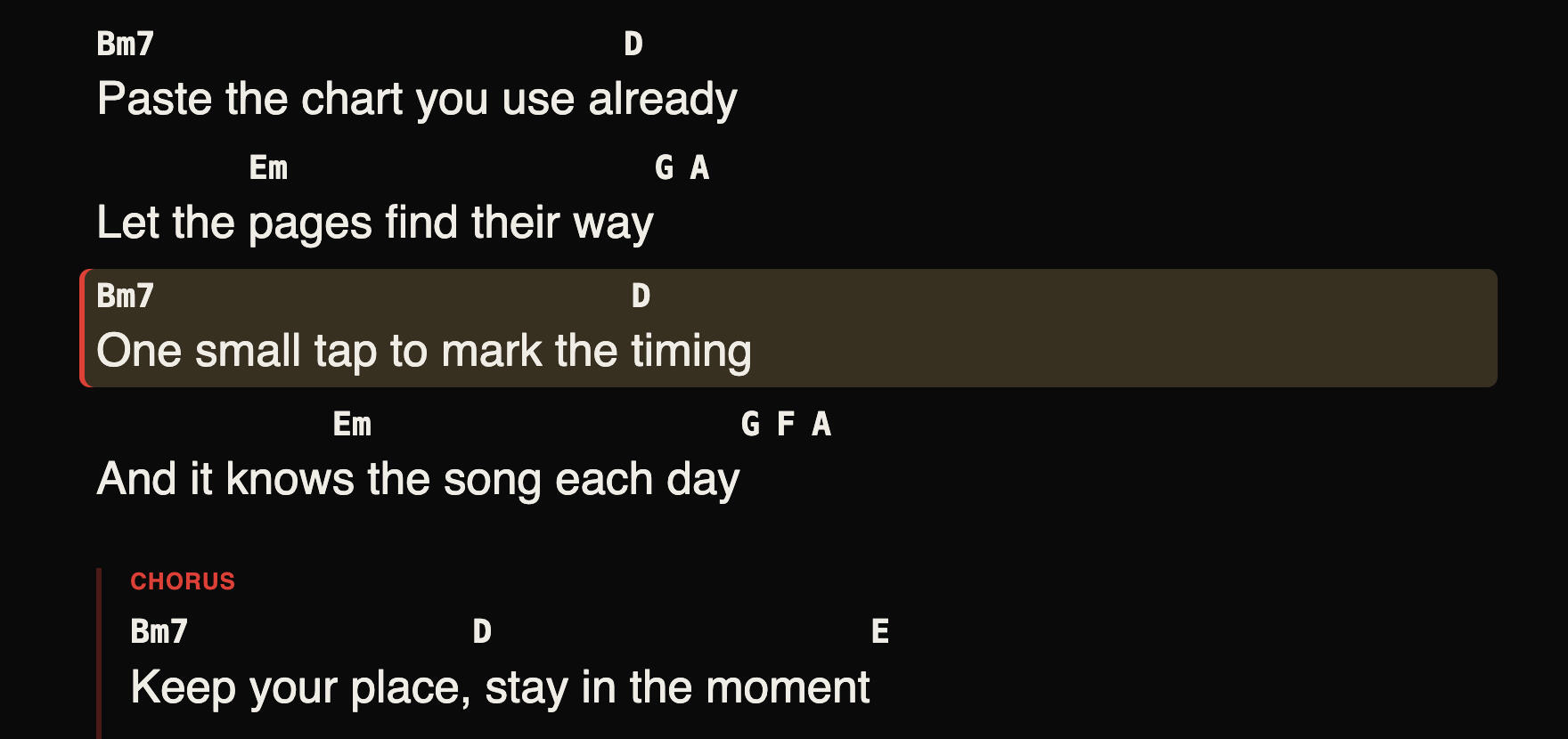
The controls bar sits at the top and slides away after a few seconds of not being used, leaving the sheet alone on the screen. Move the mouse to bring it back, or click the pin to keep it up while you set things.
View modes
| Mode | What you get |
|---|---|
| Teleprompter | The whole sheet scrolling continuously, with the current line in the middle. |
| Stage | The current line large, with the next two lines below it, dimmed. |
Teleprompter is the default and the one most players want. Stage is for a small screen and a big room.
Scrolling
Scroll speed is set in lines per minute, from 0 to 60. At 0 it reads Off and the sheet stays where you put it.
If the sheet carries time markers, the control reads Timed and turns itself off, because Visibox is following the Song instead of guessing a rate. Scroll the sheet by hand at any point and it picks up again from where you left it rather than snapping back.
Chords and diagrams
| Control | Options |
|---|---|
| Chords / Lyrics | Show the chords, or hide them and read the words only. |
| Chord display | Chord names, Diagrams (first use), or Diagrams (every chord). |
| Instrument | Guitar, Ukulele, or Piano. |
Diagrams (first use) is the useful middle setting: a diagram the first time a chord appears, its name after that. Guitar and ukulele get fretboard boxes, piano gets a small keyboard with the notes filled in.
Visibox has open-position shapes for the common chords and works out a barre shape for anything else, so a chord you have never seen still gets a diagram.
If your sheet contains tab, a Tab control appears with two settings: Tab: notation draws it as a clean fretboard diagram, Tab: text leaves it as the monospaced ASCII you pasted.
Transpose and capo
Transpose moves the chart a semitone at a time. The readout shows +0 at rest, then ♯2 or ♭3 as you move it. Chord shapes and any diagrams follow, and Transpose leaves the chord quality alone: a Cmaj7 becomes a Dmaj7, not a D.
Transpose is per-Song and deliberately temporary. It resets when you move to another Song, so a chart you dropped a tone for one singer does not follow you into the next number.
If the sheet declares a capo, a second control appears with two settings:
- Capo 2 (or whatever fret the sheet names) shows the chords as printed. This is what you fret with the capo on.
- Concert shows the chords as they actually sound, so a piano or horn player reading over your shoulder is in the right key.
Text size and theme
Text size runs from 50% to 300%. ⌘+ and ⌘- step it, and ⌘0 puts it back to 100%. Set it once for the screen you are standing at and it stays.
Light and Dark switch the sheet’s theme. Dark is the default, and it is the right one for a dark stage.
An Edit button in the controls bar opens the current Song’s sheet in the editor. Fix a wrong chord between songs without leaving the window.
Putting Lyrics on Their Own Screen
Lyrics get a screen of their own, separate from the output your audience sees and separate from the Controller.
- Open Settings > Canvas.
- Select the screen you want in the display arranger.
- Set its Role to Lyrics.
A screen assigned to Lyrics is not an output target and is never picked for the Controller, so nothing else can land on it by accident. Once you make the assignment, Present Full Screen drives the Lyrics window full screen onto that display along with everything else.
If the screen is not plugged in, or the Lyrics window is closed, Present Full Screen skips it. A missing lyrics monitor never stops a show.
Lyrics show on their own display, not on the main output. If you want words in front of the audience, that is an Overlay or a Clip, not this.
Tips
Tap the timings once at soundcheck and the sheet follows the Song every night after. It is a few minutes per song and it is the difference between reading and scrolling.
Set Chord display to Diagrams (first use) for a song you are still learning and Chord names for one you know. It is the fastest way to keep the sheet readable at the size you need.
See Also
- Song Timeline for the other tab in the same editor window.
- Adding Songs for attaching the Song audio that timed lyrics follow.