Visibox Remote
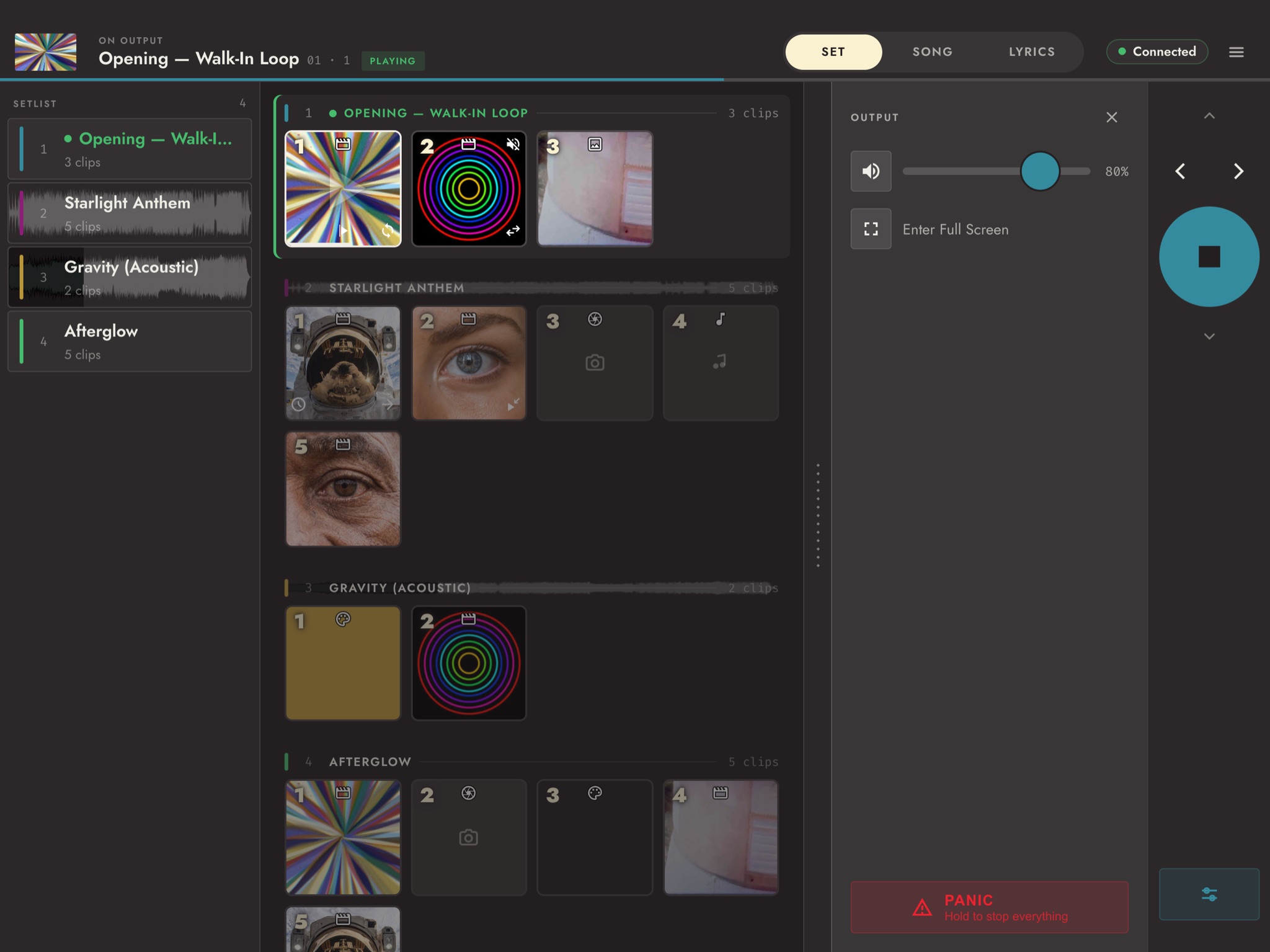
Visibox Remote is a free app that puts Visibox in your hand on a phone or tablet. It shows the open Project’s Songs and Clips as a grid of thumbnails, and a tap plays the Clip on the computer running Visibox. The Remote does not play video itself. It drives the computer that does.
- iPhone and iPad: Visibox Remote on the App Store, iOS 15 or later.
- Android phones and tablets: Visibox Remote on Google Play, Android 7.0 or later.
Where it earns its place
At front of house. The engineer mixes the band from a tablet, out in the room where the mix can be heard. Put Visibox Remote on that same tablet. A swipe from the mixing app to the Remote and the visuals are under the same hand: start the next Song, fire the Clip for the drop, ride the level of Visibox’s audio against the band, or mute it. Nobody walks back to the stage to find the laptop.
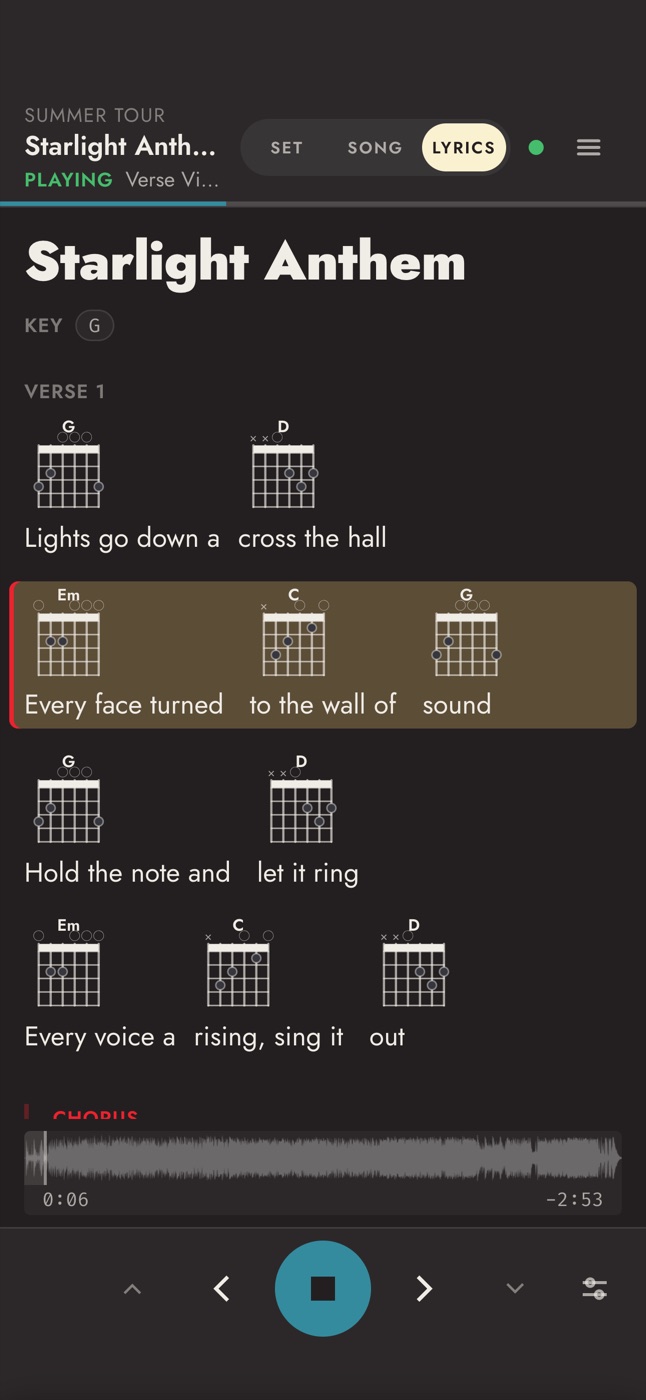
On the mic stand. A phone in a clip on the mic stand shows the singer the lyrics and chords for the Song that is playing, with the current line marked as the Song moves. The same phone steps to the next Song when the band is ready, so the set runs at the band’s pace. See Lyrics on Visibox Remote.
At soundcheck. Carry the Remote to the back of the hall, or up to the balcony, and fire Clips while you watch the screen from where the audience will sit. Fix the one that reads badly from there before the doors open.
When someone else runs the visuals. A band member, a volunteer, or a stage manager can run the show from their own phone, from wherever they stand, without sharing the laptop.
Connecting
The phone or tablet and the computer running Visibox have to be on the same network.
- Open Visibox Remote. It lists every Visibox it finds on the network.
- Tap the computer you want.
- In Visibox, choose Pair with Remote… (on Mac, from the Visibox menu; on Windows, from the File menu). A six-digit code appears.
- Type the code into the Remote and tap Pair & Connect.
The Remote remembers the pairing. Next time, tap the computer and it connects without a code. When you open the app, it reconnects to the last computer by itself, and if the Wi-Fi drops mid-show it keeps trying until the network comes back. Remote Pairing covers codes and how long a pairing lasts.
If the computer is not in the list, tap Connect manually… and type the address shown under This computer’s address in Settings > Remote.
To try the app before the computer is set up, tap Explore the demo on the first screen. It opens a sample show with Songs, Clips, and controls to tap through, and needs no connection.
Running the show
The bar across the top shows what is on the Output: the Song, the Clip, and whether it is playing. Its switch picks the view.
- Set shows every Song in the Project, each with its Clips as pads. Tap a Song to make it the active Song. On a tablet, the Setlist down the side jumps to any Song.
- Song shows one Song at a time, with its waveform. Drag across the waveform to move through the Song. You can look ahead to the next Song without changing what is playing, then tap Cue this song when you are ready for it.
- Lyrics shows the lyric sheet of the Song that is playing. It appears when the Lyrics window is available on the computer running Visibox.
Pads fire the moment your finger touches them, like drum pads. A Gate Clip plays for as long as you hold its pad. Each pad shows the Clip’s thumbnail and number, with the same small marks for mute and End Action that the Controller shows. Because a touch fires a pad, scroll the grid with the dotted handle beside it.
The transport steps to the previous or next Song, the previous or next Clip, and plays or stops. On a phone it runs along the bottom. On a tablet it runs down the side.
The Output controls, behind the sliders button at the end of the transport, hold:
- Output volume and Mute, for Visibox’s audio.
- Enter Full Screen, to put the Output on its display.
- Panic, which stops everything. Hold it for a moment to use it, so a stray tap cannot end the show.
Settings
Open the menu at the top right and choose Settings. Each setting is kept on the phone or tablet.
| Setting | What it does |
|---|---|
| Keep screen awake | On by default. The screen stays on while the Remote is connected, so it is lit when you reach it. |
| Trigger on touch down | On by default. Turn it off and a pad plays when you lift your finger instead. |
| Stepping songs starts them | Off by default. Turn it on and stepping to a Song in the Song view makes it the active Song. |
| Transport side | Left or Right. Which edge the transport sits on, on a tablet. |
| Set columns | How many pads fit across a row in the Set view on a tablet, from 4 to 8. |
Switching computers
The Remote stays paired with one computer at a time. To move to another, open the menu, choose Connection, and tap Re-pair or switch Visibox…. Pairing with a new computer replaces the old pairing.
Disconnect, at the bottom of the menu, drops the connection and keeps the pairing. Tap it twice to confirm.
To shut a phone out for good, remove it under Paired Devices in Settings > Remote. The Remote then asks for a new code.
Troubleshooting
The computer does not show up. Check that both devices are on the same network. Guest and venue Wi-Fi networks often stop devices from seeing each other, so a network of your own is the reliable choice. On a Mac, check that Visibox is allowed on the local network (see Local Network Access Is Off). Failing that, connect manually with the address from Settings > Remote.
“This Remote was unpaired in Visibox.” The phone was removed from Paired Devices. Get a fresh code from Pair with Remote… and pair again.
Pairing fails. The code was mistyped, already used, or more than 5 minutes old. Click Generate new code in Settings > Remote and try again.
See Also
- Remote Pairing for pairing codes and paired devices.
- Lyrics for the lyric sheets the Remote shows.
- OSC, if you would rather build your own layout in an app such as TouchOSC.