Updates Settings
Which version of Visibox you are running, whether there is a newer one, and what changed in it.
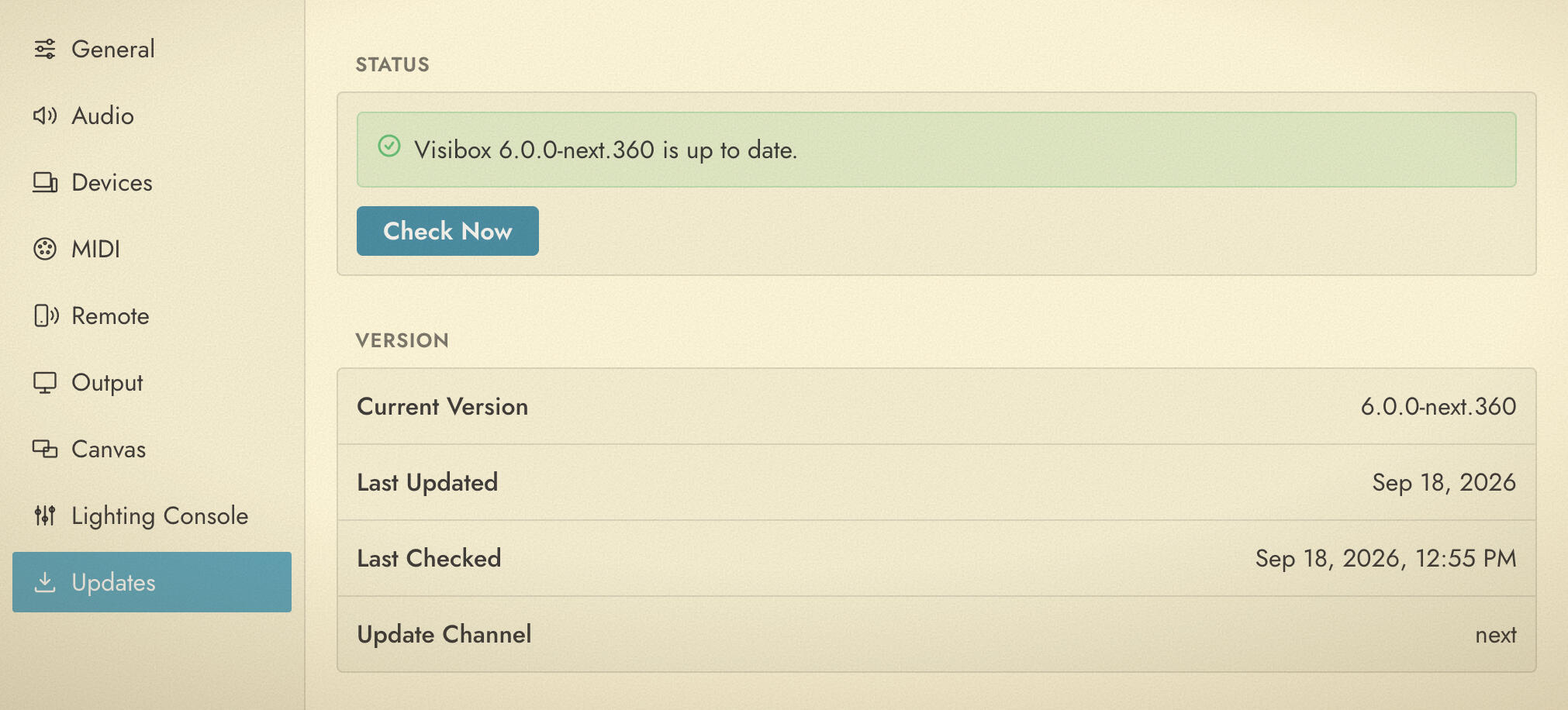
Status
A single sentence at the top says where you stand, in one of a few forms:
- Visibox x.y.z is up to date.
- Visibox x.y.z is available. A newer build exists. Visibox asks before it downloads anything.
- Visibox x.y.z is downloaded and ready to install.
- Visibox has not checked for updates yet.
- Could not check for updates. The reason is printed underneath. On a Mac, one of those reasons is that Visibox is not in the Applications folder. Move it there and try again.
Check Now runs a check on demand. It reads “Checking…” while it works. Once an update has finished downloading, the button becomes Relaunch to Update, which quits Visibox, installs, and starts it again.
If your license covers updates up to a date rather than forever, a line here says which date. Past that date Visibox keeps running exactly as it is; only newer versions need a renewal.
When a check will not run
Visibox refuses to check for updates in situations where the answer could interrupt something, and it tells you which one applies:
- The Output, Controller or Lyrics window is full screen. Visibox does not check for updates during a show.
- An update dialog is already open, waiting for an answer.
- A check is already running.
- An update is already downloaded and only needs a relaunch.
- On Windows, the copy of Visibox you are running is not a real installation.
Relaunching is blocked by the same show rule for the same reason: it quits the app.
Version
The readout underneath the status.
| Row | What it shows |
|---|---|
| Current Version | The build you are running. This is the number to quote in a support request. |
| Update Channel | The release stream this build takes updates from. A readout, not a choice. |
| Last Updated | When this version first launched, or Unknown. |
| Last Checked | When Visibox last asked the update server, or Never. |
| Latest Version | The version being offered, when one is. |
What’s New
Release notes for the version on offer, so you can read what you are about to install before you install it. It reads “No release notes for this version.” when the server did not send any.
Visibox also checks on its own from time to time and offers the update as a dialog. Check for Update… in the menu bar is not the same as Check Now here: the menu item still runs while a window is full screen, and Check Now does not.