Launch Modes
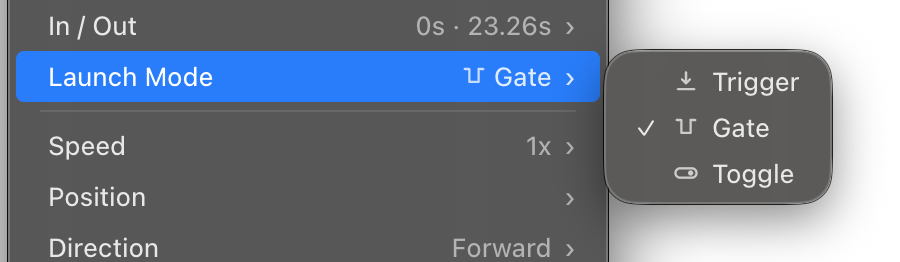
Launch Mode decides what pressing and releasing a Clip’s trigger does. It is set per Clip, and it is the difference between a pad that fires a Clip, a pad that switches it on and off, and a pad that plays it only while you hold it down.
There are three modes:
| Icon | Mode | Press | Release |
|---|---|---|---|
| Trigger | Starts the Clip. | Nothing. | |
| Gate | Starts the Clip. | Stops it, over its Transition Out. | |
| Toggle | Starts the Clip. Press again to stop. | Nothing. |
Right-click a Clip and choose Launch Mode to set it.
What each mode is for
Trigger is fire and forget. A press starts the Clip and nothing about the trigger stops it. It runs until its End Action setting says otherwise, or until you stop it, switch Songs, or start something that takes its place. A looping Trigger Clip keeps looping, which makes it the right choice for an ambient layer you want to leave running underneath everything else.
Gate is hold to play. The Clip plays while the pad is down and leaves when you let go, over its Transition Out. This is how you punch a stab in on a hit and take it straight back out, without a second gesture to end it.
Toggle is a switch. One press on, one press off. The second press stops the Clip over its Transition Out, whatever Retrigger Action says. Because Toggle always wins that argument, the Clip Editor Panel grays the Retrigger Action row for a Toggle Clip and shows Stop as the value in effect.
Launch Mode is a separate decision from Retrigger Action and End Action. Launch Mode is about the gesture, Retrigger Action is about a press that lands on a Clip already playing, and End Action is about the media running out.
The Launch Mode indicator
Every Clip tile in the Controller carries a small Launch Mode indicator, so you can read a Song’s behavior across the row without opening anything.
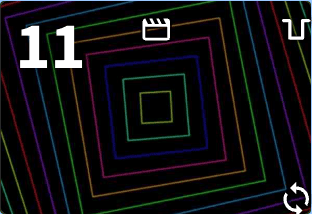
The indicator always shows the mode in effect, which matters because a Clip you have never set follows its Song:
- In a Song set to Mono, an unset Clip is Trigger.
- In a Song with any other Poly Mode, an unset Clip is Toggle, so that clips you bring up you can also take down.
Set a Clip’s Launch Mode yourself and that choice holds wherever the Clip goes. Hover a tile to see the mode written out in the tooltip alongside the Clip’s name and type.
The Project’s Background Clip has no Launch Mode. It is not triggered, so there is no gesture to interpret and no indicator on it.
What can release a Gate Clip
A Gate Clip needs a release, so it needs a controller that sends one. These all do:
- MIDI note-off, including a note-on at velocity 0 and a momentary CC returning to 0. The release is matched against the same note mapping as the note-on, so a pad mapped to a Clip gates it with no extra setup.
- The number keys 1 through 9. Hold the key, the Clip plays; let go, it stops.
- The Song’s Clip row in the Controller. Press a tile and it plays, release and it stops. Releases are tracked per pointer, so on a touchscreen two fingers hold two Gate Clips at once.
- The Preview area, the same way as the Clip row.
- Elgato Stream Deck, on key up.
- OSC, the command line and the API, each of which has a release alongside its trigger.
- Visibox Remote, from its touch pads.
Send a release to a Trigger or Toggle Clip and nothing happens. Releases are ignored by every mode except Gate, so a controller can send them for everything and only the Gate Clips respond.
Gating from the Clip row
Because the Clip tiles fire on press rather than on click, a mouse or a touchscreen can gate a Clip directly from the Song’s Clip row, with no controller involved.
That leaves dragging to reorder Clips without a gesture of its own, so hover a tile and a small grip appears. Drag from the grip to move the Clip; press anywhere else on the tile to play it.
If you would rather have the old behavior back, turn Trigger Clips on Press off in Settings > General. Clips then fire on release, and the Preview area returns to normal dragging. A Gate Clip pressed from the Clip row or the Preview area behaves as a Trigger Clip, since there is no longer a release for it to act on. Gate Clips still work from MIDI, the number keys and every other release source above.
Setting Launch Mode across several Clips
Select several Clips and set Launch Mode once for all of them. Copy Clip Options and Paste Clip Options carry Launch Mode along with the rest of a Clip’s settings, which is the quickest way to make a whole Song behave one way.
Where Launch Mode fits with Poly Mode
A Song set to Mono plays one Clip at a time, so a press starting a Clip is also what stops the last one. Launch Mode still applies: a Gate Clip in a Mono Song stops when you let go, and a Toggle Clip stops on its second press.
In a Song with a co-play Poly Mode, Launch Mode becomes the whole vocabulary. Gate Clips are the ones you hold in, Toggle Clips are the ones you leave up and take down later, and Trigger Clips are the layers you start and forget. See Poly Mode.