Poly Mode
Normally Visibox plays one Clip at a time: start a Clip and whatever was playing stops. Polyoptic playback lifts that limit. Set a Song’s Poly Mode and several of its Clips can hold the stage together, the way several notes held down on a keyboard sound together.
Poly Mode is set per Song, and it does two things at once: it turns co-play on, and it decides how the Clips that are playing divide the output.
Setting a Song’s Poly Mode
Right-click a Song and choose Poly Mode. You can also click the chevron on the Song row, which opens the same panel.
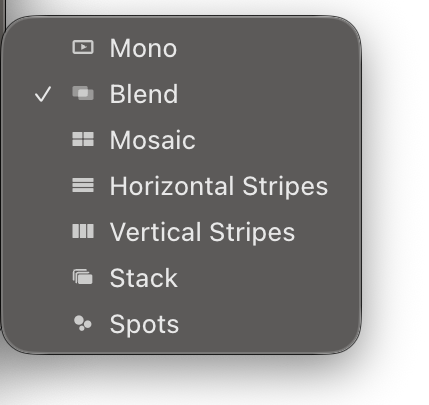
The modes
Mono () is the default and the classic behavior. One Clip plays at a time, and starting a Clip stops the last one.
The other six let the Song’s Clips play together, and each lays them out differently.
| Badge | Mode | What the output looks like |
|---|---|---|
| Blend | The Clips are mixed into one image, sharing the brightness between them so the stage stays at a steady level however many are up. | |
| Mosaic | Split screen. Each Clip gets its own tile, and the grid re-lays itself as Clips come and go. | |
| Horizontal Stripes | Full-width bands, one Clip per band, oldest on top. | |
| Vertical Stripes | Full-height columns, one Clip per column, oldest on the left. | |
| Stack | Every Clip fills the whole stage at full brightness, newest on top. Overlap comes from what each Clip is: its rotation, its Fit Mode, its transparency. | |
| Spots | Each Clip plays inside its own circle, placed where there is room and sized to fill it. A Clip that stops gives up its circle, so the next one to play lands somewhere new. |
Each Clip keeps its own Transition In and Transition Out, so Clips arrive and leave smoothly rather than snapping into the layout.

Every Song row shows a badge for its Poly Mode, including Mono, so you can see at a glance which Songs in your set play more than one Clip at a time. Hover the badge for the mode by name and a one-line description.
Which Clips can play together
Only Clips in the same Song co-play. Triggering a Clip in a polyoptic Song still stops anything playing from a different Song, exactly as a Song change always has. So moving from one Song to the next behaves the way you expect, and co-play stays inside the Song you are on.
The Project’s Background Clip is outside all of this. It plays underneath as always, and it never counts toward the limit below.
Starting and stopping the Clips
In a polyoptic Song, Launch Mode is what you use to bring Clips up and take them down.
- A Clip you have not set uses Toggle in a polyoptic Song: press to bring it up, press again to take it down.
- Set a Clip to Gate and it plays only while you hold its pad or key.
- Set a Clip to Trigger and a press never stops it. Trigger plus a looping end gives you a bed that stays up until you stop it another way.
Stop, stop-all and a Song change still stop everything, in any mode.
When the last Clip in a polyoptic Song stops, the Song’s backing track keeps playing, so the next Clip you bring up lands on a track that never stopped. Clip Stop Action in the Song Editor Panel changes that.
Polyopsis: how many Clips at once
Polyopsis is the ceiling on how many Clips can play at the same time. It is one setting for the whole app, in Settings > Output, and it can be set from 2 to 8. The default is 4.
Bring up one more Clip than Polyopsis allows and Visibox does not refuse it. It fades out the oldest Clip that is playing to make room, the way a synth drops its oldest note when you run out of voices. The Clip you triggered always plays.
Choose the number for the look you want rather than for the maximum. Mosaic at 4 gives you a clean 2 by 2, and the tiles get smaller and less even as the count climbs. Spots sizes its circles from this number too, so a lower Polyopsis gives you bigger spots.
Start at the default of 4 and turn it up only if you find yourself wanting more layers. A high ceiling with a busy Song can cover the stage in movement faster than it reads from the back of the room.
Where to start
Blend is the gentlest introduction: bring up two loops in the same Song and they mix into one image, no layout to think about. Mosaic is the one an audience notices, and it works well when the Clips are shot alike. Stack rewards Clips that have something to see through, so pair it with a Clip carrying transparency or a dark background. Spots is the loosest of them and turns a handful of short loops into a shifting collage.
Poly Mode changes nothing about a Song set to Mono. Every Clip setting on the Clip Playback Options page works the same way in a polyoptic Song as it does anywhere else.