Connecting an Elgato Stream Deck
Visibox drives an Elgato Stream Deck through a plugin that runs inside Elgato’s Stream Deck software. Drop a Visibox action onto a button and it triggers a Clip, switches Songs, steps through the set, or sets the output volume. Clip buttons carry the Clip’s own thumbnail, so the deck reads like the Song in front of you.
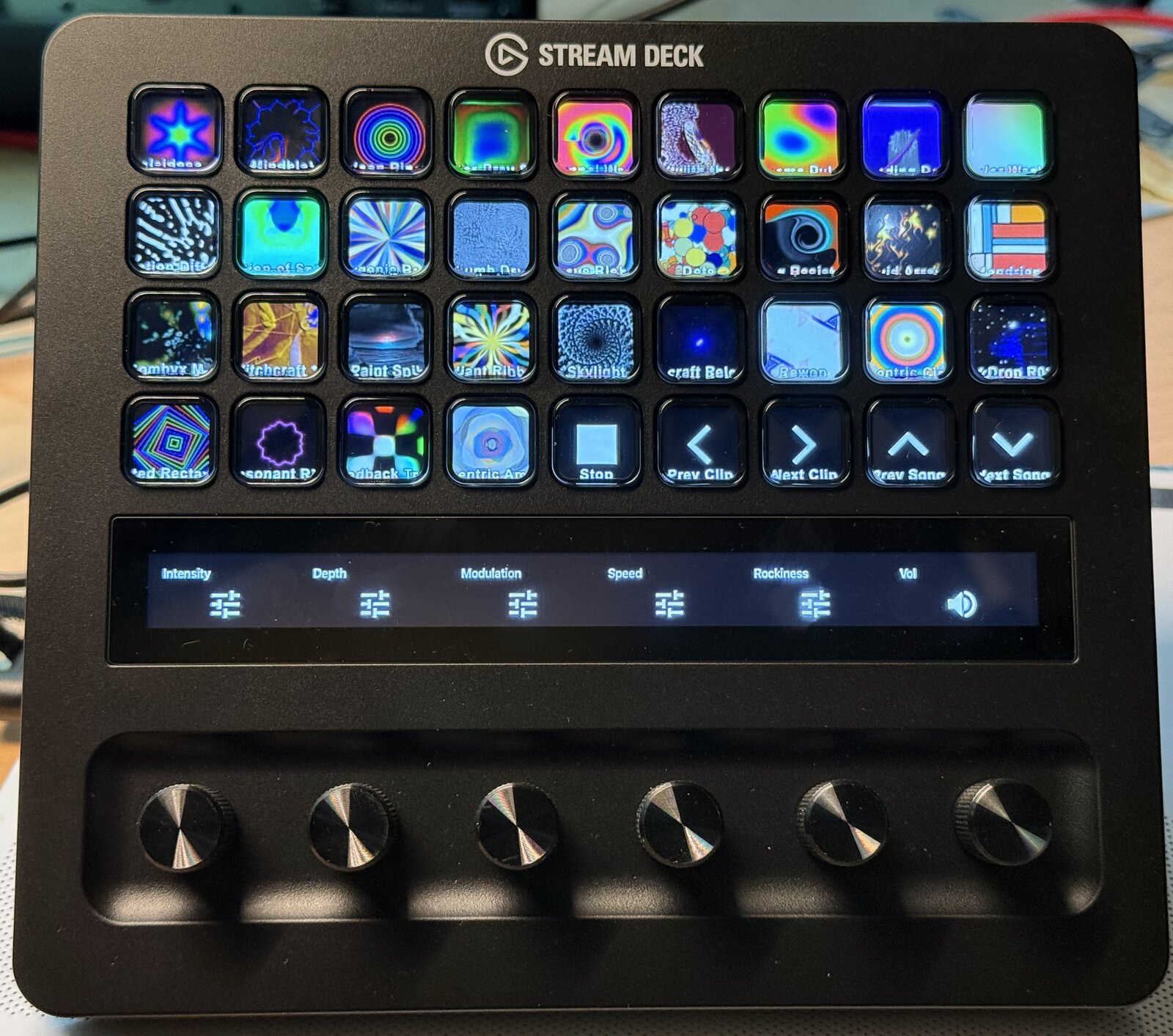
Because the plugin lives in the Stream Deck software, Visibox actions and the actions from your other apps share the same device, and you lay out your buttons with the tools you already know.
Coming from Visibox 5
Visibox 6 no longer drives a Stream Deck over USB by itself. The old built-in mode and the Stream Deck Mode setting are gone, and the plugin is the only path.
If your deck went quiet right after you updated, this is why. Install the plugin as described below and your buttons come back.
A few things follow from the change:
- Elgato’s Stream Deck software needs to be running. Under the old built-in mode you had to quit it. Now it is required.
- Buttons you built in the Stream Deck software still work. If you were already using the plugin in 5.x, nothing changes.
- The old built-in layout is not converted. Visibox used to take over every button and fill them with the current Song’s Clips plus Stop, Previous Clip, Next Clip, Previous Song and Next Song. You rebuild that layout from the actions below, or start from one of the bundled profiles.
Here is the built-in layout translated into plugin actions:
| Old built-in button | Plugin action |
|---|---|
| A Clip in the current Song | Trigger Clip, with Clip Number set to its position |
| Stop | Playback Control, Control Type Stop |
| Previous Clip / Next Clip | Navigation, Previous Clip / Next Clip |
| Previous Song / Next Song | Navigation, Previous Song / Next Song |
Before you start
- Elgato’s Stream Deck software, version 6.9 or later, installed and running.
- Visibox running on the same computer. The plugin talks to Visibox on that machine, so Visibox has to be open for the buttons to do anything.
- The Stream Deck software itself needs macOS 10.15 or later, or Windows 10 or later.
Installing the plugin
Visibox ships with a copy of the plugin, so you install it from inside Visibox.
- Open Settings > Devices in Visibox.
- In the Stream Deck section, find Stream Deck Plugin and click Install Stream Deck Plugin…. Visibox hands the bundled plugin file to Elgato’s Stream Deck software.
- Confirm the install when the Stream Deck software asks.
Open the Stream Deck software and you will find a Visibox category in the action list on the right.
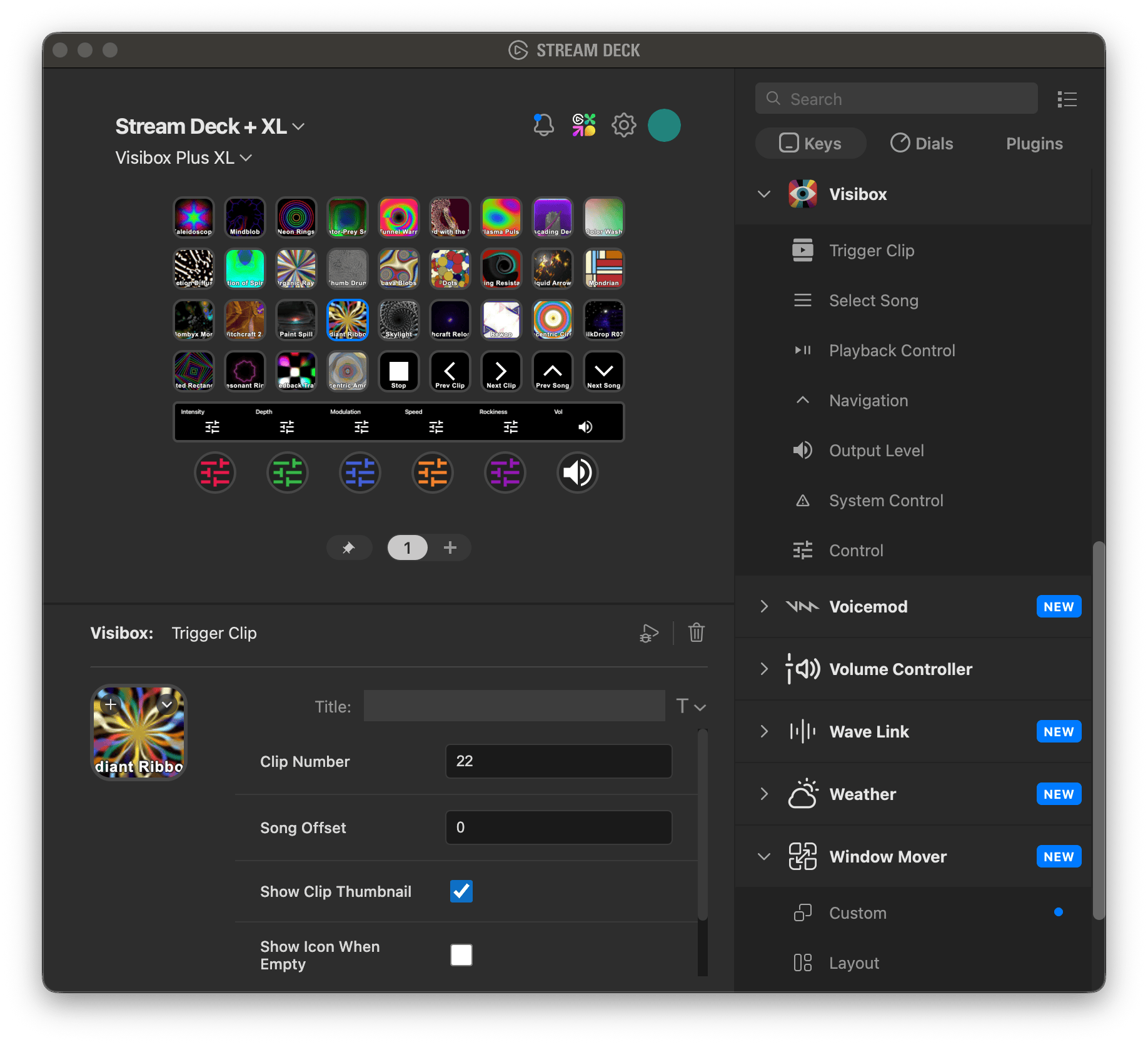
Available actions
The plugin provides seven action types that you can drag onto any Stream Deck button.
| Action | Description |
|---|---|
| Trigger Clip | Trigger a Clip by its position in the current Song. The button displays a live thumbnail. |
| Select Song | Switch to a Song by number, Program Identifier, or ID. |
| Playback Control | Play, Pause, Stop, Resume, Play/Stop Toggle, or Pause/Resume Toggle. |
| Navigation | Next/Previous Clip or Next/Previous Song. |
| Output Level | Set, nudge, or dial the output volume, and toggle mute. |
| System Control | Panic (Reset) or Fullscreen Toggle. |
| Control | Set or nudge one of the Project’s Real-Time Controls by its letter. |
Trigger Clip
Set Clip Number to the Clip’s position in the Song, where 1 is the first Clip. The button displays the Clip’s thumbnail and title, and pressing it triggers the Clip. This action always targets the active Project.
Song Offset changes which Song the Clip Number refers to, relative to the active Song. An offset of 0 (the default) targets a Clip in the active Song, -1 the previous Song, and 1 the next Song. Use it to pre-cue the next Song while the current one is playing.
The button also respects the Clip’s Launch Mode. A Clip set to Gate plays while you hold the button down and stops when you let go. Trigger and Toggle Clips ignore the release, so they behave the same as they do from any other trigger source.
By default the button shows the Clip’s thumbnail. Uncheck Show Clip Thumbnail to display the plain action icon instead, or check Show Icon When Empty to show an icon on Clip slots that have nothing assigned.
Select Song
Fill in exactly one of three fields:
- Song Number selects a Song by its position in the Project, where 1 is the first Song.
- Program Identifier selects the Song with that MIDI Program Identifier, 1 to 128.
- Song ID selects a Song by its internal identifier. It survives reordering, which makes it the reliable choice for a fixed show.
If you fill in more than one, Song ID wins, then Program Identifier, then Song Number. The button displays the Song’s title.
Stop Current Playback is on by default and stops any playing Clips before switching. Turn it off to let Clips keep playing across the Song change.
Playback Control
Choose a Control Type: Play, Pause, Stop, Resume, Play/Stop Toggle, or Pause/Resume Toggle. The button icon follows the current playback state.
Navigation
Pick a direction: Next Clip, Previous Clip, Next Song, or Previous Song.
For Clip navigation, Unconstrained lets navigation cross Song boundaries, wrapping from the last Clip of one Song to the first Clip of the next.
For Song navigation, Don’t Stop Playing Clips keeps the current Clips playing as you switch Songs.
Output Level
This action controls Visibox’s output volume. Control Type decides what a press does:
- Set to Level jumps straight to the Volume Level you enter, from
0.0(silent) to1.0(full). Leave Volume Level blank and the press toggles mute instead. - Nudge Up and Nudge Down move the live volume by one step, the same way the Volume Up and Volume Down menu items do. The level snaps to round values, so repeated presses land where you expect, and it stops at 0.0 and 1.0.
Step Size sets the amount per press for the two nudge types. It defaults to 0.1, or 10%, matching the Volume Up and Volume Down menu items.
On a Stream Deck with dials, drop this action onto a dial. Rotating the dial adjusts the volume and pressing it toggles mute, whatever Control Type you picked. The dial moves by 0.05 per tick by default, and Step Size changes that too, up to a ceiling of 0.2 per tick.
System Control
Panic (Reset) reloads all of Visibox’s windows. It is the button to reach for when something goes wrong mid-show.
Fullscreen Toggle switches the output window in and out of full screen. The button reflects the current state, and it follows along when you change full screen from the menu or the keyboard as well.
Control
Drives one of the Project’s Real-Time Controls by its display letter, A to Z. Set the Control to an exact value, or nudge it up and down by a step you choose; values run 0 to 1. The button shows the name you gave the Control in the Control Bus, or its letter until you name it. Addressing a letter no Control uses does nothing.
On a Stream Deck with dials, the action works on a dial too: rotate to sweep the Control, press or touch to set or nudge it.
Bundled profiles
The plugin ships with a ready-made profile for each Stream Deck model, sized to that model’s grid:
| Profile | Device |
|---|---|
| Visibox Mini | Stream Deck Mini |
| Visibox Performance | Stream Deck and Stream Deck MK.2 |
| Visibox XL | Stream Deck XL |
| Visibox Plus | Stream Deck + |
| Visibox Neo | Stream Deck Neo |
| Visibox Studio | Stream Deck Studio |
| Visibox Plus XL | Stream Deck + XL |
Most profiles fill the grid with Trigger Clip buttons and give the last keys to transport. Visibox Performance, Visibox XL, Visibox Studio and Visibox Plus XL end with five transport keys: Stop, Previous Clip, Next Clip, Previous Song and Next Song. Visibox Plus and Visibox Neo have room for three, Stop, Previous Clip and Next Clip. Visibox Mini is all Trigger Clip keys, with no transport.
On the models with dials, Visibox Plus, Visibox Studio and Visibox Plus XL, the first dial is wired to Output Level. The rest are left empty for you to fill.
Profiles arrive with the plugin and wait in the Stream Deck software’s profile list. They do not take over the profile you are using, so you switch to one when you want it. A profile is a good starting point if you are rebuilding a layout from Visibox 5, or if you want a working set of buttons before designing your own.
Live thumbnails
A Trigger Clip button shows a live thumbnail of the Clip on the button face. Thumbnails follow the active Song, so the buttons always show what they will play. Visualizer Clips render a real preview rather than a generic icon, and Color Clips show their assigned color.
Camera Clips also show a thumbnail, refreshed about every five seconds rather than at full frame rate.
Multiple Stream Decks
You can use more than one Stream Deck with Visibox at the same time. Each device is configured independently in the Stream Deck software, so you can give each one its own profile. A Stream Deck XL for Clip triggering and a Stream Deck Mini for Song navigation and transport is a common split.
Languages
The plugin follows the language you set in the Stream Deck software: English, German, French, Spanish, Japanese, and Korean. Action names and the settings inside each action’s panel are both translated.
Troubleshooting
No Visibox category in the action list:
- Check that the Stream Deck software is version 6.9 or later.
- Reinstall the plugin from Settings > Devices > Install Stream Deck Plugin…, then quit and reopen the Stream Deck software.
Install Stream Deck Plugin… reports an error:
- Install Elgato’s Stream Deck software first. Visibox hands the plugin file to that software, so there is nothing to open it without it.
Buttons appear but nothing happens when you press them:
- Start Visibox. The plugin connects when Visibox launches, and keeps trying every five seconds for as long as Visibox is open.
A thumbnail stays blank:
- Remove the action from the button and drag it on again.
Stream Deck disconnects during a show:
- After a brief disconnect, a bumped USB cable for instance, the plugin reconnects on its own. It retries every five seconds while Visibox is running, and the buttons come back with their current states.
- For reliable connections during a performance, use a short, good-quality USB cable and avoid hubs where you can.