Remote Pairing
The Remote category of the Settings window is where you connect external devices and AI tools to Visibox over the network. Choose Pair with Remote… to open Settings on that category (on Mac, from the Visibox menu; on Windows, from the File menu), or open Settings and pick Remote in its sidebar. In Visibox 5 this was a window of its own.
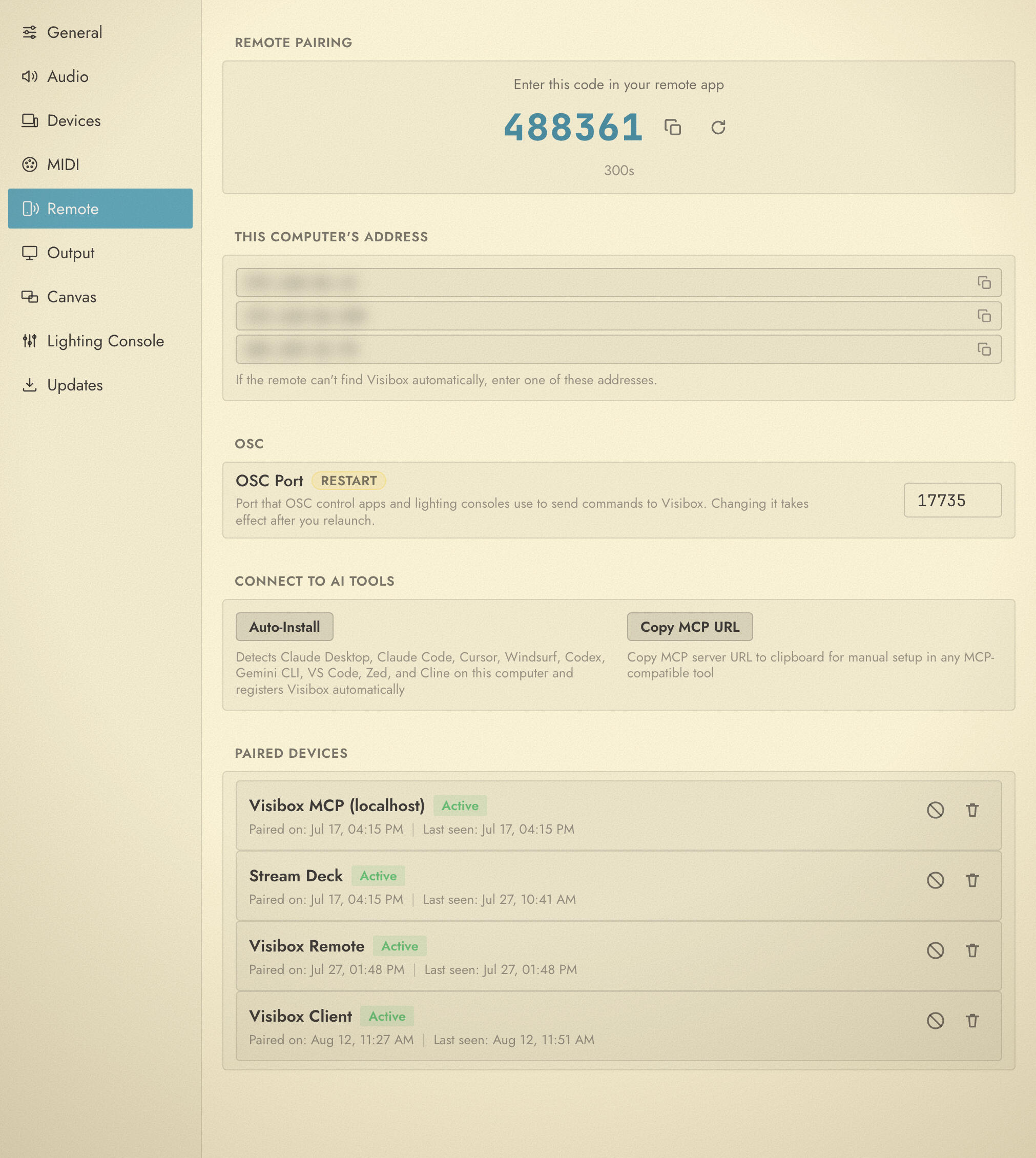
Pairing a Device
Devices connecting to Visibox over the network must pair first using a one-time code:
- Choose Pair with Remote… to open Settings on the Remote category.
- A 6-digit code appears under Remote Pairing with a countdown timer. The code expires after 5 minutes.
- On the remote device, enter the code (or send it via the API).
- Visibox returns a token that the device stores for future connections.
If the code expires, click Generate new code to get a fresh one. Copy code puts the current code on the clipboard.
When the remote app cannot find Visibox on its own, a This computer’s address section lists the addresses to type into the remote by hand. It appears only when Visibox has a network address to show.
The first time a device on the same machine connects (a Stream Deck plugin, for example), Visibox asks you to allow it. That prompt always opens over a window you can see, so it will not go missing behind or off the edge of your screens.
A program on the same machine never needs a pairing code. How it gets in depends on how it connects. The MCP server and the command line tool reach Visibox over HTTP and are let through with no token and nothing to approve. Something that holds a live connection, like the Stream Deck plugin, gets the approval prompt above once, and Visibox remembers it after that.
Token Lifetime
A pairing token lasts 30 days. Every time a paired device connects, Visibox issues it a fresh 30-day token, so a device you use regularly stays paired with nothing to renew and nothing to set up. That covers Visibox Remote, the Stream Deck plugin, the command line tool when it connects over the network, and any device you paired yourself.
A device that sits unused for more than 30 days has to pair again with a new code. If you paired a device before updating to Visibox 6.0, it keeps working and picks up the new token the next time it connects.
Connecting AI Tools
The Connect to AI Tools section of Settings > Remote can install the Visibox MCP server configuration into supported AI tools for you. Click the Auto-Install button to detect and configure any of them. See AI Assistants for the full list.
You can also click Copy MCP URL to manually add the Visibox MCP server to any tool that supports the Model Context Protocol. The same scan runs from the Connect to AI Tools… menu item without opening Settings. See AI Assistants for more about what AI tools can do with Visibox.
OSC Port
The OSC section holds the port Visibox listens on for OSC commands, from control apps and from lighting consoles. It is 17735 unless you change it, and it accepts any port from 1024 to 65535. A new port takes effect after you relaunch Visibox.
Managing Paired Devices
The Paired Devices section at the bottom of Settings > Remote lists all paired devices with their status:
- Device name. Identifies the paired device or tool.
- Status. Shows whether the device is Active or Revoked.
- Paired on. When the device was first paired.
- Last seen. When the device last connected. This is also when its token was last refreshed.
You can Revoke access to disconnect a device, or Remove device to take it off the list entirely. A revoked device has to pair again with a new code.