Lighting Consoles
A lighting console can run Visibox the way it runs a moving light. Patch Visibox as a fixture, and cues on the desk select Songs, fire Clips, ride the master intensity, volume and hue, and stop everything on a Go. The show itself stays authored in Visibox: which Clips loop, how they fade, what Effects they carry. The console picks and triggers what you built.
Visibox speaks the two protocols consoles use to send DMX over Ethernet, sACN (ANSI E1.31) and Art-Net. Either works alone, and they can run together. There is no DMX port to wire. The console and the computer running Visibox only need to share a network.
Setting up
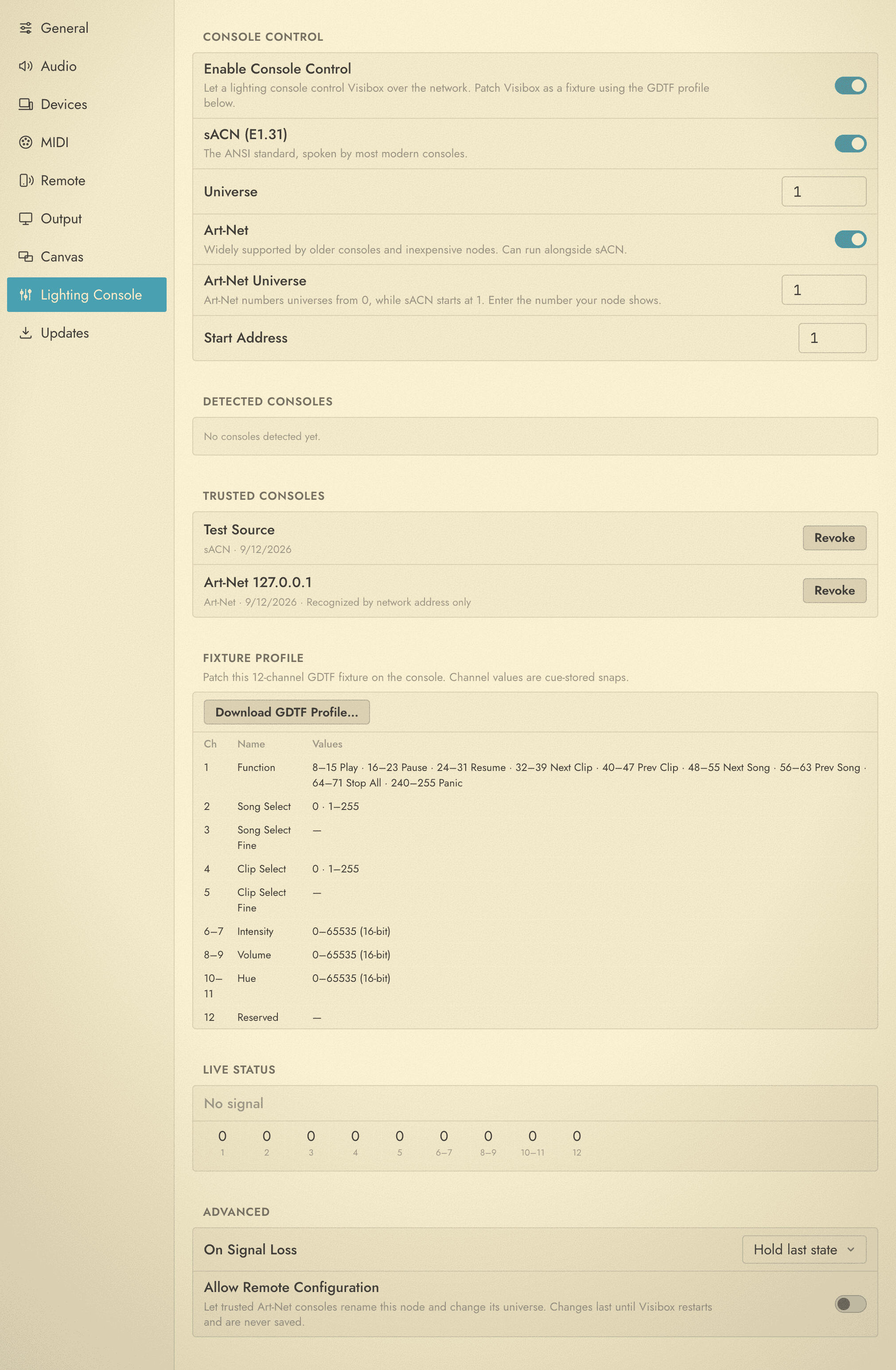
- Open Settings and choose Lighting Console. Turn on Enable Console Control.
- Turn on the protocol your desk sends. sACN (E1.31) is on by default and is what most modern consoles speak. Art-Net is what older desks and inexpensive nodes speak. Turn on both if you are not sure. A console that sends either one will be heard.
- Set the Universe and Start Address to match where you patch Visibox on the console. Both start at 1, and Visibox occupies twelve channels from the start address. With Art-Net on there is an Art-Net Universe field as well. See Universe numbers.
- Click Download GDTF Profile… and import the file into your console, then patch one fixture of it. grandMA3 imports GDTF directly. Most other desks have a GDTF import or a converter for it.
- Send DMX from the console. The first time an unfamiliar console sends data, Visibox asks whether to allow it. Click Allow, and that console stays trusted until you revoke it.
Consoles that announce themselves on the network appear under Detected Consoles as soon as Visibox is listening, each with a Use universe button that sets the universe to match. Consoles you have allowed are listed under Trusted Consoles, each with a Revoke button.
Live Status at the bottom of the panel shows whether Visibox is receiving, the packet rate, the value arriving on each channel, and the last action a cue fired. When you are wondering whether the console is getting through, look there first.
Universe numbers
sACN numbers universes from 1. Art-Net numbers them from 0. Visibox keeps a field for each protocol so you never have to convert between the two: type into each one the number that protocol’s own console or node shows you. Art-Net Universe accepts 0, and the two fields do not have to hold the same number.
The fixture
The GDTF profile is a single fixture with one mode, Visibox v1, twelve channels long. One patched fixture is the whole Output. There are no layers to patch separately.
| Channel | Name | What it does |
|---|---|---|
| 1 | Function | Transport. Each range of values is one command, listed below. |
| 2 | Song Select | Selects a Song by its position in the running order: 1 is the first Song, 2 the second. 0 does nothing. |
| 3 | Song Select Fine | Reserved. |
| 4 | Clip Select | Plays a Clip of the selected Song by its position. 0 stops. |
| 5 | Clip Select Fine | Reserved. |
| 6 to 7 | Intensity | The video dimmer, 16-bit. Full is the Output as you built it and 0 is black. Audio is unaffected. |
| 8 to 9 | Volume | The master audio level, 16-bit. |
| 10 to 11 | Hue | Rotates the color of the whole Output, Clips and Overlays alike, through 360 degrees. 16-bit. 0 leaves the picture untouched. |
| 12 | Reserved | Keeps the footprint stable. |
Songs and Clips are addressed by their position in the running order, the same numbers the Controller shows. Reordering renumbers them, so lock the show order before you program the desk. A value can reach 255 Songs, and 255 Clips in a Song.
Function ranges
Channel 1 fires a command once, when its value enters a range. Holding the value there does nothing more. To fire the same command again, take the channel back to 0 first, so program cues as the value and then 0.
| Value | Command |
|---|---|
| 0 to 7 | Idle. Re-arms the channel. |
| 8 to 15 | Play |
| 16 to 23 | Pause |
| 24 to 31 | Resume |
| 32 to 39 | Next Clip |
| 40 to 47 | Previous Clip |
| 48 to 55 | Next Song |
| 56 to 63 | Previous Song |
| 64 to 71 | Stop All |
| 240 to 255 | Panic. Reloads every Visibox window. It can only be reached from Idle, so a fader ridden up the channel cannot hit it. |
The values in between are reserved. Passing through them disarms the channel, so go back to 0 before the next command.
Intensity is a blackout, not a stop
Intensity at 0 takes the picture to black, Clips and Overlays alike, and leaves playback running underneath. Bring it back up and the picture returns instantly, still in time with the music. The audio keeps playing throughout, so pull Volume down as well if you want silence.
Stop All ends playback. Bring the look back and it starts over. Use Intensity when you want the screen gone for a moment and back where the music is. Use Stop All to end a look.
The ends of the Intensity range are instant, so a cue that snaps to 0 goes black on the frame rather than over a fade. Values in between are smoothed, so a fade from the desk ramps rather than steps. Volume and Hue are smoothed the same way. That is why all three are 16-bit: the console performs the fade, and the fine byte keeps the bottom of it from stepping.
Cues, not parked faders
Visibox has a live operator at the keyboard, and the console never overrules them. A value the console sends is acted on once, when it changes. A fader parked on Clip 5 does not keep re-asserting Clip 5, so the operator can stop that Clip and it stays stopped until the desk sends something new. Whoever acted last, console or operator, wins.
Program the desk in cues instead of leaving faders up: select the Song, select the Clip, then Go. When Visibox first hears a console, on enable, when the console boots, or when its signal returns, it takes in the current values silently and acts on the next change.
One console controls Visibox at a time. When two send sACN on the same universe, the one with the higher sACN priority wins. Art-Net has no priority, so the first console heard wins. Powering on a backup desk beside the main one does not disturb the show.
When the signal drops
If no data arrives for a few seconds, or the console ends its stream, Live Status reads Signal lost. What happens next is the On Signal Loss setting under Advanced.
- Hold last state, the default, leaves everything as it was.
- Stop playback stops the Output and restores full intensity.
When the console comes back, Visibox picks up its current values without replaying any cues.
Trusting a console
A console becomes trusted the first time it sends DMX to Visibox and you click Allow. Visibox remembers it by the strongest identity the protocol offers. An sACN console carries a permanent ID that survives reboots and address changes. An Art-Net console is remembered by its hardware address, or, when a node does not report one, by its network address alone. Those read Recognized by network address only in the list, and if the address changes, Visibox asks again.
Revoke next to a trusted console forgets it. The next time it sends DMX, Visibox asks again.
Letting the desk configure Visibox
Art-Net can rename a node and change the universe it listens on from the console. Visibox allows this only when Allow Remote Configuration under Advanced is on, and only from a console you have already trusted. Changes made this way last until Visibox restarts and are never saved, and the panel names the console that made them. Leave it off unless you want to re-patch Visibox from the desk.
Troubleshooting
Visibox is not in the console’s node list. Only Art-Net announces Visibox by name. Turn Art-Net on even if the cues arrive over sACN. The two work together: Art-Net for finding and managing, sACN for the data.
Live Status says No signal. Check that the console is sending to the universe the panel shows, and that both machines are on the same network. Over Art-Net, check the Art-Net Universe field rather than Universe, since the two protocols number universes differently.
A cue selects the wrong Song or Clip. The running order has changed since the desk was programmed. Check the numbers in the Controller against the values in the cue.
The trust prompt keeps coming back. The console is recognized by network address only, and that address is changing. Give it a fixed address.
Visibox also answers to OSC, which many consoles can send alongside DMX. Use OSC for anything the fixture does not cover, such as triggering a Clip by name.