Application Menu
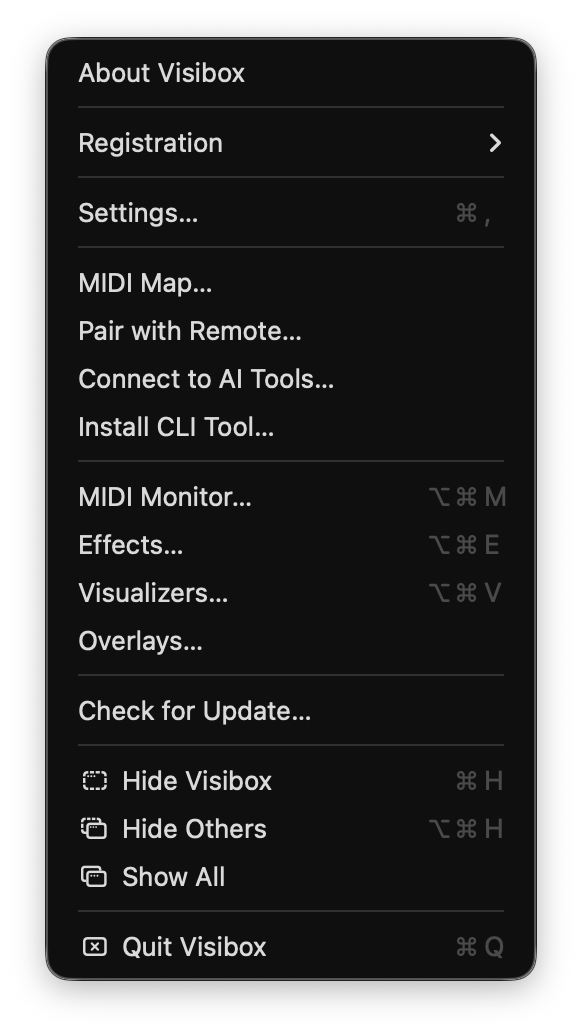
The Visibox application menu contains functions related to the application itself, such as registration, settings, editor windows, updates, and Quit.
Displays information about the current version of Visibox.
Registration and authorization. Purchase a Pro plan subscription or license here, and manage your account.
See Your Account for what the submenu holds and what each plan covers.
Opens the Settings window, the central place to configure audio, devices, MIDI, output, displays, remote access, language, and general preferences. The interface language is set in General Settings; the Language submenu that used to sit in this menu is gone.
Opens Settings on the MIDI category, where you assign notes and CCs to actions. In Visibox 5 this was a window of its own.
Opens Settings on the Remote category, where you pair remote devices and AI tools. See Remote Pairing.
Scans for installed AI tools on your machine and registers Visibox’s MCP server with each. See AI Assistants for what you can do after connecting.
Installs the visibox command-line tool for shell scripting. See Command Line Interface.
Opens the MIDI Monitor window for troubleshooting MIDI connections.
Opens the Effects Editor window for browsing, creating, and customizing Effects.
Opens the Visualizers Editor window for browsing, creating, and customizing Visualizer presets.
Opens the Overlays editor, for the logos and lower thirds that sit above everything the Output shows. It has no keyboard shortcut.
Checks to see if a newer version of Visibox is available. The same check, plus the version you are running, is in Updates Settings.
Standard macOS hide command.
Hides all other application windows.
Shows all hidden application windows.
Quits Visibox.