Your Account
Everything about who you are signed in as, what you are entitled to, and which machines you have activated lives in one place: the Registration window.
Opening the Registration window
The Registration submenu is under Visibox on Mac and under File on Windows. What it contains depends on where you are:
- Activate… when Visibox does not know who you are yet.
- Start Trial… when you have not used your trial.
- Enter Login Code… when you have asked for a code and not entered it.
- Trial Info… during a trial.
- Registration Info… once you are signed in.
- Purchase… goes straight to the website.
All but the last open the same window.
Signing in
Visibox does not use passwords. Enter your email address and it sends you a one-time code.
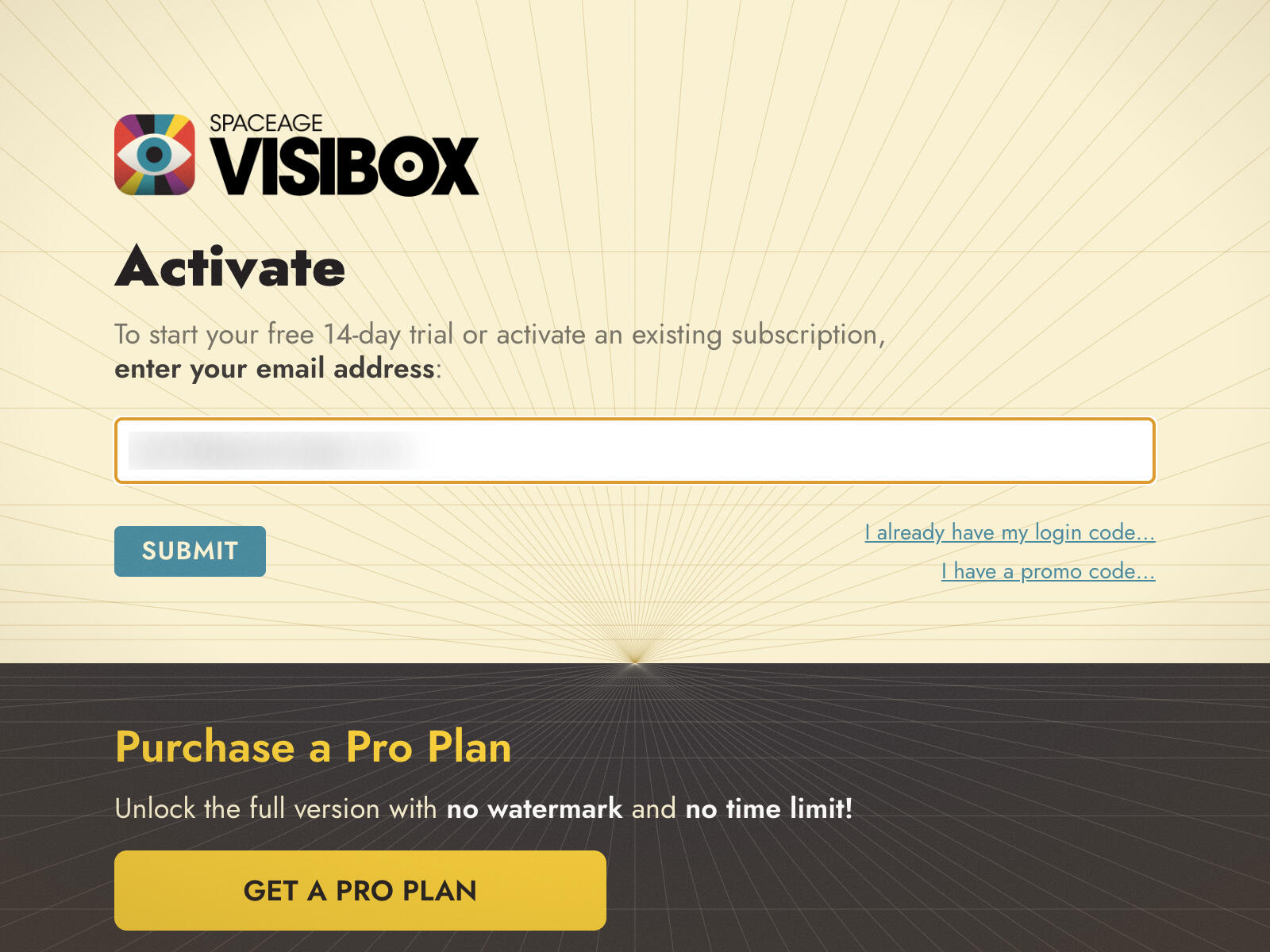
- Open the Registration window and type your email address in the field.
- Press Submit. Visibox sends a code to that address.
- Type the code into Enter One-time Code and press Submit.
The code arrives from no-reply@spaceage.tv. If it does not turn up, check your spam folder. Where is my login code? in the window explains the same. Wrong email address? takes you back a step, and I need a new code… sends another.
If you have a promo code, click I have a promo code… before you submit and enter it alongside your email.
The free trial
New accounts get a free 14-day trial with everything switched on. The window’s headline reads “Trial Version” and tells you how many days are left. The splash screen shows the same count each time you launch.
When the trial runs out the headline changes to “Trial Expired” and Visibox drops back to the free plan.
Free plan and Pro plan
Visibox keeps working after the trial. The Free Plan covers the basics with limits on how much a Project can hold and which features are available.
A Pro plan removes those limits and turns on the rest of the app. GET A PRO PLAN in the Registration window opens spaceage.tv/subscribe with your account already attached.
If you have bought a plan and Visibox has not caught up, click I already have a pro plan… to re-check with the server.
Managing your subscription
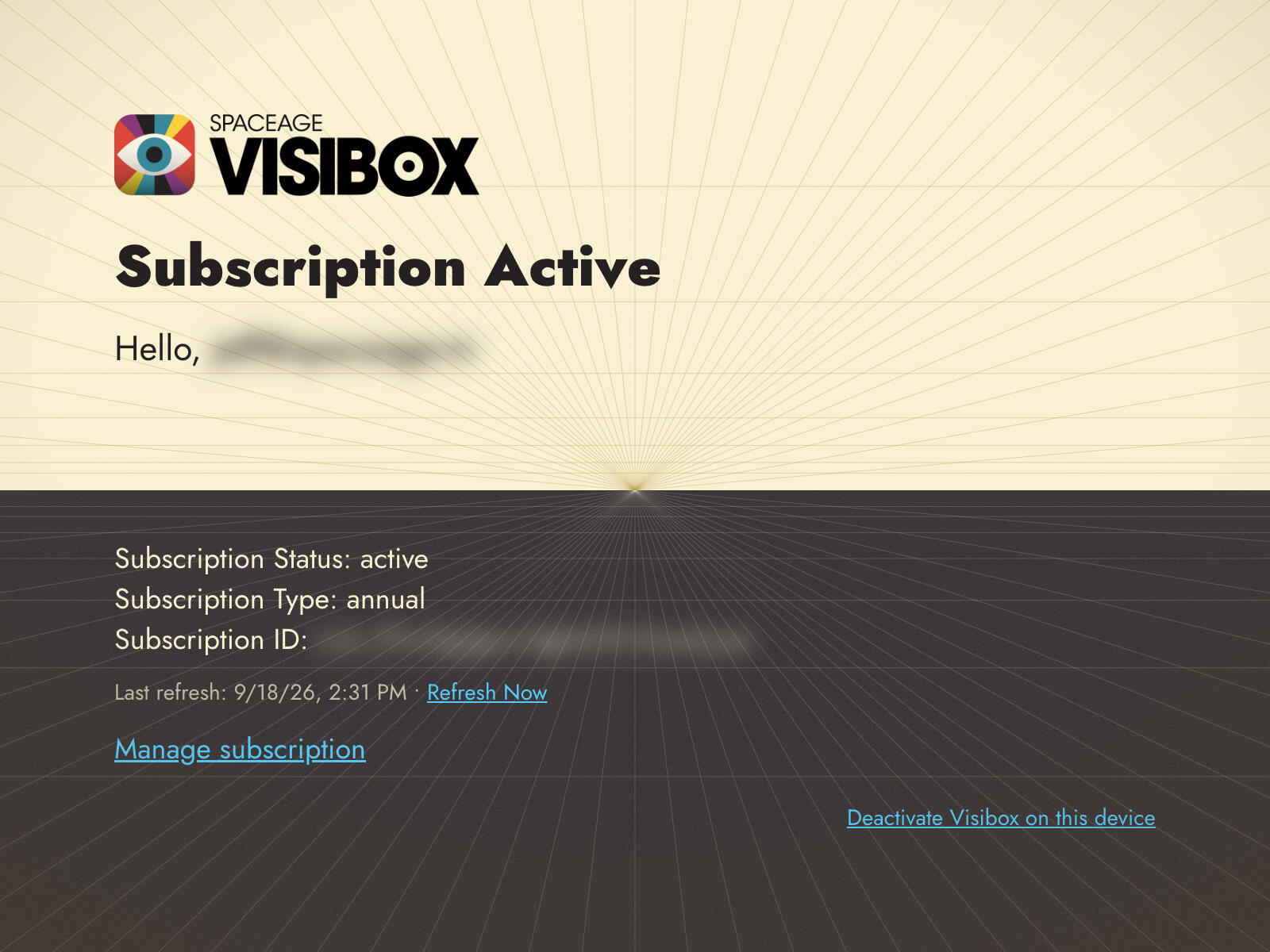
Once you are signed in, the lower half of the Registration window shows what you have:
- Subscription Status and Subscription Type
- Subscription ID (selectable, so you can copy it into a support message)
- Last refresh, with a Refresh Now link beside it
Manage subscription opens your account on spaceage.tv already signed in. Everything that changes money or machines lives there: your plan, your billing details, and the machines you have activated. Visibox hands your session across, so there is no second sign-in.
Payment past due
When a payment fails, the window turns to a warning and the headline reads Subscription Payment Past Due. A Fix on website link takes you straight to your billing details on spaceage.tv.
Subscription paused
A paused subscription reads Subscription Paused with the same Fix on website link, which lands on your plan so you can start it again.
Fix either one and click Refresh Now in Visibox, or reopen the Registration window, to pick the change up immediately.
Working offline
Visibox checks in with our servers from time to time to confirm your plan. It does not need to reach them to run.
When the machine has no internet, Visibox keeps working and quietly retries in the background. A venue with no usable network, a rehearsal room in a basement, a rig that travels: none of these stop a show.
If it goes long enough without reaching us, Visibox asks you to sign in again. It will not interrupt a show to ask, and a Project that is already loaded and playing carries on playing. There is no watermark and nothing shuts down mid-song.
Get the machine online for a moment, click Refresh Now in the Registration window, and everything comes back.
If you know you are going somewhere with no internet, open Visibox on a network first and let it check in. There is nothing else to arrange.
Devices
A plan covers a set number of machines. Activating Visibox on a computer uses one of them.
Deactivate Visibox on this device at the bottom of the Registration window frees the slot up. Use it before you sell or wipe a machine, and before you activate a replacement.
If you run out of slots, Visibox says so and offers Manage devices, which opens your device list on spaceage.tv. Deactivate one you are no longer using and try again.
Perpetual licenses
A perpetual license does not expire. The window reads Perpetual License Active and adds:
- Purchased, the date you bought it
- Updates through, the date your free updates run to
Visibox warns you in the window when that update window is within thirty days of closing, and Renew upgrades takes you to the website to extend it. Once the window closes, Visibox keeps running and keeps the version you have. Newer versions need a renewal.