The Editor Window
Effects, Visualizers, and Overlays share one window with a tab across the top for each. Open any one of the three and you get that window with that tab in front.
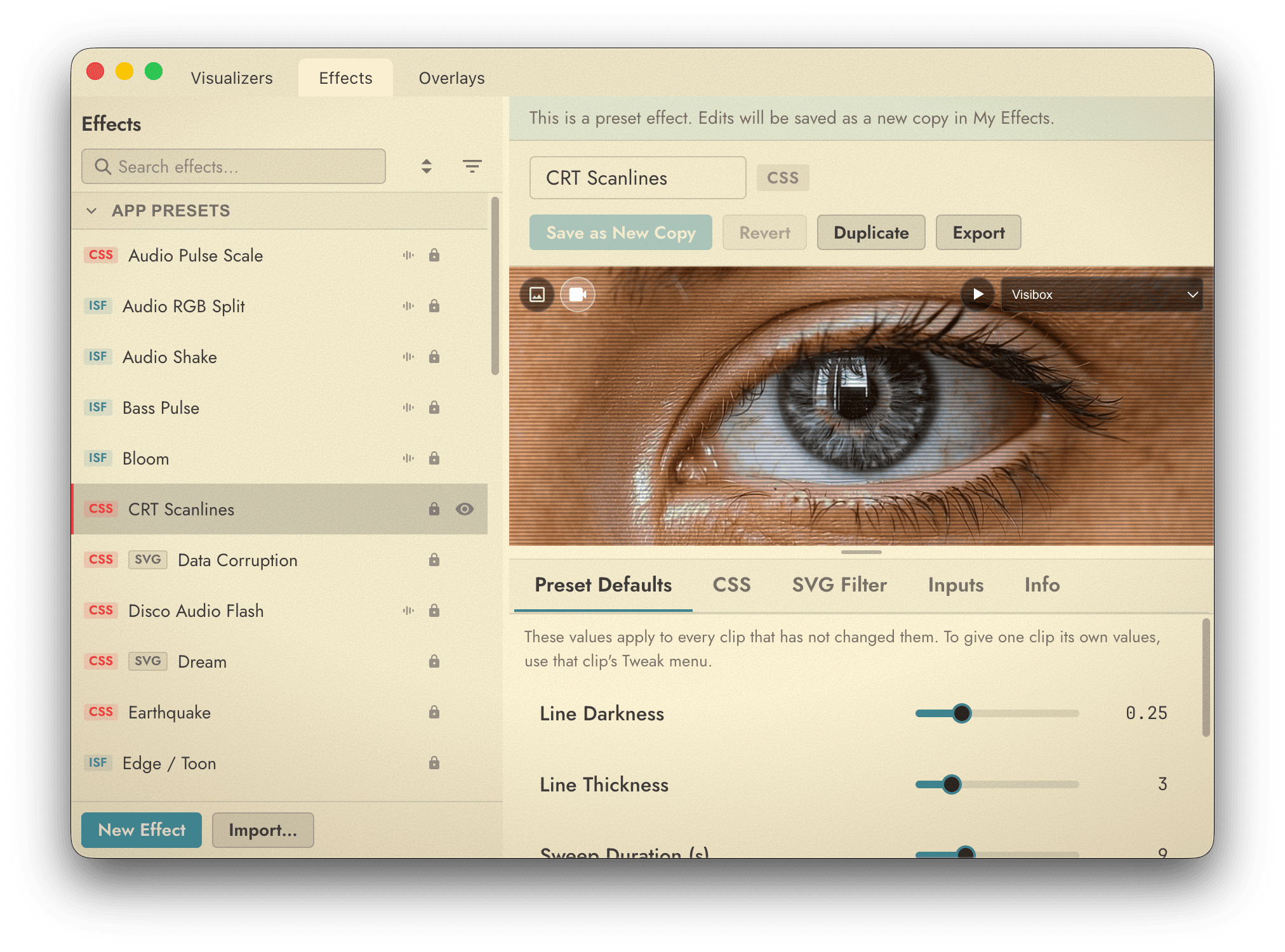
Opening an editor
All three editors open from the Visibox menu on Mac and the File menu on Windows:
- Effects… (⌥⌘E) opens the Effects editor.
- Visualizers… (⌥⌘V) opens the Visualizers editor.
- Overlays… has no shortcut.
Each command brings its own tab to the front, opening the window first if it was closed. The Window menu also lists every open tab by name, so you can jump to one directly. See the Window Menu.
What is in each tab
| Tab | What it does |
|---|---|
| Effects | Browse, create, and edit CSS and ISF Effects. See Effects. |
| Visualizers | Browse, create, and edit MilkDrop and ISF Visualizer presets. See Visualizers. |
| Overlays | Build the logos and lower thirds that sit above everything the Output shows. |
Each tab keeps its own state. Switching away from the Effects tab and back does not lose your place or reload the editor.
Working with tabs
Click a tab to switch to it. Drag a tab to change its order.
You are not stuck with one window. Drag a tab off the strip and drop it on empty screen space and it becomes a window of its own. Drag it back onto another window’s tab strip and it rejoins that window, dropping in at the position you release it. A vertical bar shows where it will land.
You can split the three editors across up to three windows. This is worth doing on a large screen or a second display, when you are working on an Effect and an Overlay together. Each editor lives in exactly one window at a time. When you drag the last tab out of a window, that window closes.
Dragging a tab makes it the active one first, so what you see is what you are moving. Press ⎋ during a drag to cancel it.
The window remembers your layout
Visibox stores how you arranged the editors: which tabs are grouped together, their order, which one was in front, where each window sat, and whether it was open. Quit and relaunch and you get the same arrangement back.
The editors are not reopened until you ask for one. On a fresh install all three tabs start in one window with Visualizers in front, and that window stays closed until you open an editor for the first time.
If a display you had a window on is gone the next time you launch, Visibox moves that window back onto a screen you still have.