Devices Settings
Cameras and your Stream Deck. MIDI controllers are turned on and mapped in MIDI.
Camera
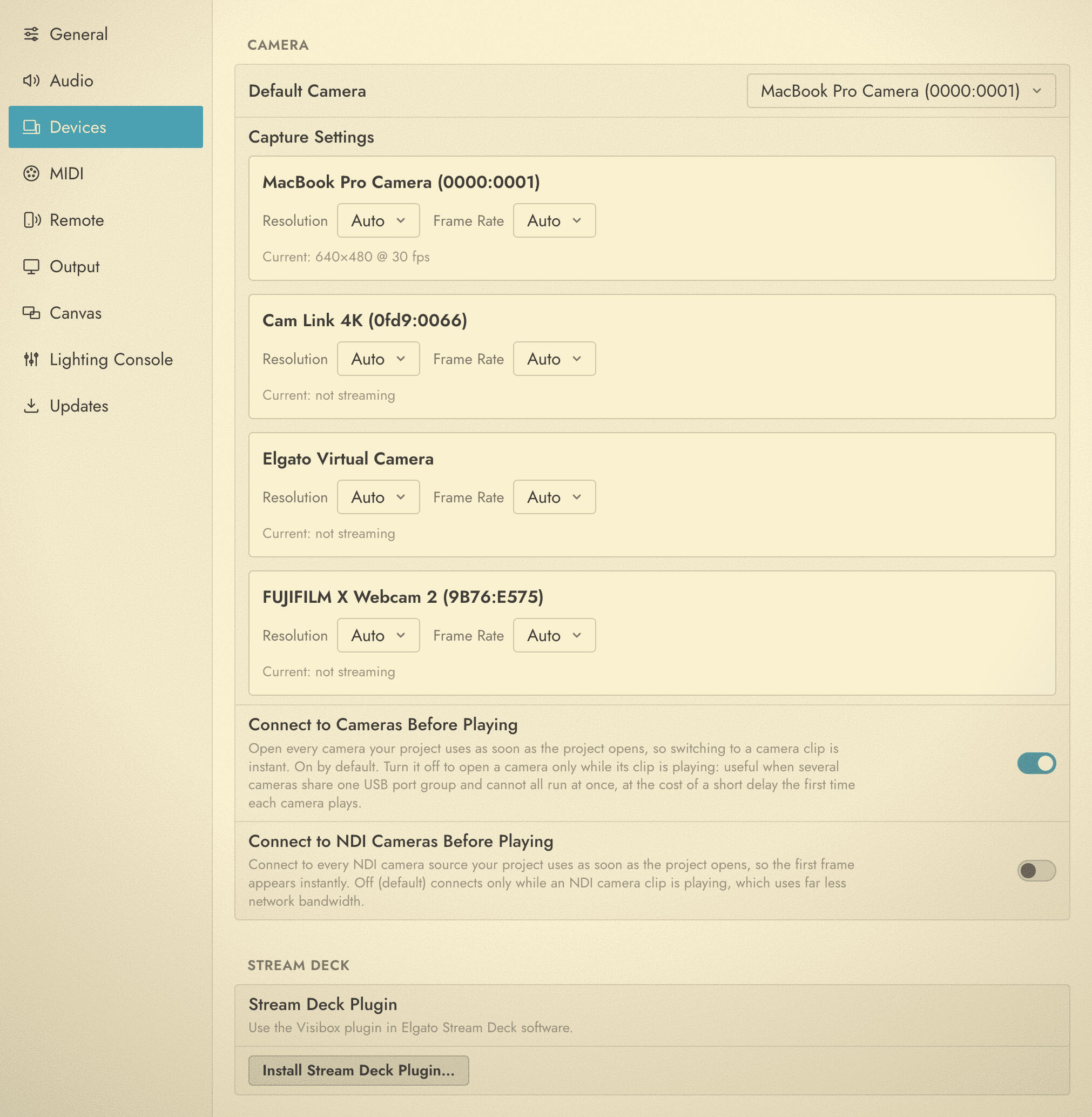
Default Camera picks which camera or capture device new Camera Clips use. Every connected USB camera and HDMI capture adapter appears in the list. If nothing is connected, the section reads “No cameras found”.
Under it, Capture Settings gives each connected camera its own two controls.
| Control | What it does |
|---|---|
| Resolution | 4K UHD (3840×2160), 1440p, 1080p, 720p or 480p, or Auto to let the camera decide. |
| Frame Rate | 60, 30 or 24 fps, or Auto. |
Visibox asks the camera what it can do and only offers the presets it actually supports, so a 1080p webcam does not list 4K. Next to each camera is a Current: readout of what the camera is really sending, as width × height @ frame rate. It reads “not streaming” until something is using that camera.
Auto is not the same as a preset. Auto removes the override entirely and lets the camera pick, which is usually what you want unless a capture device is negotiating a resolution you do not like.
Two switches decide when Visibox connects to cameras:
| Setting | What it does |
|---|---|
| Connect to Cameras Before Playing | On by default. Opens every camera the Project uses as soon as the Project opens, so switching to a Camera Clip is instant. Turn it off to open a camera only while its Clip is playing. That costs a short delay the first time each camera plays, but it helps when several cameras share one USB port group and cannot all run at once. |
| Connect to NDI Cameras Before Playing | Off by default. Connects to every NDI camera source the Project uses as soon as the Project opens, so the first frame appears instantly. Left off, Visibox connects only while an NDI Camera Clip is playing, which uses far less network bandwidth. |
See Connecting Cameras & Video Inputs for getting a camera into a Song in the first place.
Stream Deck
Visibox drives an Elgato Stream Deck through the official Visibox plugin, running inside Elgato’s own Stream Deck software. See Elgato Stream Deck for how the plugin works, its actions, and what changed from Visibox 5’s built-in mode.
Click Install Stream Deck Plugin… to install it. Elgato’s software has to be installed first, since it is what opens the plugin file. If the install cannot go through, Visibox says why underneath the button.