File Menu
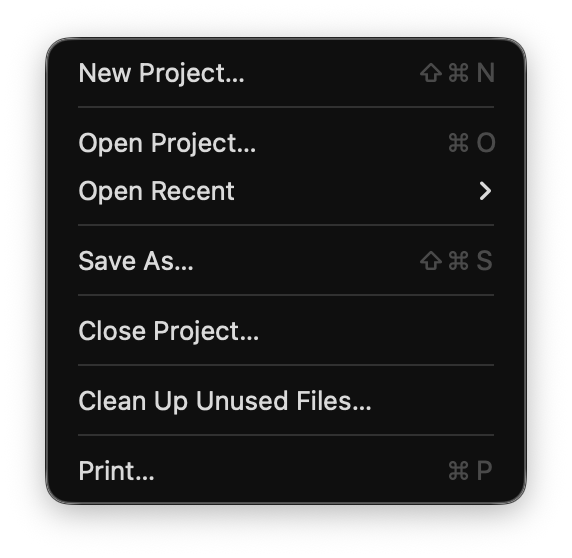
Start a new Project. Visibox asks for a name and a location. The default location is your Documents folder, but you can choose any location on your computer or an external drive.
Open an existing Project. Visibox asks you to select a Project file.
Recent Projects are listed here. Choose Clear Menu to clear the list.
Save the current Project to a new location, media files and all. Use it to make a new version of the current Project, or to move a copy onto another drive.
Closes the current Project.
Clean Up Unused Files… acts like Empty Trash: it deletes media the Project no longer uses, to save space. Visibox keeps removed files until then, so Undo can still bring them back.
Print a Setlist for your Project: the Project name at the top, the running order in large type, and each Song’s Clips beside it as numbered thumbnails. A Song never breaks across a page, and nothing is left off because it was scrolled out of sight in the Controller. Print a copy for everyone in the band, including whoever runs sound.