Setlists
A Setlist is a saved running order of the Songs in a Project. One Project can hold as many Setlists as you like, so a single Project can carry your headline set, your acoustic set, and the wedding version of the same material without duplicating anything.
The Songs live in the Project. A Setlist only says which of them appear, and in what order.
The active Setlist
One Setlist is always active. The Controller window’s Song list is the active Setlist: the Songs in it, in its order. Switch Setlists and the Song list changes to match.
Songs left out of the active Setlist are still in the Project. They are hidden from the Controller until you add them back or switch to a Setlist that includes them.
Every Project has at least one Setlist. A Project made in an earlier version of Visibox gets one named Default the first time you open it, holding the Song order it already had.
Switching Setlists
Open Project > Setlists. Each Setlist in the Project appears as a radio item at the top of the submenu. Choose one to make it active.
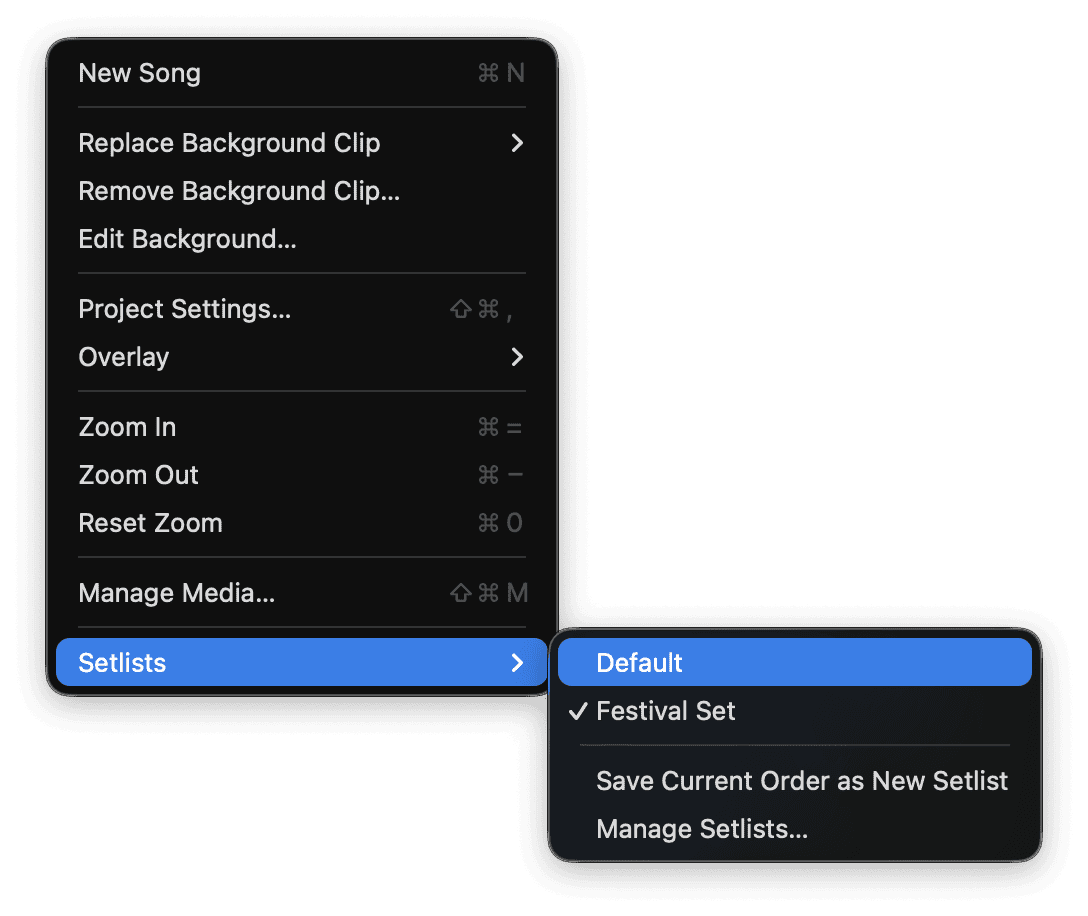
Two actions sit below the list:
- Save Current Order as New Setlist takes the Song list exactly as it stands and saves it as a new Setlist, then makes it active. Visibox names it for you (Setlist 2, Setlist 3, and so on). It is the fastest way to keep a running order you have finished dragging into shape.
- Manage Setlists… opens the Setlists window.
The Setlists window
Project > Setlists > Manage Setlists… opens a window titled with your Project name followed by “Setlists”. Everything about Setlists that is not a straight switch happens here.
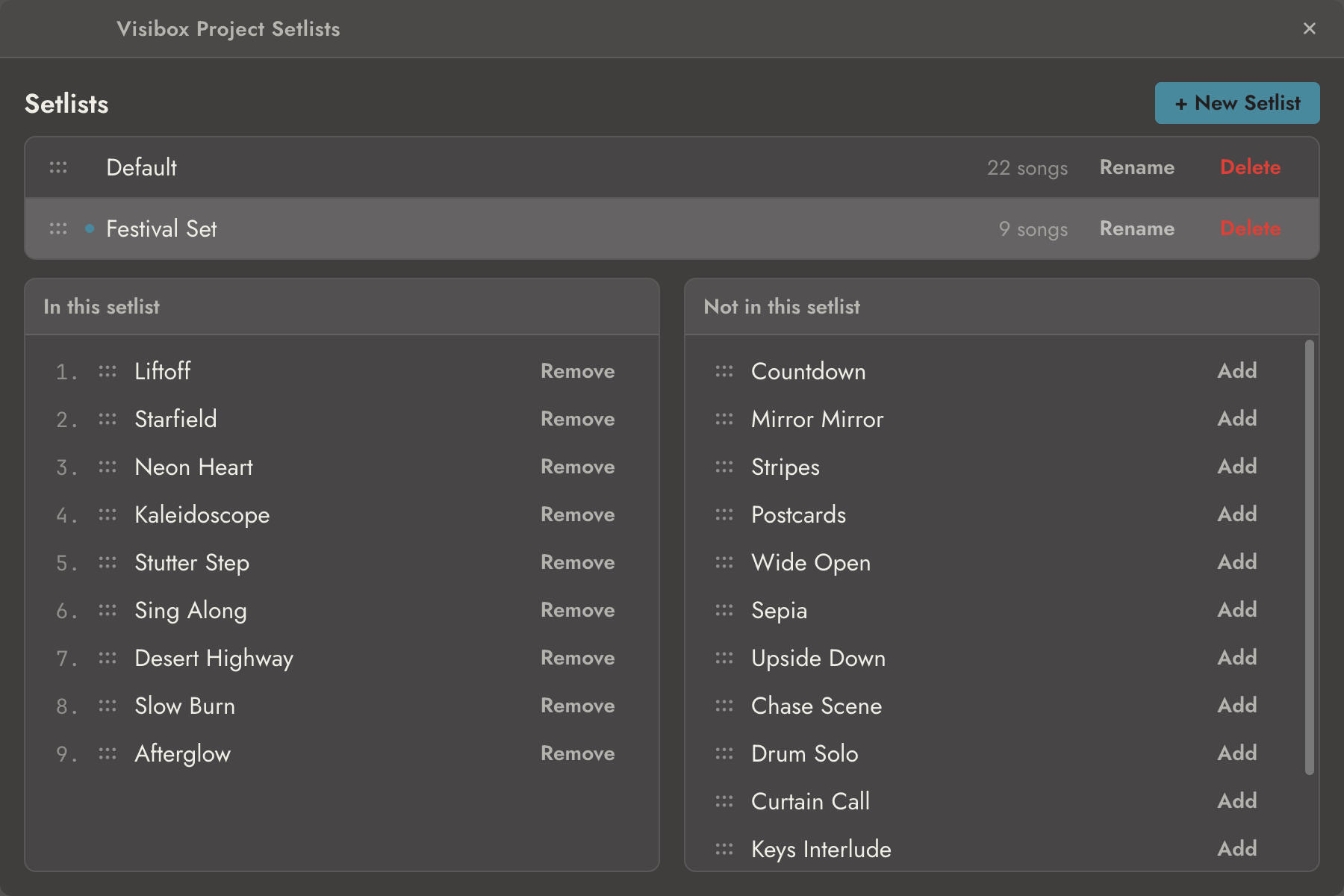
The window opens centered over the Controller window. Press ⎋ or click the close button to dismiss it.
Managing the Setlists themselves
The list of Setlists shows each one with the number of Songs it holds. The active Setlist is marked.
- Click a Setlist to activate it. The Song columns update immediately.
- + New Setlist creates a Setlist from the current Song order and drops straight into renaming it.
- Rename puts the name into an edit field. Press ⏎ to keep the new name or ⎋ to cancel. You can also double-click the name.
- Delete removes the arrangement. Visibox asks first, and the confirmation reminds you that the Songs themselves stay in the Project. You can take it back with Edit > Undo.
- Drag a Setlist by its grip to change the order of the list.
Visibox will not delete your last Setlist. When only one is left, the Delete button is unavailable, and hovering it explains why.
Adding and removing Songs
The two columns to the right of the Setlist list are In this setlist and Not in this setlist. Between them they account for every Song in the Project.
- Drag a Song from right to left to add it to the active Setlist. Drop it where you want it to land in the running order.
- Drag a Song from left to right to take it out of the Setlist. The Song stays in the Project.
- Drag within the left column to reorder the running order.
- Add and Remove buttons on each row do the same thing without dragging. Add appends to the end of the Setlist.
Drag across several Songs to select them as a block, then drag the block between the columns in one go. The columns scroll as you drag past their edges, so a long Song list does not need two hands. A block move counts as one step, so Edit > Undo puts the whole selection back at once.
When every Song in the Project is already in the active Setlist, the right column reads “Every song in the project is in this setlist.”
Setlists and the rest of the Project
- Adding a Song to the Project adds it to the active Setlist. Songs you add while one Setlist is active are not automatically in the others.
- Reordering Songs in the Controller window (dragging a Song frame, or ⌘↑ and ⌘↓) changes the active Setlist’s order. See Adding Songs.
- Deleting a Song removes it from the Project and from every Setlist that used it. To take a Song out of one running order without losing it, remove it from the Setlist instead.
Build one Project holding everything you play, then make a Setlist per night. Reordering on the fly during a show changes only the Setlist you are in, so last night’s running order is still there in the morning.