Audio Settings
The Audio tab is where you tell Visibox which device to play out of, how many channels to use, and which input feeds audio-reactive Visualizers and Effects.
This page is the control reference. For how multichannel playback, stem files, metering, and ASIO output actually work, see Audio.
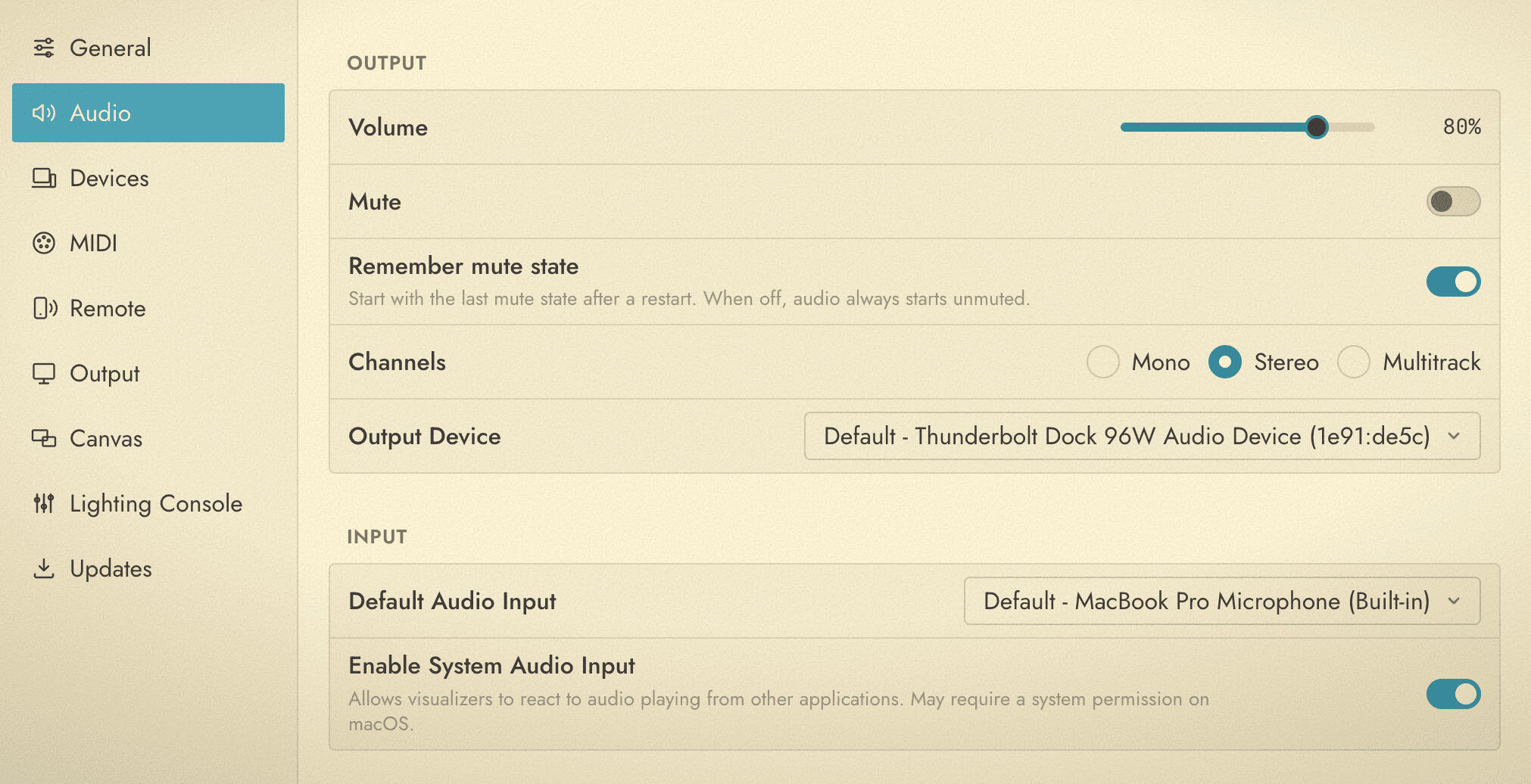
Output
| Setting | What it does |
|---|---|
| Volume | Master output level, shown as a percentage. Moving the slider while muted unmutes. |
| Mute | Silences all output while holding the volume slider in place, so you can see where the level returns to when you unmute. |
| Remember mute state | When on, Visibox starts with the mute state you left it in. When off, audio always starts unmuted. |
| Channels | How Visibox maps audio onto your interface: Mono, Stereo, or Multitrack. The same three modes appear on the Control Bar, where Multitrack reads “Multichannel”. |
| Output Device | Which audio device Visibox plays through. The list holds the output devices your operating system reports, and the first entry follows the output chosen in your system settings. If Visibox finds none, the row reads “No audio output devices found”. |
Volume and Mute are also on the Control Bar, and both have keyboard shortcuts.
⇧⌘> for Volume Up, ⇧⌘< for Volume Down, and ⇧⌘L for Mute.
If you have an external audio interface for the show, set Visibox to that interface and leave your system output on the built-in speakers. System notifications and alerts then stay off the front-of-house feed.
ASIO interfaces on Windows
ASIO interfaces are picked from the Control Bar rather than from the Output Device list above. Click the output level meter at the right of the Control Bar to open a menu listing every output device. Your ASIO interfaces appear below the operating system’s own devices. Turn on Settings > General > Enable Beta Features to see them. See Audio for what changes while an ASIO device is active.
Input
| Setting | What it does |
|---|---|
| Default Audio Input | The input device Visualizers and audio-reactive Effects listen to when they are set to follow a live input. If Visibox finds none, the row reads “No audio inputs found”. |
| Enable System Audio Input | Lets Visualizers and Effects react to audio playing from other applications on your computer as well as audio inside Visibox. On macOS this needs a system permission. |
See Visualizers and Effects for what each one does with an audio source.