Edit Menu
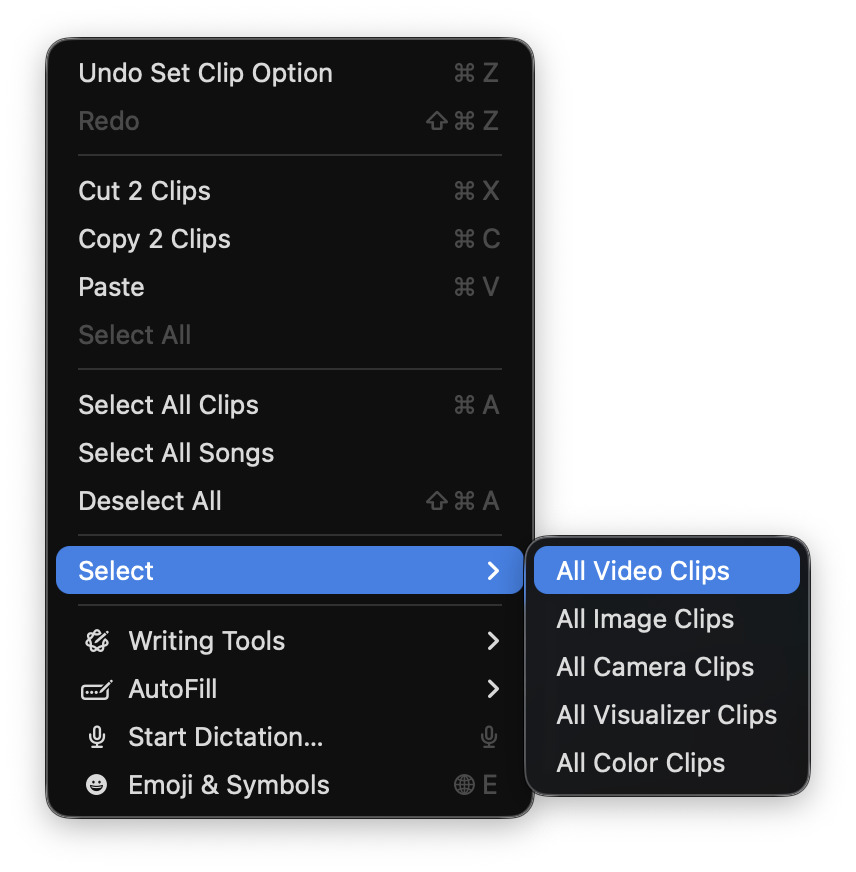
The Edit menu holds Undo and Redo, the clipboard, and the selection tools for working on many Songs and Clips at once.
Cut, Copy, and Paste do one of two jobs depending on where you are. In a text field (a Song title, the Timeline Editor) they edit text, the way they do in any app. Everywhere else they act on whatever you have selected in the Controller window, and the menu rows rename themselves to say so.
Reverse the last action. The row names what it will undo, as in “Undo New Song” or “Undo Move Clip”.
Put back an action you undid. The row names it.
Remove the selection and put it on the clipboard.
With no text field focused, this cuts your Controller selection, and the row names it: Cut Clip, Cut 3 Clips, Cut Song, Cut 2 Songs. With nothing selected it stays a plain, unavailable Cut.
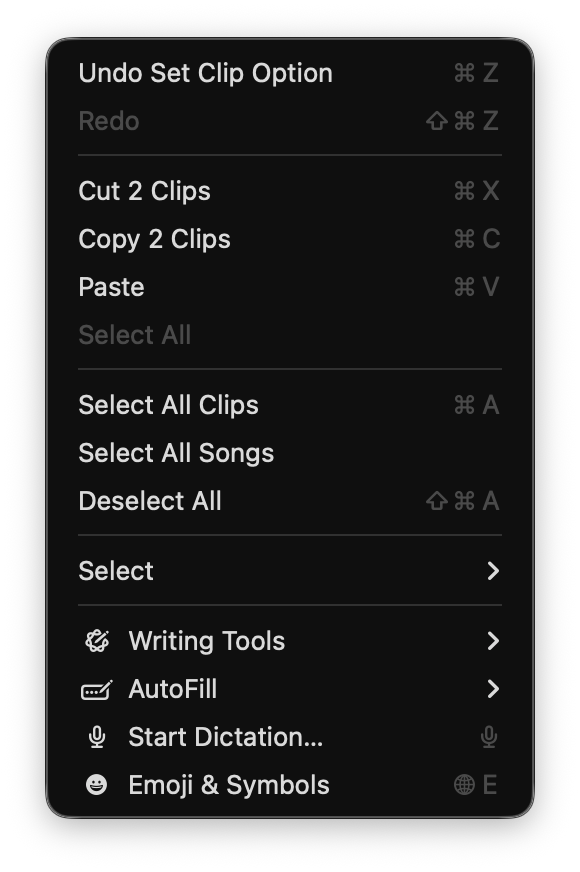
Copy the selection to the clipboard without removing it. It renames itself the same way: Copy Clip, Copy 4 Clips, Copy Song, Copy 3 Songs.
Paste the clipboard. The row names what is on it: Paste Clip, Paste 2 Clips, Paste Song, Paste 3 Songs.
Clips paste into the active Song. Songs paste into the Project.
Paste also brings in files copied in Finder or File Explorer. When the newest thing on the system clipboard came from another app, Visibox imports it instead of pasting its own Clips.
Moving Songs and Clips between Projects
Copy in one open Project and paste in another. The media files come with what you paste, so nothing is left pointing at the Project you copied from. Large videos take a moment.
Dragging works too: drag a Song by its handle, or a Clip by its grip, from one Project’s Controller window into another.
Select all the text in the text field you are editing. Outside a text field the row is unavailable. To select Clips, use Select All Clips.
Select every Clip in the Project.
Select every Song in the Project.
Clear the selection.
The Select submenu picks Clips by type, across every Song.
Select only Video Clips.
Select only Image Clips.
Select only Camera Clips, including HDMI video inputs.
Select only Visualizer Clips.
Select only Color Clips.
Select is built for batch work. To drop every Color Clip from a Project, choose Edit > Select > All Color Clips, then press Delete. To retune a whole set of Clips at once, select them by type and open the Clip Editor Panel.