Edit Menu
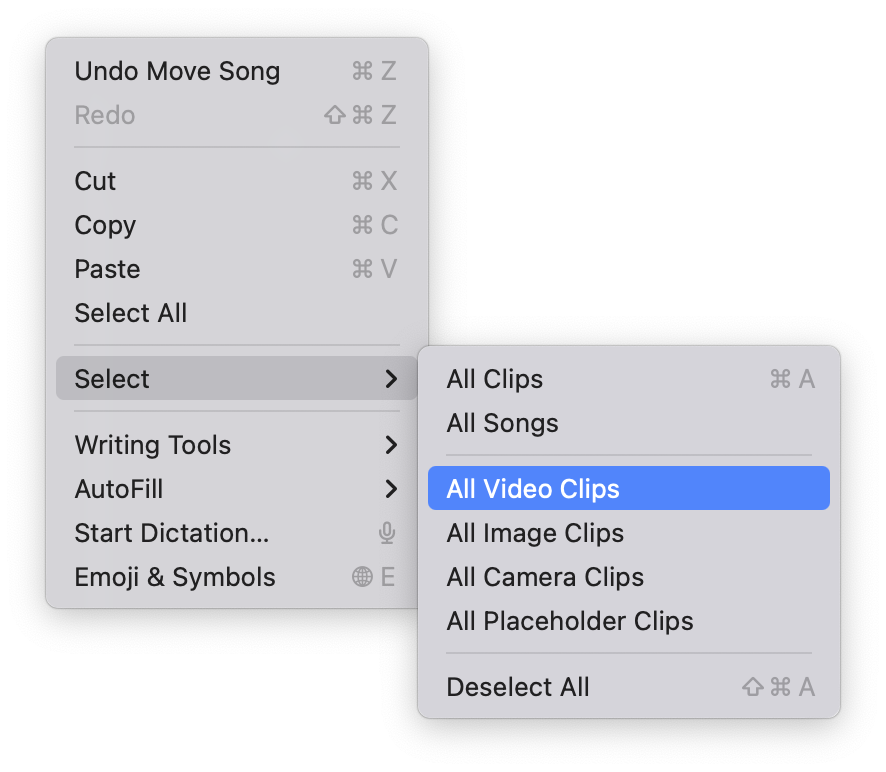
The Edit menu provides standard editing operations like Undo, Redo, Cut, Copy, and Paste. It also includes powerful selection tools for working with multiple Songs and Clips at once.
Reverses the most recent action. The menu item shows what will be undone (e.g., “Undo Add Song” or “Undo Move Clip”).
Restores an action that was undone. The menu item shows what will be restored.
Removes the selected text (when editing a Song title) and places it on the clipboard.
Copies the selected text or Clips to the clipboard.
Pastes the contents of the clipboard. When working in the Controller window, you can paste Clips that were previously copied.
When editing text (such as a Song title), this selects all the text. When working in the Controller window, this selects all Clips in the Project.
The Select submenu provides options for selecting multiple items at once:
Selects every Clip in the Project. This is the default behavior of ⌘A when you’re not editing text.
Selects every Song in the Project.
Selects only video Clips throughout the Project.
Selects only image/still Clips throughout the Project.
Selects only camera/webcam Clips throughout the Project.
Selects only placeholder Clips throughout the Project.
Clears the current selection, deselecting all Songs and Clips.
The Select submenu is useful for batch operations. For example, to delete all placeholder Clips from your Project, choose Edit > Select > All Placeholder Clips, then press Delete.