Play Menu
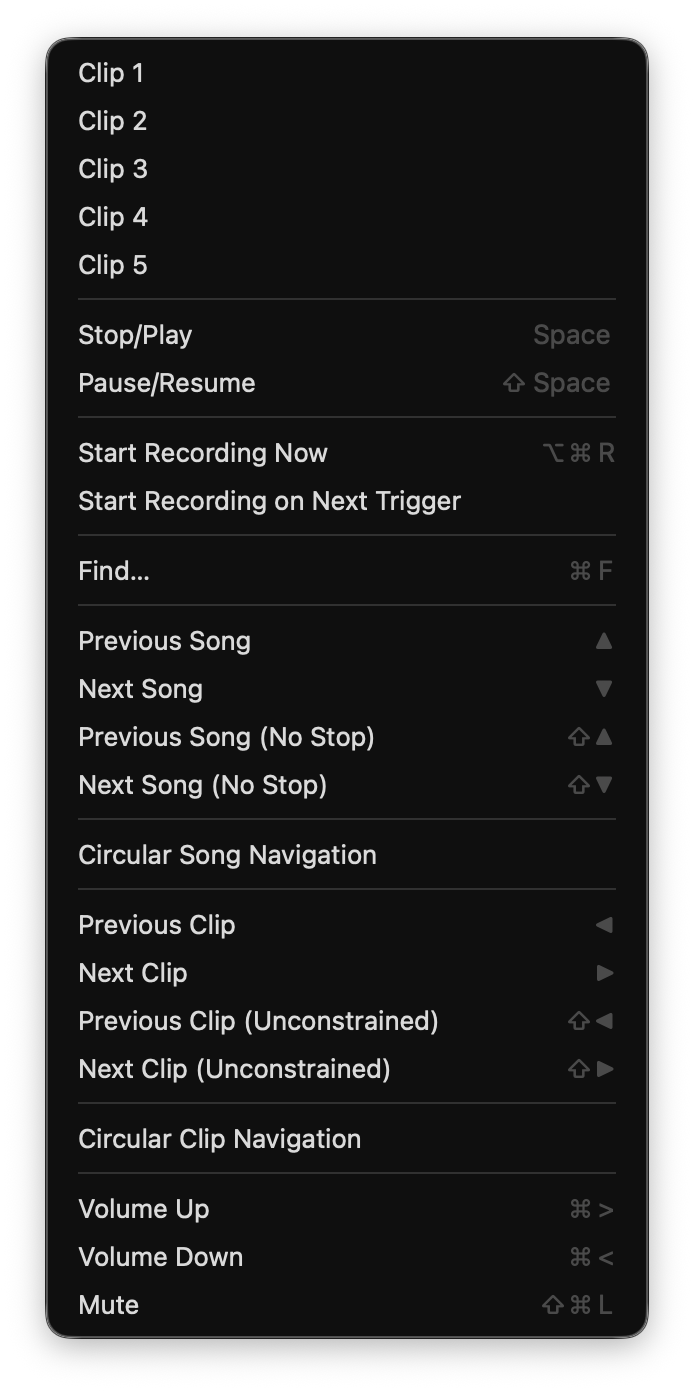
The Play menu is the menu-bar route to the Clip and Song playback functions you will mostly reach with the keyboard or a MIDI controller.
Clips are triggered with the number keys, or by MIDI. The 1 key triggers the first Clip, 2 the second, and so on. Keys 6 through 9 trigger their Clips too, though those rows are hidden in the menu. These items are here as an alternative when the keys are not available.
A Clip whose Launch Mode is Gate plays only while its number key is held, and stops when you let go.
With nothing playing, the space bar starts the first Clip of the current Song. With a Clip playing, it stops it. That makes the space bar a quick way to say stop without jumping to another Song. ⇧Space pauses the current Clip and resumes it.
The space bar is handy when you are using Visibox mainly for backing tracks. Most Songs then have a single Clip, and the space bar gets the track going or stops it if something goes wrong.
Recording
These rows record the Output to a file. Which ones you see depends on what recording is doing right now. The main row of each state is on ⌥⌘R, so the one shortcut starts a recording and stops it again. Start Recording on Next Trigger has no shortcut of its own.
Starts recording the Output immediately.
Arms the recorder. Nothing is written until the next Clip is triggered, so the file starts on your first cue rather than on the click that set it up.
Disarms a recorder that is waiting for a trigger. Appears in place of the two rows above once recording is armed.
Ends the recording and writes the file. Appears while recording is running.
The Controller’s control bar has a Record button that does the same thing.
Opens the Find box in the Control Bar so you can search for and jump to any Song or Clip in the Project. See Find.
These move between Songs, though the arrow keys are usually easier. Previous Song (↑) and Next Song (↓) cue the neighbouring Song and stop whatever Clip is playing. Hold shift to cue the next Song without stopping the current Clip.
You can also click a Song to select it. Shift-clicking selects it without stopping anything.
With this on, Next Song from the last Song wraps around to the first, and Previous Song from the first Song wraps to the last.
The number keys and MIDI give you any Clip in the current Song at any time. These items step through them instead: Previous Clip (←) and Next Clip (→) stay inside the current Song. Hold shift to step past its edges into the neighbouring Songs.
With this on, Next Clip from the last Clip wraps around to the first, and Previous Clip from the first wraps to the last. It also applies to End Action, so a last Clip set to Start Next Clip plays the Song’s first Clip when it finishes.
Raises the master output level a step.
Lowers the master output level a step.
Mutes and unmutes all audio output. The volume slider keeps its position while muted, and moving it unmutes.
These three rows sit after a separator at the end of the menu. In Visibox 5 they were in the Application menu’s Settings submenu.