Song Timeline
A Song Timeline is a list of cues attached to one Song. Each cue says when something should happen and what should happen. Visibox runs the list as the Song plays, so clips switch, the output level rides, and MIDI goes out to your rig without anyone touching the Controller.
Timelines suit a set you play the same way every night. If you want to stay hands-on, ignore them. A Song with no timeline behaves exactly as it always has.
Opening the Timeline Editor
Select a Song, then choose Song > Edit Song Timeline… (Beta). The same row is in the Song’s right-click menu.
Turn on Settings > General > Enable Beta Features to see this.
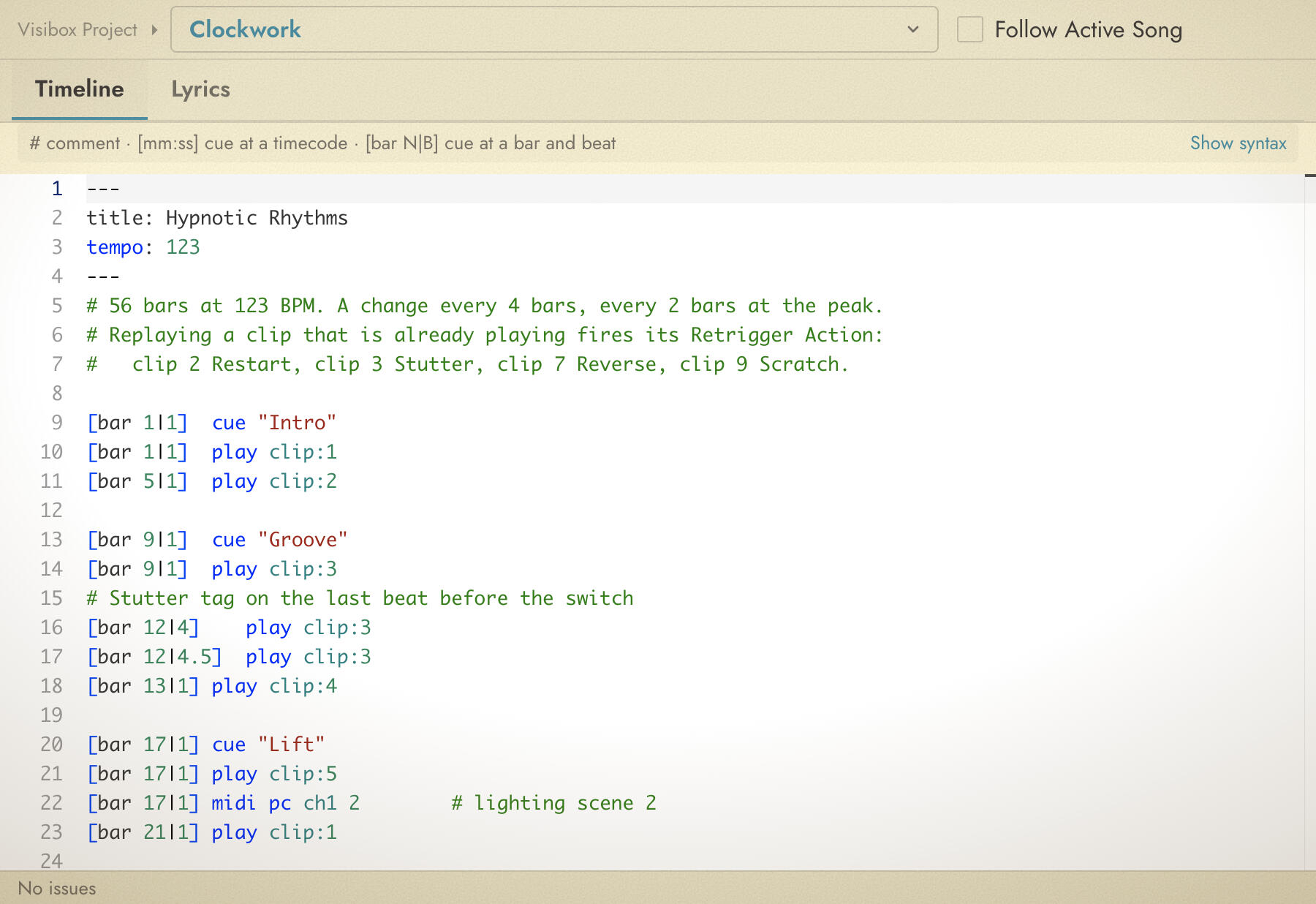
Across the top of the window is a breadcrumb showing which project and which Song you are editing. Both are pop-up menus, so you can move to another Song without closing the window. Next to them is a Follow Active Song checkbox. Turn it on and the editor re-binds itself as you move around the Controller, which is the mode you want while you are building a set.
The window has two tabs: Timeline and Lyrics. This page covers the Timeline tab. The Lyrics tab is covered on the Lyrics page.
Saving
There is no Save button. Visibox writes your edits back into the Project about half a second after you stop typing, and the status bar reads Saving… and then ✓ Saved as it goes. Press ⌘S to save at once, and closing the window or moving to another Song saves immediately.
Because a pause in typing becomes one checkpoint rather than one per keystroke, Edit > Undo steps back through meaningful edits instead of single characters.
How a Timeline Runs
A timeline is anchored to the Song, and the Song starts when you trigger one of its clips. Every timecode in the list is measured from that moment. Cues written for a point you have already passed do nothing.
The timeline is an assistant, not an autopilot. You still call the top of the Song. Everything after it can be written down.
Writing Cues
Every line is one cue: a trigger in square brackets, then an action.
[00:24] play clip:2
[01:12] midi cc ch1 1 90
[on song end] next song
Lines beginning with # are comments and are ignored, and a # part-way through a line comments out the rest of it. Blank lines are fine. Cue order is free, because the trigger decides when a cue fires, not its place in the list.
A Song with no timeline yet opens with a starter document. Every line in it is commented out, so it does nothing until you delete a #. It is the fastest way to see the shapes without leaving the window.
One bad line stops the whole timeline. Visibox will not run a document that contains an error, and the status bar says so: it reads Timeline won’t run until fixed next to the error count. Check that the status bar is clean before you rely on a timeline in a show.
Triggers
| Trigger | Fires |
|---|---|
[mm:ss] | At a point measured from the start of the Song. |
[mm:ss.fff] | The same, to the millisecond. |
[90] | A plain number of seconds from the start of the Song. |
[+secs] | A number of seconds after the previous timecode cue. |
[bar B|BT] | At a bar and beat, counted by the timeline’s tempo. [bar 33|1] is the first beat of bar 33. |
[on song start] | When the Song starts. |
[on song stop] | When the Song is stopped. |
[on song end] | When the Song reaches its end. |
[on play clip:N] | When Clip N starts playing, whatever started it. |
[on stop clip:N] | When Clip N stops. |
The on play and on stop triggers are the useful ones for a set that does not run to a fixed clock. Write the reaction once and it fires whether the Clip was launched by the timeline, by a pad, or by your hand on the Controller.
[+secs] counts from the last timecode cue above it, so it needs one. A [+5] with no timecode cue before it is an error.
Clip numbers count from 1, in the order the Clips appear in the Song. You can also write a Clip’s ID in place of the number.
Bar cues count by the timeline’s tempo, set with the tempo action, usually at [00:00]. With no tempo set, bar cues fall back to 120 BPM in 4/4, and the editor points that out.
Playback actions
| Action | What it does |
|---|---|
play | Start playback. |
play clip:N | Play Clip N in this Song. |
stop clip:N | Stop Clip N. |
stop all | Stop everything that is playing. |
pause | Pause playback. |
resume | Resume from a pause. |
next clip / prev clip | Move to the next or previous Clip. |
next song / prev song | Move to the next or previous Song. |
activate song:N | Select the Song in the current Setlist whose Program Identifier is N. |
activate song-id:<id> | Select a Song in the current Setlist by its ID. |
output-level 0-1 | Set the master output level, where 0 is off and 1 is full. |
tempo <bpm> | Set the tempo that [bar] cues count by, from this line on. |
panic | Reload every Visibox window. |
activate song:N matches the Program Identifier you set on the Song, not its position in the list. That is the same number a MIDI Program Change uses, so a timeline and a foot controller can call the same Song by the same number. See Using MIDI.
Both activate forms look in the current Setlist. A Song that is not in the Setlist you are running cannot be called this way, and the editor flags the line as an error.
MIDI actions
A timeline can send MIDI out. This is how you drive a synth’s patch, a lighting desk’s cue, or a sampler hit from the same list that drives your visuals.
| Action | What it sends |
|---|---|
midi pc ch<n> <program> | A Program Change on channel n. |
midi cc ch<n> <cc> <value> | A Control Change: controller number and value. |
midi noteOn ch<n> <pitch> <vel> <dur?> | A note on, with velocity. The duration in seconds is optional. |
midi noteOff ch<n> <pitch> | A note off. |
midi pitchBend ch<n> <value> | Pitch bend, 0 to 16383, centered at 8192. |
midi channelPressure ch<n> <pressure> | Channel aftertouch. |
midi polyPressure ch<n> <pitch> <press> | Aftertouch on one note. |
midi sysex <hex> <hex> … | A System Exclusive message. Start it F0 and end it F7. |
The channel is written ch1 through ch16, and the ch is required. Data values run 0 to 127. Pitches are written either as note names (C3, F#2, Eb-1) or as a plain number from 0 to 127. Note names follow the same numbering as the MIDI Monitor, where C3 is note 60. Keywords are case sensitive: noteOn, not noteon.
[00:00] midi pc ch1 12
[00:24] midi cc ch1 1 90
[01:12] midi noteOn ch2 C3 100 0.5
MIDI goes out of the default port unless you name one. To pick a port for a single cue, put out: and the port name in quotes straight after midi:
[00:00] midi out:"loopMIDI Port 1" pc ch1 12
See Using MIDI for setting up ports.
Syntax Help in the Window
The bar under the tabs shows a one-line reminder of what a cue looks like. Click Show syntax to open the full reference: the triggers, the playback actions, and the MIDI actions, in a grid you can leave open while you write. Click Hide syntax to close it again.
Errors and Warnings
Visibox checks the document as you type. Bad lines get a red underline and a marker in the left margin, and hovering one tells you what is wrong.
The status bar at the bottom reads No issues when everything parses. When it does not, it shows a count and the reminder that the timeline will not run. Click the count to jump the cursor to the first error.
Warnings are different from errors. A document with warnings and no errors still runs.
Jumping and Scrubbing
If you seek the Song forward, the cues you skipped over do not fire. Seeking backward re-arms them. Pausing cancels anything a cue had scheduled, and resuming picks up from where the Song is, without re-firing the Song’s start reaction.
A Worked Example
A Song that runs itself from the timeline below:
- Sends a patch change to the keyboard rig on the downbeat.
- Moves to the band camera at the first chorus.
- Dims the output for the outro.
- Rolls into the next Song by itself.
# Opening
[00:00] midi pc ch1 12

# Chorus
[01:12] play clip:2
[01:12] midi cc ch1 1 90

# Outro
[03:40] play clip:3
[03:40] output-level 0.6

# Roll on
[on song end] next song
Editing a Timeline from Elsewhere
An AI assistant connected to Visibox can read and write a Song’s timeline in plain language, which is often quicker than typing cues by hand. See AI Assistants. Anything it writes appears in the Timeline Editor as it happens if the window is open, and Edit > Undo rolls it back.
Tips
Build the timeline with Follow Active Song on and the Controller beside the editor. Trigger the Song, watch it run, and fix the cue that landed wrong while the Song is still going.
Comment a cue out with a # rather than deleting it. That is the quickest way to take one line out of a show without losing the wording you want back tomorrow.
See Also
- Adding Songs for attaching the Song audio a timeline runs against.
- Using MIDI for MIDI ports, Program Identifiers, and Program Change.
- AI Assistants for writing timelines in plain language.