Visualizers
Visualizers are live, generative, audio-reactive Clips: a built-in VJ engine that needs no media files. Visibox runs two engines, ISF and MilkDrop, each with its own history and its own look.
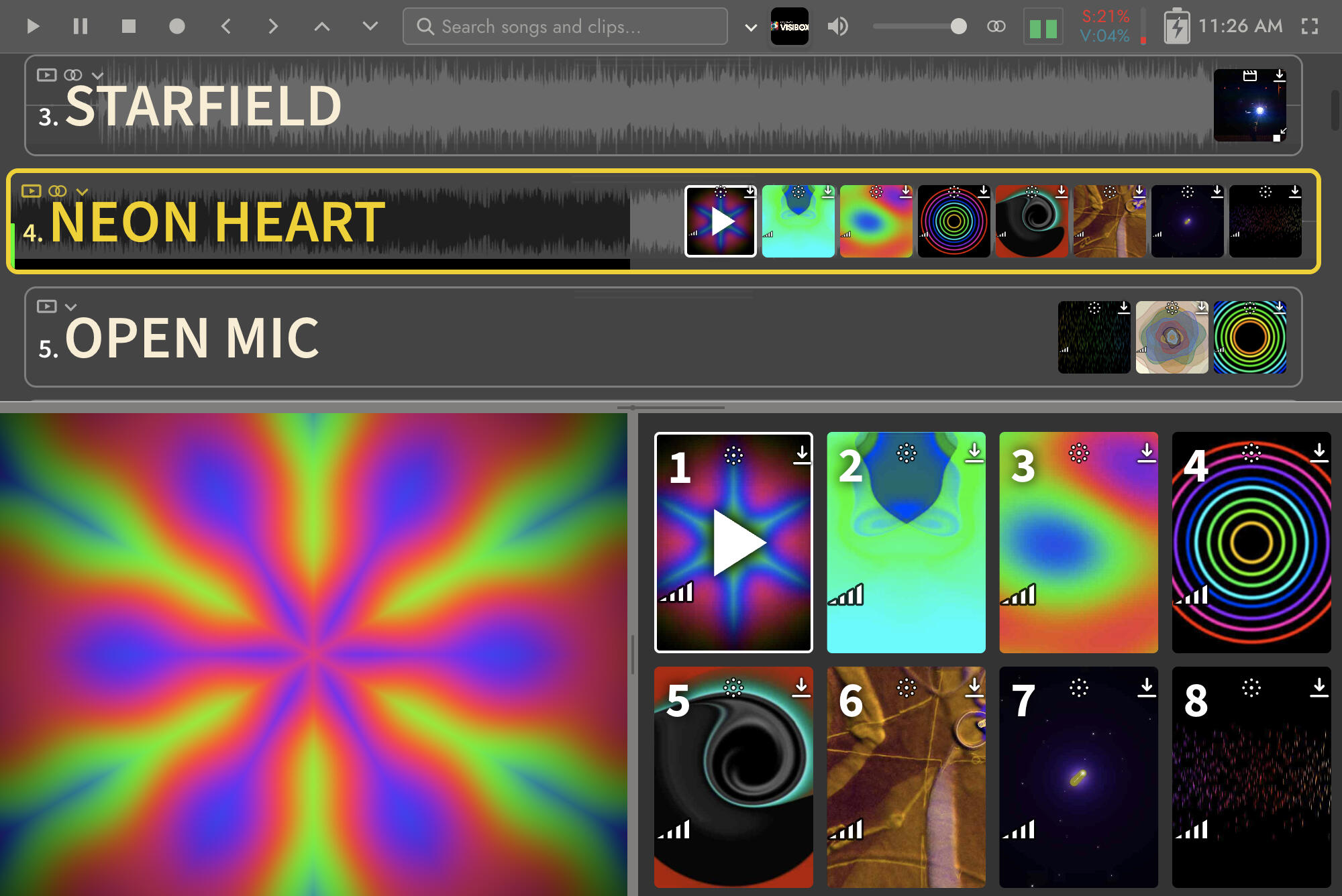
Adding a Visualizer Clip
- Right-click a Song and choose Add Visualizer Clip.
- A dialog lists the available presets. Browse or search for one you like.
- Select it and click Add. The Clip appears in the Song alongside your others.
You can also drag a preset straight out of the Visualizers editor onto a Song in the Controller, or right-click a preset there and choose Add to Active Song.
Visualizer Clips carry a distinctive icon () on their thumbnail so you can tell them from video and image Clips.

Visualizer Clip options
Right-click a Visualizer Clip for its options.
Audio Source
Every Visualizer Clip picks the audio it reacts to, and so does an Audio Clip once you pair a Visualizer with it. Any other Clip gets the same row once it carries an Effect.
The options are the same wherever the row appears: None, This Clip (Audio Clips only), Visibox (the default), System Audio, or a named input device. See Audio Source in Effects for what each one listens to and when System Audio appears.
Tweak
Below the preset picker is a Tweak row holding the parameters this preset exposes. Values you set there belong to this Clip alone, so two Clips built from the same preset can look completely different. The row shows how many parameters this Clip has changed.
ISF presets declare their own inputs, so most of them have something to tweak. A MilkDrop preset declares no inputs at all, so a Clip running one shows no Tweak row.
ISF (Interactive Shader Format)
ISF was created by Vidvox in 2013 for their VDMX VJ software. The goal was a portable, reusable format for GLSL fragment shaders, the same low-level GPU programs used in game engines and creative coding tools. It gave shader authors a standard way to declare inputs, audio reactivity, and multi-pass rendering. It is now an open standard supported across a range of VJ tools.
ISF is a blank canvas. Anything you can describe mathematically can become a Visualizer, from a clean spectrum analyzer to a deep feedback loop. Typed inputs and a structured editor make it the more approachable of the two engines to write and adjust.
Finding more ISF presets
Because ISF is an open standard you do not have to build everything yourself. The ISF website and the ISF editor are good starting points, and shader collections turn up regularly on Shadertoy and in public code repositories. Drag a .fs, .frag, or .json file into the Visualizers editor and Visibox imports it into My Visualizers, converting it to its own format on the way in.
Editing ISF presets
The ISF documentation is the reference for the format.
| Tab | What it is |
|---|---|
| Preset Defaults | The input values every Clip starts from. A Clip’s own Tweak values override them. |
| ISF Shader | A full code editor for the GLSL fragment shader, with GLSL syntax highlighting. |
| Vertex | An optional vertex shader. Leave it blank for the default pass-through. |
| Inputs | Declare typed inputs: numbers, colors, and the audio inputs that hand waveform and frequency data to the shader. |
| Passes | Multi-pass rendering, where each frame can build on the last. |
| Info | Name, description, credits, and categories. Comments in the ISF header sync both ways, so an edit in the code updates the Info tab and back. |
ISF shaders take audio through two input types:
audiofor the raw waveform.audioFFTfor the frequency spectrum.
MilkDrop
MilkDrop was written by Ryan Geiss and released in 2001 as a Winamp plugin, where it became one of the most downloaded plugins ever made. For a generation of music fans it defined what a visualizer was: an endlessly evolving light show driven entirely by the audio.
Presets pair a simple equation language (EEL) for per-frame logic with GLSL shaders for the GPU work, which is what gives them their organic, alive quality. MilkDrop went open source, authors have been writing presets for it for over two decades, and modern implementations bring it to current hardware.
Visibox ships with a curated collection of MilkDrop presets, from classic favorites to recent community work.
Finding more MilkDrop presets
Two decades in, the archive of .milk presets on the web is enormous. Ryan Geiss’s Geisswerks site is the original home of MilkDrop, and large community packs are easy to find. Drag .milk files into the Visualizers editor and Visibox imports them into My Visualizers, converting them to its own format.
Editing MilkDrop presets
| Tab | What it is |
|---|---|
| Base Values | Numeric parameters for overall behavior: zoom, speed, warp, decay, and more. Use the sliders or type values. |
| Per-Frame | EEL equations that run every frame and can modify base values on the fly, so zoom can oscillate on a sine wave or track bass energy. |
| Per-Vertex | EEL equations that run for each vertex in the mesh, creating spatial variation across the screen. |
| Waveforms | Up to four waveform overlays drawing audio shapes. + Add Waveform adds one, up to the four. |
| Shapes | Up to four geometric shapes you can position, scale, and color. + Add Shape adds one, up to the four. |
| Shaders | GLSL code for the warp and comp (composite) passes. This is where the most dramatic effects happen. |
Editing MilkDrop presets calls for some familiarity with EEL or GLSL. The MilkDrop Preset Authoring Guide is the reference.
The Visualizers editor
The Visualizers editor is a tab in the Editor Window. Open it with Visualizers… (⌥⌘V) from the Visibox menu on Mac or the File menu on Windows.
The left panel lists every available preset. The right panel edits the selected one, with a live preview. Drag the divider to resize.
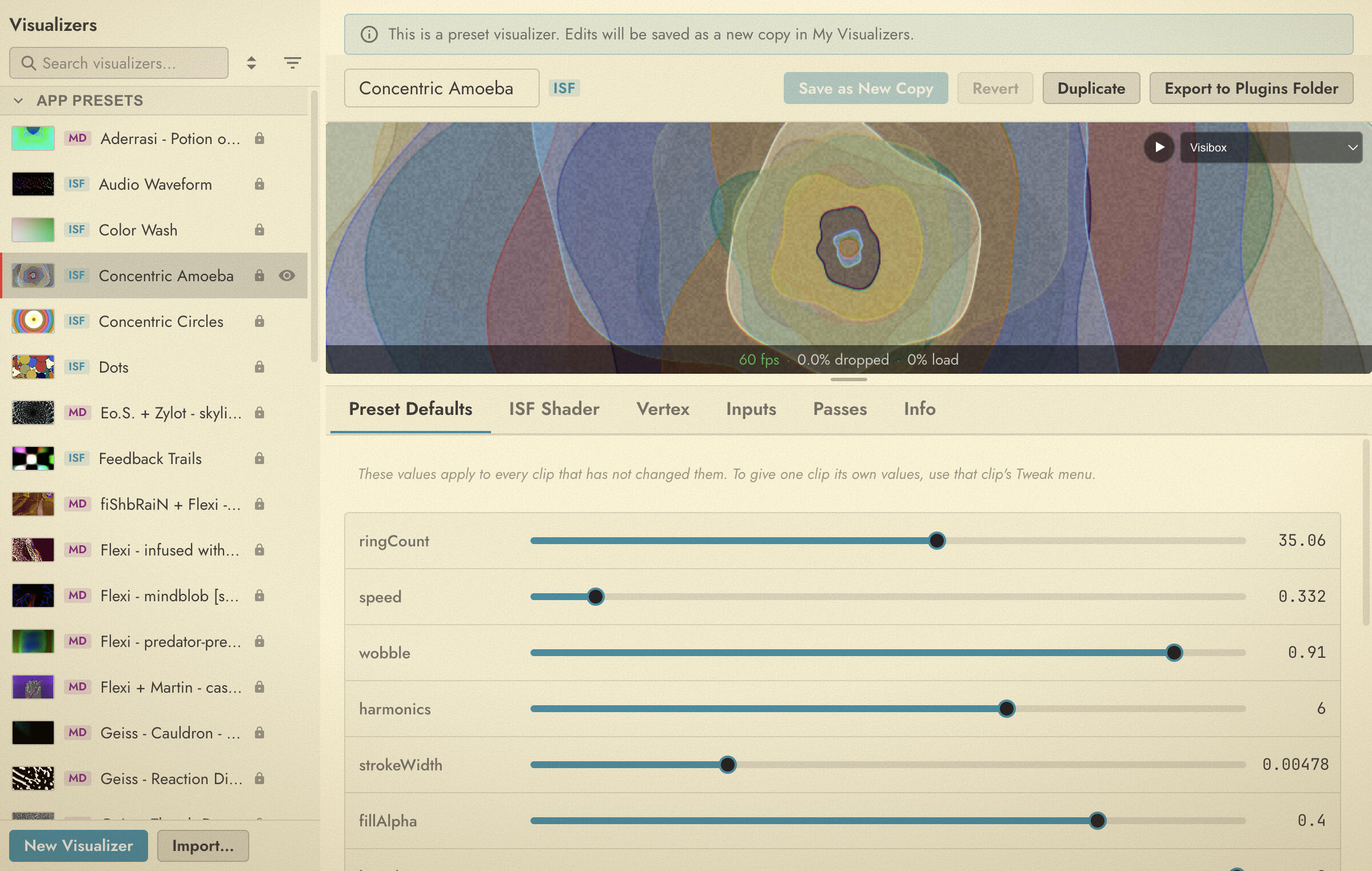
Where presets come from
The list is grouped into four sections:
| Section | What is in it |
|---|---|
| App Presets | The ISF and MilkDrop presets that ship with Visibox. Read-only. |
| Plugins | Presets loaded from your Plugins folder at startup. Read-only. |
| My Visualizers | Presets you created or imported. Fully editable, stored on your machine. |
| Project Visualizers | The copies stored inside the Project you have open. These are what actually run. |
Linked and unlinked
Adding any preset to a Song puts a linked copy in the Project. A linked copy:
- Stays in sync. Update the original in My Visualizers and every Project holding a linked copy picks the change up the next time you open it.
- Cannot be edited in place. Unlink it first.
To unlink, right-click the preset under Project Visualizers and choose Duplicate to My Visualizers. That gives you an independent copy. Changes to it do not touch the original, and changes to the original do not touch it.
Keep presets linked when you want one look across several Projects. Unlink when a particular set needs its own.
Projects are self-contained
Every Project stores a complete copy of its Visualizers, linked ones included:
- Deleting one of My Visualizers will not break a Project. The Project keeps playing from its own copy. Visibox notes that the original source is gone.
- Projects are portable. Your
.vsbxProject carries everything it needs to play back elsewhere.
Browsing
- Search by name.
- Filter by section or by visibility.
- Sort alphabetically or by section.
- Hide presets you never use with the visibility toggle on hover.
Changes to the list can be taken back while the editor tab is showing. Press ⌘Z or use Edit > Undo, and the Edit menu names the step: Undo Hide Visualizer, Undo Show Visualizer, Undo Remove Visualizer and so on.
Audio audition
To hear how a preset responds, hover its preview and click the play button that appears. Visibox plays a test signal so you can judge the audio reactivity before putting the preset in a Project.
Performance readout
The preview carries a performance strip showing frame rate and load for the selected preset. Use it to spot presets that are too demanding for your machine, which matters most in a live show where dropped frames are visible.
Syntax highlighting
The code editors highlight GLSL, HLSL, and MilkDrop’s EEL equation language, which makes complex multi-pass presets much easier to read.
Creating a Visualizer
Click New and choose ISF or MilkDrop. The new preset lands in My Visualizers, ready to edit.
Editing an App Preset or a Plugin is allowed, but saving writes a new copy into My Visualizers rather than overwriting the original. The editor says so before you save.
Importing and exporting
Visibox’s own Visualizer format is .vbvs. ISF and MilkDrop files have to be imported, which converts them to .vbvs. A .vbvs file can be imported or installed as a plugin.
Importing
Drag any supported file into the Visualizers editor. Visibox imports it into My Visualizers, converting anything that is not already .vbvs.
| Format | Extension | Description |
|---|---|---|
| Visibox Visualizer | .vbvs | Visibox’s own Visualizer format. |
| ISF Fragment Shader | .fs, .frag | GLSL fragment shaders in ISF format. |
| ISF JSON | .json | ISF preset bundles with metadata. |
| MilkDrop Preset | .milk | Classic MilkDrop preset files. |
Exporting and installing as a plugin
Right-click any preset and choose Export to Plugins Folder to write it out as a .vbvs file. .vbvs files work on Mac and Windows alike, so this is also how you share your work.
To install a file someone sent you, put it in your Plugins folder:
- Mac:
~/Library/Visibox/Plugins/ - Windows:
%APPDATA%\Visibox Plugins\Plugins\
Plugins load at startup and appear in the Plugins section of the list. The Windows folder moved in 6.0, and Visibox moves what is already there the first time it starts. See Importing and exporting for the detail.
MilkDrop texture compatibility
Some MilkDrop presets reference external texture files that classic MilkDrop loads from a Textures/ folder next to the preset. Visibox does not load external textures, so importing one of those presets raises a Preset Compatibility Warning listing what is missing. The preset still imports and still runs, but anything that depended on a missing texture will not render. If a preset looks wrong after import, a missing texture is the first thing to suspect.