Clip Menu
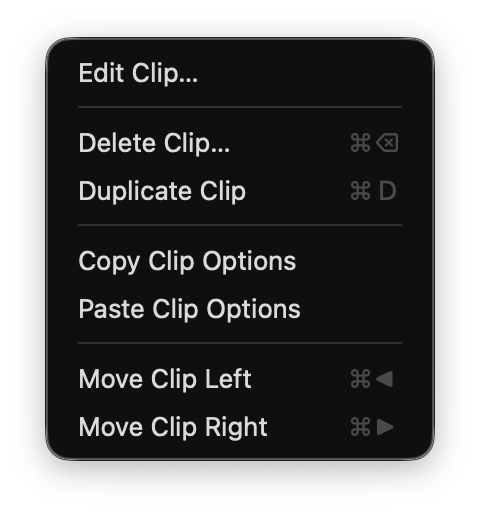
The Clip menu acts on the Clips you have selected in the Controller. It carries the Clip actions and Edit Clip…, which opens the Clip Editor Panel where every Clip setting lives.
The playback options themselves (End Action, Retrigger Action, Resume Action, Direction, Fit Mode, Mute, and the rest) are not in this menu. They are set in the Clip Editor Panel, and each one is explained on Clip Playback Options. Right-clicking a Clip thumbnail opens the panel, and that is the faster route during a show.
When no Project is open, the menu shows a single No Clips Selected row.
Opens the Clip Editor Panel for the selection. This is where you set playback, trim, audio, display, Filters, Effects, Overlay, and Transitions, along with Launch Mode.
It leads the menu because it is the way to every control the rest of the menu cannot draw. See Clip Playback Options for what each setting does.
Deletes the selected Clips. The label counts them, so it reads Delete 3 Clips… with three selected.
Copies the selected Clips into the same Song. All copies share one media file on disk, so a duplicate costs no extra space.
Captures the selected Clip’s settings, without its media. Available with a single Clip selected.
Applies the captured settings to every Clip in the current selection. This is the quick way to make a whole Song behave alike once one Clip is right.
Moves the selected Clips within their Song. Dragging a Clip thumbnail does the same thing, though the Clip tiles play on press, so drag from the grip that appears when you hover a tile.